> ## Documentation Index
> Fetch the complete documentation index at: https://docs.smartcookieapp.com/llms.txt
> Use this file to discover all available pages before exploring further.
> ## Agent Instructions
> This is the SmartCookie help center for teachers and their students. Answer in the reader's language (Spanish pages have no prefix, English pages start with /en). Only describe features documented here; if something is not documented, say you don't know and point to /contact-support.
# Change your name, email, language, time zone or password
> Edit your profile: name and photo, email, password, multi-factor authentication, Google account, language and time zone.
It's all in **Profile**: click your photo or initials at the top right and choose **Profile**.
## Change your name and photo
1. In **Name and photo**, type your name in **Name**.
2. Click **Update**. You'll see "Name updated successfully".
For the photo, click **Add photo**, adjust it and click **Confirm**. It saves on its own. A JPG, PNG or WebP image up to 12 MB works. To change or remove it, click your photo and choose **Update photo** or **Delete photo**.
## Change your email
This is the email you log in with. The one your students see is changed in [Fill in your billing details](/en/payments/billing-details).
1. In **Your email**, type the new one in **Email**.
2. Click **Update**.
3. Open the email sent to your new address and click **Verify Email Address** within 1 hour. From then on, you log in with your new email.
## Change your password
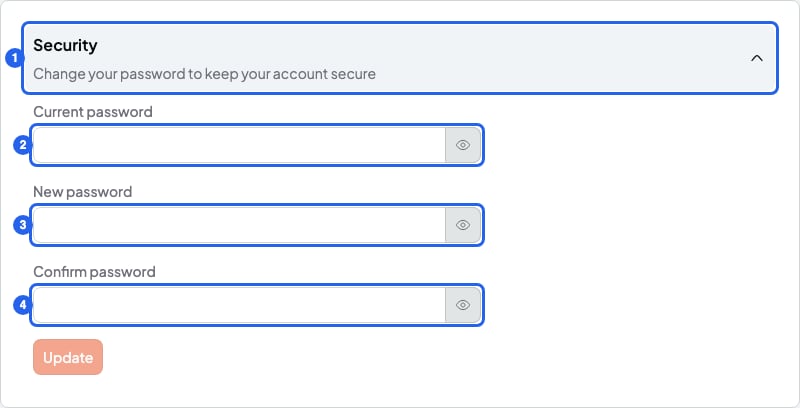
1. Click **Security** to open the form.
2. Type your **Current password**.
3. Type the new one in **New password**: at least 8 characters, with 1 lowercase letter, 1 uppercase letter and 1 number.
4. Type it again in **Confirm password**.
5. Click **Update**. You'll see "Password updated successfully". You're logged out on your other devices.
 Can't remember your current one? Log out and use **Forgot password?**.
## Turn on multi-factor authentication
When you log in with your password, SmartCookie will also ask for a 6-digit code from an app like Google Authenticator or 1Password.
There's no backup code to get back in. If you lose the phone with the app, you won't be able to log in with your password: contact support.
Before you start, install a code app on your phone, like Google Authenticator (free).
1. In **Multi-Factor Authentication (MFA)**, click **Enable MFA**.
2. Type your **Current password**.
3. Click **Continue**. You'll see a QR code.
4. Scan it with your app.
5. Type the code from the app in **Verify the code from the app**.
6. Click **Enable MFA**. You'll see "Multi-factor authentication enabled".
To turn it off, click **Disable MFA** and type your password.
## Link your Google account
This lets you log in with the Google button. If you connected Google Calendar, it's already linked.
1. In **Authentication**, click **Link Google**.
2. Choose the Google account with the same email as your SmartCookie account. You'll see **Google** and the date.
When you link it, your name and photo change to your Google ones. To remove it, click **Unlink**: if Google Calendar is connected, your sessions will stop reaching it.
## Change the language
1. In **Language**, click the dropdown showing your current language, for example **English**.
2. Choose **Spanish**. The change is instant.
The language is saved on each computer or phone, not in your account. If you log in from another one, you may need to change it there too. Bills you send straight away and portal invites go out in the language you're using when you send them. Scheduled bills and automatic reminders always go out in English.
## Change your time zone
SmartCookie takes it from your device when you create your account. It's used for your calendar, your availability and the time your reminders and scheduled bills go out.
1. In **Timezone**, click the box and type your city, for example `Madrid` (for the Canary Islands, `Canary`).
2. Choose your zone in the list. It saves on its own: you'll see "Timezone updated".
Can't remember your current one? Log out and use **Forgot password?**.
## Turn on multi-factor authentication
When you log in with your password, SmartCookie will also ask for a 6-digit code from an app like Google Authenticator or 1Password.
There's no backup code to get back in. If you lose the phone with the app, you won't be able to log in with your password: contact support.
Before you start, install a code app on your phone, like Google Authenticator (free).
1. In **Multi-Factor Authentication (MFA)**, click **Enable MFA**.
2. Type your **Current password**.
3. Click **Continue**. You'll see a QR code.
4. Scan it with your app.
5. Type the code from the app in **Verify the code from the app**.
6. Click **Enable MFA**. You'll see "Multi-factor authentication enabled".
To turn it off, click **Disable MFA** and type your password.
## Link your Google account
This lets you log in with the Google button. If you connected Google Calendar, it's already linked.
1. In **Authentication**, click **Link Google**.
2. Choose the Google account with the same email as your SmartCookie account. You'll see **Google** and the date.
When you link it, your name and photo change to your Google ones. To remove it, click **Unlink**: if Google Calendar is connected, your sessions will stop reaching it.
## Change the language
1. In **Language**, click the dropdown showing your current language, for example **English**.
2. Choose **Spanish**. The change is instant.
The language is saved on each computer or phone, not in your account. If you log in from another one, you may need to change it there too. Bills you send straight away and portal invites go out in the language you're using when you send them. Scheduled bills and automatic reminders always go out in English.
## Change your time zone
SmartCookie takes it from your device when you create your account. It's used for your calendar, your availability and the time your reminders and scheduled bills go out.
1. In **Timezone**, click the box and type your city, for example `Madrid` (for the Canary Islands, `Canary`).
2. Choose your zone in the list. It saves on its own: you'll see "Timezone updated".
 ## What you can't do
* You can't create a password if you only log in with Google. Without one, you can't turn on multi-factor authentication either.
* You can't change your email to one another SmartCookie account already uses: the confirmation email won't arrive.
* You can't unlink Google if it's your only way to log in.
## Related articles
* [Share or change your link](/en/booking/your-link)
* [Change or cancel your membership](/en/account/manage-subscription)
* [Delete your SmartCookie account](/en/account/delete-account)
* [Contact support](/en/contact-support)
## What you can't do
* You can't create a password if you only log in with Google. Without one, you can't turn on multi-factor authentication either.
* You can't change your email to one another SmartCookie account already uses: the confirmation email won't arrive.
* You can't unlink Google if it's your only way to log in.
## Related articles
* [Share or change your link](/en/booking/your-link)
* [Change or cancel your membership](/en/account/manage-subscription)
* [Delete your SmartCookie account](/en/account/delete-account)
* [Contact support](/en/contact-support)