> ## Documentation Index
> Fetch the complete documentation index at: https://docs.smartcookieapp.com/llms.txt
> Use this file to discover all available pages before exploring further.
> ## Agent Instructions
> This is the SmartCookie help center for teachers and their students. Answer in the reader's language (Spanish pages have no prefix, English pages start with /en). Only describe features documented here; if something is not documented, say you don't know and point to /contact-support.
# Set your availability
> Choose the days and hours when your students can book sessions with you from your booking link.
Your availability is the hours each week when your students can book sessions with you. Your booking link only offers slots inside those hours.
Availability is used by **1 to 1 lessons** and **Meetings 1 to 1** courses. It's the same for all your courses.
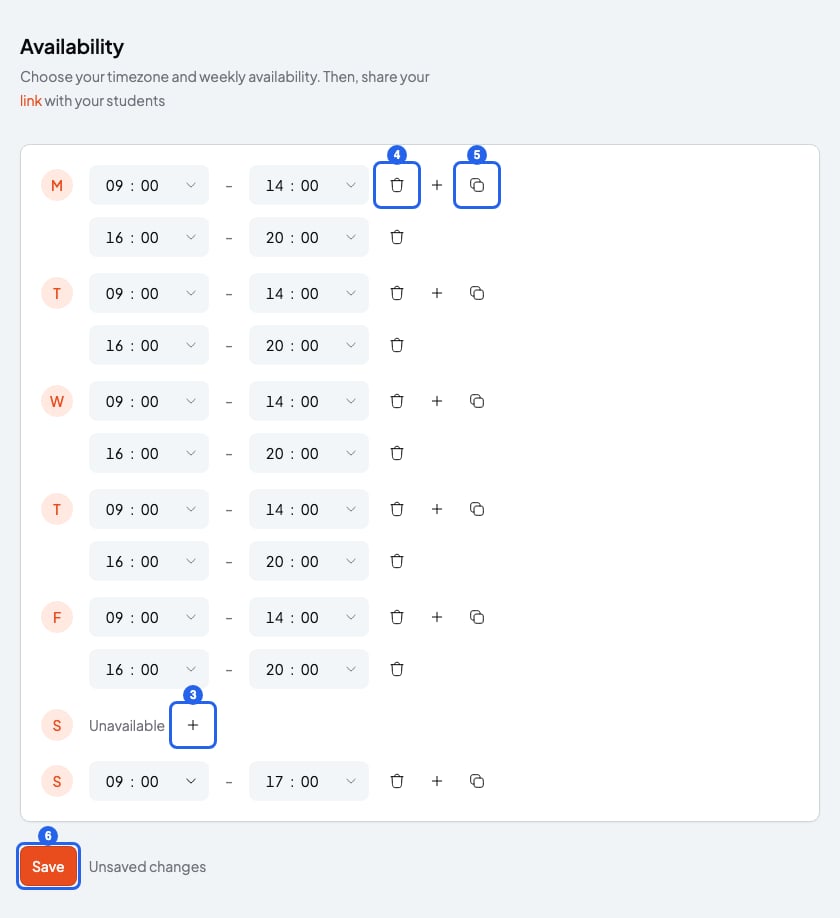
Your hours are split into slots. A slot is a block of consecutive hours, for example from 9am to 2pm. You can have several slots on the same day, but they can't overlap.
## Set your hours
1. Click your photo or initials, top right, and choose **Availability**.
2. Each row is a day of the week. Each slot has a start time and an end time. To change a time, click it and pick another from the list, or type it.
3. To add a slot to a day, click the **+** (**New slot**). On an **Unavailable** day, the **+** creates its first slot.
4. To remove a slot, click the bin (**Remove slot**). A day with no slots becomes **Unavailable**.
5. To repeat one day's slots on other days, click the copy button (**Copy slots to other days**). Tick the days and click **Apply**.
6. Click **Save**. The **Unsaved changes** note disappears: your availability is saved.
 ## How slots are worked out
* The hours are in your timezone. You can change it in **Profile**, under **Timezone**: [Change your name, email, language, time zone or password](/en/account/account-settings).
* Your students see the slots in their own time, even if they live in another country.
* Sessions you already have take up their time, whatever course they belong to. Nobody can book on top of them.
* Each course sets the session length, how far ahead students can book and the buffer between sessions. See [Booking rules: notice, cancellation and buffers](/en/booking/booking-rules).
## What you can't do
* You can't have different availability for each course. If a course needs other hours, change your availability, but the change applies to all your courses.
* You can't mark a single date as off (a public holiday, for example). Remove that weekday's slot. It's removed from every week, so add it back as soon as the holiday is over.
* Your events and your Google Calendar don't block slots: only your SmartCookie sessions count. If you have a commitment, remove that slot for the time being.
## Related articles
* [Let students book sessions](/en/booking/turn-on-booking)
* [Share or change your link](/en/booking/your-link)
* [Which course type to choose](/en/courses/course-types)
## How slots are worked out
* The hours are in your timezone. You can change it in **Profile**, under **Timezone**: [Change your name, email, language, time zone or password](/en/account/account-settings).
* Your students see the slots in their own time, even if they live in another country.
* Sessions you already have take up their time, whatever course they belong to. Nobody can book on top of them.
* Each course sets the session length, how far ahead students can book and the buffer between sessions. See [Booking rules: notice, cancellation and buffers](/en/booking/booking-rules).
## What you can't do
* You can't have different availability for each course. If a course needs other hours, change your availability, but the change applies to all your courses.
* You can't mark a single date as off (a public holiday, for example). Remove that weekday's slot. It's removed from every week, so add it back as soon as the holiday is over.
* Your events and your Google Calendar don't block slots: only your SmartCookie sessions count. If you have a commitment, remove that slot for the time being.
## Related articles
* [Let students book sessions](/en/booking/turn-on-booking)
* [Share or change your link](/en/booking/your-link)
* [Which course type to choose](/en/courses/course-types)