> ## Documentation Index
> Fetch the complete documentation index at: https://docs.smartcookieapp.com/llms.txt
> Use this file to discover all available pages before exploring further.
> ## Agent Instructions
> This is the SmartCookie help center for teachers and their students. Answer in the reader's language (Spanish pages have no prefix, English pages start with /en). Only describe features documented here; if something is not documented, say you don't know and point to /contact-support.
# Let students book sessions
> Check online booking for a course and choose the session length, how far ahead students can book and the cancellation cutoff.
For your students to book from your booking link, online booking has to be on in the course. In almost every course it comes turned on: here you'll see how to check it and change its rules. Each course has its own rules.
Who can book depends on the course type:
* **1 to 1 lessons**: only the students in the course. Booking comes turned on, and you can turn it off.
* **Meetings 1 to 1** and **Open doors**: anyone with your link. Booking is always on. In **Open doors**, people sign up for the sessions you've already put in your calendar.
* **Group lessons**: no online booking.
## Before you start
* [Set your availability](/en/booking/set-availability): 1 to 1 courses only offer slots inside it.
* In **1 to 1 lessons**, your students need their email saved in SmartCookie. When they book, they type it to see their courses.
## Turn on booking in a course
1. In the left menu, click **Courses** and open the course.
2. Top right, click the pencil button (**Edit course**).
 3. Click **Online booking** to open the section.
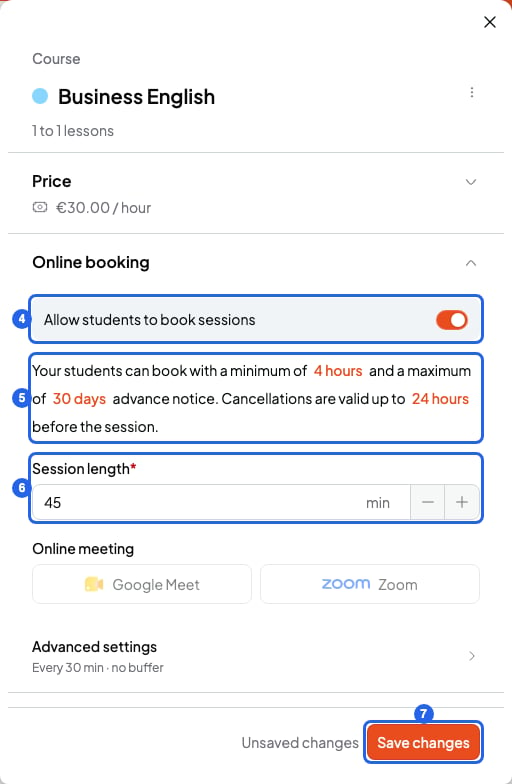
4. If the **Allow students to book sessions** switch is off, turn it on. In **Meetings 1 to 1** and **Open doors** you don't need to: it's always on.
5. Below it you'll see a sentence with three numbers: these are your booking rules. To change one, click it, type the new one and press Enter.
6. Type the **Session length**, in minutes.
7. Click **Save changes**. The **Online booking** section now shows "On", with the length and the days ahead.
3. Click **Online booking** to open the section.
4. If the **Allow students to book sessions** switch is off, turn it on. In **Meetings 1 to 1** and **Open doors** you don't need to: it's always on.
5. Below it you'll see a sentence with three numbers: these are your booking rules. To change one, click it, type the new one and press Enter.
6. Type the **Session length**, in minutes.
7. Click **Save changes**. The **Online booking** section now shows "On", with the length and the days ahead.
 ## What each rule means
The rules sentence, below the switch, sets how far ahead students can book and until when they can cancel. Below it you choose the **Session length** and the **Online meeting**. In **Advanced settings** there are two more rules: **Start time increments** and **Buffer between sessions**.
What each rule does, which values it takes and its defaults: [Booking rules: notice, cancellation and buffers](/en/booking/booking-rules).
## What happens when someone books
* The session appears in your SmartCookie calendar (and in Google Calendar, if you've connected it).
* You get a notification in SmartCookie and an email.
* Your student gets a confirmation email with links to change or cancel the session. **Open doors** sessions can only be cancelled, not changed.
## What you can't do
* You can't turn on booking in a **Group lessons** course. If you want people to sign up for group sessions, create an **Open doors** course.
* Your students don't pay when they book. To get paid, see [Send a bill to a student](/en/payments/send-a-bill).
## Related articles
* [Set your availability](/en/booking/set-availability)
* [Share or change your link](/en/booking/your-link)
* [Booking rules: notice, cancellation and buffers](/en/booking/booking-rules)
* [Students: book, reschedule or cancel a session](/en/for-students/book-a-session)
## What each rule means
The rules sentence, below the switch, sets how far ahead students can book and until when they can cancel. Below it you choose the **Session length** and the **Online meeting**. In **Advanced settings** there are two more rules: **Start time increments** and **Buffer between sessions**.
What each rule does, which values it takes and its defaults: [Booking rules: notice, cancellation and buffers](/en/booking/booking-rules).
## What happens when someone books
* The session appears in your SmartCookie calendar (and in Google Calendar, if you've connected it).
* You get a notification in SmartCookie and an email.
* Your student gets a confirmation email with links to change or cancel the session. **Open doors** sessions can only be cancelled, not changed.
## What you can't do
* You can't turn on booking in a **Group lessons** course. If you want people to sign up for group sessions, create an **Open doors** course.
* Your students don't pay when they book. To get paid, see [Send a bill to a student](/en/payments/send-a-bill).
## Related articles
* [Set your availability](/en/booking/set-availability)
* [Share or change your link](/en/booking/your-link)
* [Booking rules: notice, cancellation and buffers](/en/booking/booking-rules)
* [Students: book, reschedule or cancel a session](/en/for-students/book-a-session)