> ## Documentation Index
> Fetch the complete documentation index at: https://docs.smartcookieapp.com/llms.txt
> Use this file to discover all available pages before exploring further.
> ## Agent Instructions
> This is the SmartCookie help center for teachers and their students. Answer in the reader's language (Spanish pages have no prefix, English pages start with /en). Only describe features documented here; if something is not documented, say you don't know and point to /contact-support.
# Share or change your link
> Copy your booking link to send it to your students, or change the name that appears in it.
Your booking link is the page where your students pick a day and time to book a session with you. You'll find it in **My link**, ready to copy.
You have two links, and both carry your name:
* **Student portal** (`https://your-name.smartcookieapp.com`): your students choose to book or log in to their portal.
* **Booking link** (`https://your-name.smartcookieapp.com/book`): goes straight to booking.
If you only want them to book, send the **Booking link**. The student portal is their personal space, with their sessions, packs and payments: see [Invite students to the portal](/en/student-portal/invite-students).
## Before you start
* [Let students book sessions](/en/booking/turn-on-booking): your link only shows courses with booking turned on.
## Share your booking link
1. Click your photo or initials, top right, and choose **My link**.
2. On the **Booking link** card, click the copy button (**Copy booking link**). The button turns green: the link is copied.
3. Paste it in a message to your students: WhatsApp, email or your website.
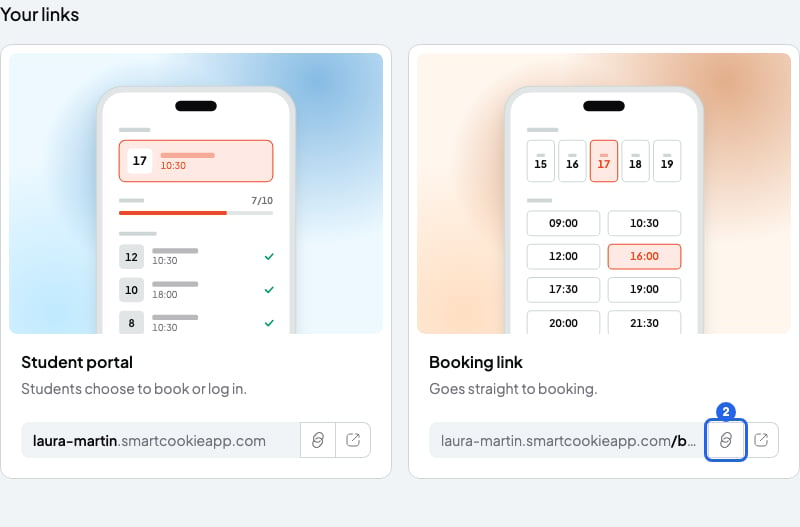 To see the page the way your students see it, click **Open booking link**, the button to the right of the copy button.
## What your students see
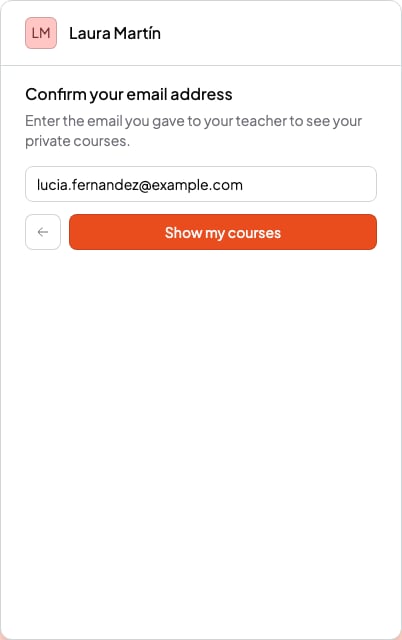
Your page shows your name and the courses they can book. **1 to 1 lessons** courses aren't shown straight away. Your student clicks **Show your private courses**, types the email you have saved for them and clicks **Show my courses**. If it matches, they see their courses.
To see the page the way your students see it, click **Open booking link**, the button to the right of the copy button.
## What your students see
Your page shows your name and the courses they can book. **1 to 1 lessons** courses aren't shown straight away. Your student clicks **Show your private courses**, types the email you have saved for them and clicks **Show my courses**. If it matches, they see their courses.
 Then they pick a day and time. Your students don't need an account to book.
## Change your link name
Your old link stops working as soon as you save the new one, and someone else could take it. Send the new link to your students.
1. In **My link**, delete the name in the box at the top and type the new one.
2. Wait until you see **Available** below the box.
3. Click **Save**. You'll see "Link updated successfully". All done!
The name changes in both links at once. It follows these rules:
* From 3 to 63 characters.
* Only letters without accents, numbers and hyphens. Capitals become lowercase and spaces become hyphens.
* Accented letters and ñ are deleted whole as you type (`josé` becomes `jos`). Type `jose` instead of `josé`, and `n` instead of `ñ`.
* It can't start or end with a hyphen, or have two hyphens in a row.
* It can't be a reserved name, like `admin` or `help`, or someone else's. If it is, you'll see "This link isn't available" or "This link is already being used".
## What you can't do
* You can't have a different link for each course. Your students choose the course on your page.
* You can't keep your old link after you change it.
## Related articles
* [Let students book sessions](/en/booking/turn-on-booking)
* [Set your availability](/en/booking/set-availability)
* [Students: book, reschedule or cancel a session](/en/for-students/book-a-session)
Then they pick a day and time. Your students don't need an account to book.
## Change your link name
Your old link stops working as soon as you save the new one, and someone else could take it. Send the new link to your students.
1. In **My link**, delete the name in the box at the top and type the new one.
2. Wait until you see **Available** below the box.
3. Click **Save**. You'll see "Link updated successfully". All done!
The name changes in both links at once. It follows these rules:
* From 3 to 63 characters.
* Only letters without accents, numbers and hyphens. Capitals become lowercase and spaces become hyphens.
* Accented letters and ñ are deleted whole as you type (`josé` becomes `jos`). Type `jose` instead of `josé`, and `n` instead of `ñ`.
* It can't start or end with a hyphen, or have two hyphens in a row.
* It can't be a reserved name, like `admin` or `help`, or someone else's. If it is, you'll see "This link isn't available" or "This link is already being used".
## What you can't do
* You can't have a different link for each course. Your students choose the course on your page.
* You can't keep your old link after you change it.
## Related articles
* [Let students book sessions](/en/booking/turn-on-booking)
* [Set your availability](/en/booking/set-availability)
* [Students: book, reschedule or cancel a session](/en/for-students/book-a-session)