> ## Documentation Index
> Fetch the complete documentation index at: https://docs.smartcookieapp.com/llms.txt
> Use this file to discover all available pages before exploring further.
> ## Agent Instructions
> This is the SmartCookie help center for teachers and their students. Answer in the reader's language (Spanish pages have no prefix, English pages start with /en). Only describe features documented here; if something is not documented, say you don't know and point to /contact-support.
# Edit or delete recurring sessions
> Change or delete a session that repeats, and choose whether the change affects that session, the following ones or the whole series.
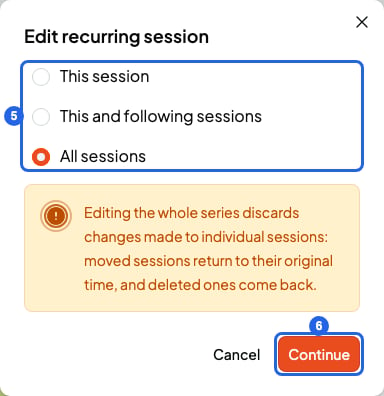
When you change or delete a session that repeats, SmartCookie asks which sessions it affects. You can choose between three options:
* **This session**: only the session you opened. If you add or remove Google Meet, it still changes for the whole series.
* **This and following sessions**: that session and every one after it. Earlier ones don't change.
* **All sessions**: the whole series, including past sessions.
## Edit a recurring session
If you choose **This and following sessions** or **All sessions**, you lose changes you made earlier to single sessions in the series. Sessions you moved go back to their time, and sessions you deleted on their own date (with **This session**) come back.
1. In **Calendar**, click the session.
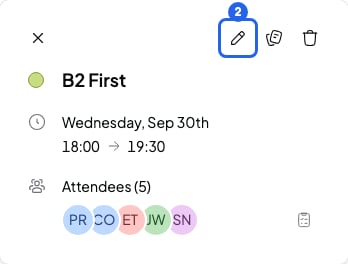
2. Click the pencil (**Edit session**).
 3. Change the date, the time or the repeat rule. To change the rule, click the button that shows it, below the time: the **Custom recurrence rule** window opens.
4. Click **Save**, in the session window. The **Edit recurring session** window opens.
5. Choose which sessions the change affects.
6. Click **Continue**. You'll see the change in your calendar.
3. Change the date, the time or the repeat rule. To change the rule, click the button that shows it, below the time: the **Custom recurrence rule** window opens.
4. Click **Save**, in the session window. The **Edit recurring session** window opens.
5. Choose which sessions the change affects.
6. Click **Continue**. You'll see the change in your calendar.
 You won't always see all three options:
* If you change the repeat rule, **This session** doesn't show.
* If you change the date, **All sessions** doesn't show.
You can also edit from the course page, with the pencil (**Edit session**) on each session. There, the window is called **Update session** and you click **Update session** instead of **Save**. Then you choose which sessions it affects, just like in the calendar.
## Delete a recurring session
1. In **Calendar**, click the session. You can also do this from the course's session list.
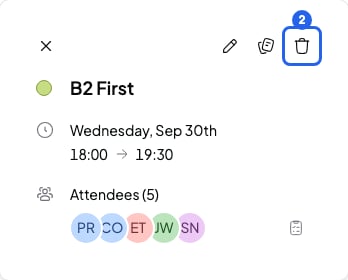
2. Click the bin (**Delete session**). The **Delete recurring session** window opens.
You won't always see all three options:
* If you change the repeat rule, **This session** doesn't show.
* If you change the date, **All sessions** doesn't show.
You can also edit from the course page, with the pencil (**Edit session**) on each session. There, the window is called **Update session** and you click **Update session** instead of **Save**. Then you choose which sessions it affects, just like in the calendar.
## Delete a recurring session
1. In **Calendar**, click the session. You can also do this from the course's session list.
2. Click the bin (**Delete session**). The **Delete recurring session** window opens.
 3. Choose which sessions to delete.
4. Click **Delete**.
This is what happens with each option:
* **This session**: the session is cancelled, not deleted. It disappears from the calendar and stays crossed out in the course's session list. SmartCookie keeps its notes and attendance.
* **This and following sessions**: that session and the following ones are deleted, with their notes.
* **All sessions**: the whole series is deleted, including past sessions and their notes.
Deleted sessions can't be recovered. A cancelled session has no button to bring it back. It comes back if you edit the series with **This and following sessions** or **All sessions**.
## Stop a session from repeating
The **Custom recurrence rule** window has a red bin at the top right (it's not the **Delete session** one). If you click it and save the session, SmartCookie keeps only that session. It deletes every other session in the series, including past ones, with their notes.
To end a series and keep the past sessions, delete the first session you no longer want and choose **This and following sessions**.
## When the series reaches its end
A series has at most 52 sessions, and SmartCookie doesn't extend it on its own or warn you when it ends. Check in your calendar when the last session is. Before that date, create a new session that repeats and starts after the last one: [Repeat a session (recurring sessions)](/en/calendar/recurring-sessions).
## What you can't do
* You can't move the whole series by dragging it in the calendar. Dragging only moves that session. To move the series, edit it.
* SmartCookie doesn't email your students when you change or delete a session. If you have Google Calendar connected, Google tells your students who have an email. If not, let them know yourself.
## Related articles
* [Repeat a session (recurring sessions)](/en/calendar/recurring-sessions)
* [Add a session](/en/calendar/add-a-session)
* [Session notes and quick notes](/en/notes/session-notes)
3. Choose which sessions to delete.
4. Click **Delete**.
This is what happens with each option:
* **This session**: the session is cancelled, not deleted. It disappears from the calendar and stays crossed out in the course's session list. SmartCookie keeps its notes and attendance.
* **This and following sessions**: that session and the following ones are deleted, with their notes.
* **All sessions**: the whole series is deleted, including past sessions and their notes.
Deleted sessions can't be recovered. A cancelled session has no button to bring it back. It comes back if you edit the series with **This and following sessions** or **All sessions**.
## Stop a session from repeating
The **Custom recurrence rule** window has a red bin at the top right (it's not the **Delete session** one). If you click it and save the session, SmartCookie keeps only that session. It deletes every other session in the series, including past ones, with their notes.
To end a series and keep the past sessions, delete the first session you no longer want and choose **This and following sessions**.
## When the series reaches its end
A series has at most 52 sessions, and SmartCookie doesn't extend it on its own or warn you when it ends. Check in your calendar when the last session is. Before that date, create a new session that repeats and starts after the last one: [Repeat a session (recurring sessions)](/en/calendar/recurring-sessions).
## What you can't do
* You can't move the whole series by dragging it in the calendar. Dragging only moves that session. To move the series, edit it.
* SmartCookie doesn't email your students when you change or delete a session. If you have Google Calendar connected, Google tells your students who have an email. If not, let them know yourself.
## Related articles
* [Repeat a session (recurring sessions)](/en/calendar/recurring-sessions)
* [Add a session](/en/calendar/add-a-session)
* [Session notes and quick notes](/en/notes/session-notes)