> ## Documentation Index
> Fetch the complete documentation index at: https://docs.smartcookieapp.com/llms.txt
> Use this file to discover all available pages before exploring further.
> ## Agent Instructions
> This is the SmartCookie help center for teachers and their students. Answer in the reader's language (Spanish pages have no prefix, English pages start with /en). Only describe features documented here; if something is not documented, say you don't know and point to /contact-support.
# Repeat a session (recurring sessions)
> Create a session that repeats on its own, for example every Tuesday, and choose when the series ends.
A recurring session repeats on its own, for example every Tuesday at 5:00pm. You create it once and SmartCookie adds every session in the series to your calendar.
## Before you start
* Learn how to open the window for a new session: [Add a session](/en/calendar/add-a-session).
## Create a session that repeats
1. Start adding a session, from the calendar or from the course page. Choose the course, the day of the first session and the time.
2. Click **Does not repeat**. The **Custom recurrence rule** window opens (the repeat rule).
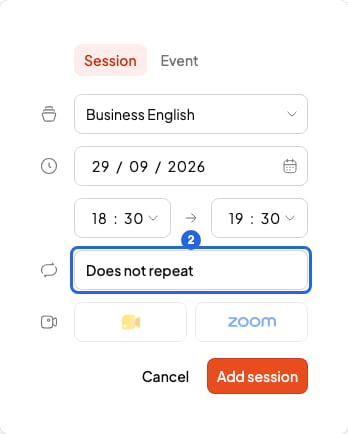 3. In **Every**, choose how often it repeats: a number and **week**, **day**, **month** or **year**. For example, "2 weeks" means every other week.
4. If it repeats by weeks, tick the days of the week in the **On** row, below **Every**. If it repeats by months, choose the day of the month.
In **Ends**, the **On** option comes ticked, with a date one month after the first session. If you don't change it, the series only lasts a month.
5. In **Ends**, choose when the series ends: tick **On** and choose a date, or tick **After** and type a number of **times**.
6. Click **Save**. Instead of **Does not repeat**, the button now shows your rule.
3. In **Every**, choose how often it repeats: a number and **week**, **day**, **month** or **year**. For example, "2 weeks" means every other week.
4. If it repeats by weeks, tick the days of the week in the **On** row, below **Every**. If it repeats by months, choose the day of the month.
In **Ends**, the **On** option comes ticked, with a date one month after the first session. If you don't change it, the series only lasts a month.
5. In **Ends**, choose when the series ends: tick **On** and choose a date, or tick **After** and type a number of **times**.
6. Click **Save**. Instead of **Does not repeat**, the button now shows your rule.
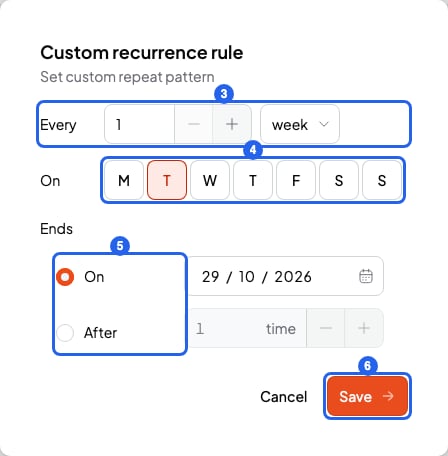 7. Click **Add session**. Done! Every session in the series shows up in your calendar.
## When the series ends
* With **On**, the last session is before the date you choose. If you want a session on that day, choose the day after.
* With **After**, the series has that number of sessions, up to 52.
* A series has at most 52 sessions. If your rule gives more, SmartCookie only creates the first 52.
## What you can't do
* You can't create a series with no end. Always choose a date or a number of times.
* You can't make a one-off session repeat by editing it. Create a new session that repeats and delete the one-off.
* You can't repeat an event (something in your calendar with no students, like the dentist). Only sessions can repeat.
## Related articles
* [Edit or delete recurring sessions](/en/calendar/edit-recurring-sessions)
* [Add a session](/en/calendar/add-a-session)
* [Session notes and quick notes](/en/notes/session-notes)
7. Click **Add session**. Done! Every session in the series shows up in your calendar.
## When the series ends
* With **On**, the last session is before the date you choose. If you want a session on that day, choose the day after.
* With **After**, the series has that number of sessions, up to 52.
* A series has at most 52 sessions. If your rule gives more, SmartCookie only creates the first 52.
## What you can't do
* You can't create a series with no end. Always choose a date or a number of times.
* You can't make a one-off session repeat by editing it. Create a new session that repeats and delete the one-off.
* You can't repeat an event (something in your calendar with no students, like the dentist). Only sessions can repeat.
## Related articles
* [Edit or delete recurring sessions](/en/calendar/edit-recurring-sessions)
* [Add a session](/en/calendar/add-a-session)
* [Session notes and quick notes](/en/notes/session-notes)