> ## Documentation Index
> Fetch the complete documentation index at: https://docs.smartcookieapp.com/llms.txt
> Use this file to discover all available pages before exploring further.
> ## Agent Instructions
> This is the SmartCookie help center for teachers and their students. Answer in the reader's language (Spanish pages have no prefix, English pages start with /en). Only describe features documented here; if something is not documented, say you don't know and point to /contact-support.
# Add or remove students from a course
> Add students to a course you already have, or remove them, and see what happens to their sessions.
Add students to a course from the course page or from the student's page. To remove them, use the course page. You can only do this in **1 to 1 lessons** and **Group lessons** courses.
## Add students from the course page
1. In the menu on the left, click **Courses** and open the course.
2. Click the **Students** tab.
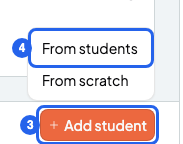
3. Click **Add student**, to the right of the tabs.
4. Choose **From students**.
 5. In **Select students**, type a name and click the student. Repeat to add more.
6. Click **Add student** (or **Add students**, if you chose several). You'll see your students in the course list.
Is your student not in SmartCookie yet? In step 4, choose **From scratch**. Type their **Name** and, if you like, their **Email** and **Phone**. Click **Create student**: they're created and join the course.
## Add a student from their page
1. In **Students**, click the student.
2. On their page, in the **Courses** section, click **Add to course**.
3. In **Course**, choose the course. You only see **Group lessons** courses they're not in yet, and **1 to 1 lessons** courses with no student.
4. Click **Add**. The course appears on their page.
When they join a course, your student is added to all its upcoming sessions, except cancelled ones. Past sessions don't change.
## Remove a student from a course
In a **1 to 1 lessons** course, removing the student deletes all the course's upcoming sessions and their session notes. It can't be undone.
1. In **Courses**, open the course and click the **Students** tab.
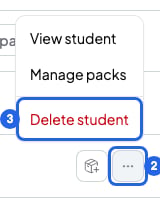
2. In the student's row, click the three-dot button on the right.
3. Click **Delete student**.
5. In **Select students**, type a name and click the student. Repeat to add more.
6. Click **Add student** (or **Add students**, if you chose several). You'll see your students in the course list.
Is your student not in SmartCookie yet? In step 4, choose **From scratch**. Type their **Name** and, if you like, their **Email** and **Phone**. Click **Create student**: they're created and join the course.
## Add a student from their page
1. In **Students**, click the student.
2. On their page, in the **Courses** section, click **Add to course**.
3. In **Course**, choose the course. You only see **Group lessons** courses they're not in yet, and **1 to 1 lessons** courses with no student.
4. Click **Add**. The course appears on their page.
When they join a course, your student is added to all its upcoming sessions, except cancelled ones. Past sessions don't change.
## Remove a student from a course
In a **1 to 1 lessons** course, removing the student deletes all the course's upcoming sessions and their session notes. It can't be undone.
1. In **Courses**, open the course and click the **Students** tab.
2. In the student's row, click the three-dot button on the right.
3. Click **Delete student**.
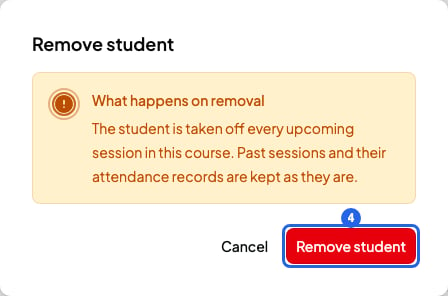
 4. Read **What happens on removal** and click **Remove student**. The student disappears from the course list.
 Your student only leaves this course: they stay in your **Students** list and in their other courses.
## What happens when you remove a student
* **Group lessons**: they leave all the course's upcoming sessions. Past sessions and their attendance stay.
* **1 to 1 lessons**: all the course's upcoming sessions are deleted. Past sessions and their attendance stay.
* Their pack for this course and your bills aren't deleted. You can still charge them for their past sessions.
* SmartCookie doesn't tell your student.
* If you've connected Google Calendar, these changes don't reach Google Calendar by themselves. They get there when you change and save each session in SmartCookie.
## What you can't do
* You can't have more than one student in a **1 to 1 lessons** course. If you try, you'll see "The course already has a student". Create another course for the new student.
* You can't add or remove students in **Meetings 1 to 1** or **Open doors**. People join by booking from your booking link.
* You can't remove a student from a course on their page. Do it from the course page.
## Related articles
* [Which course type to choose](/en/courses/course-types)
* [Create a course](/en/courses/create-a-course)
* [Delete a student](/en/students/delete-a-student)
* [Track or remove a student's pack](/en/payments/manage-packs)
Your student only leaves this course: they stay in your **Students** list and in their other courses.
## What happens when you remove a student
* **Group lessons**: they leave all the course's upcoming sessions. Past sessions and their attendance stay.
* **1 to 1 lessons**: all the course's upcoming sessions are deleted. Past sessions and their attendance stay.
* Their pack for this course and your bills aren't deleted. You can still charge them for their past sessions.
* SmartCookie doesn't tell your student.
* If you've connected Google Calendar, these changes don't reach Google Calendar by themselves. They get there when you change and save each session in SmartCookie.
## What you can't do
* You can't have more than one student in a **1 to 1 lessons** course. If you try, you'll see "The course already has a student". Create another course for the new student.
* You can't add or remove students in **Meetings 1 to 1** or **Open doors**. People join by booking from your booking link.
* You can't remove a student from a course on their page. Do it from the course page.
## Related articles
* [Which course type to choose](/en/courses/course-types)
* [Create a course](/en/courses/create-a-course)
* [Delete a student](/en/students/delete-a-student)
* [Track or remove a student's pack](/en/payments/manage-packs)