> ## Documentation Index
> Fetch the complete documentation index at: https://docs.smartcookieapp.com/llms.txt
> Use this file to discover all available pages before exploring further.
> ## Agent Instructions
> This is the SmartCookie help center for teachers and their students. Answer in the reader's language (Spanish pages have no prefix, English pages start with /en). Only describe features documented here; if something is not documented, say you don't know and point to /contact-support.
# See a course's past sessions
> Find the sessions that already happened on a course page and load more upcoming sessions.
To see the sessions that already happened, click **See previous sessions**, at the top of the course's session list. When you open a course, the list only shows its upcoming sessions.
## See your past sessions
1. In **Courses**, open the course.
2. In the **Sessions** tab, click **See previous sessions**, at the top of the list. If the course has no upcoming sessions, the button is in the middle of the page.
3. Up to 10 past sessions appear under the button, oldest first. The most recent one sits right above your upcoming sessions.
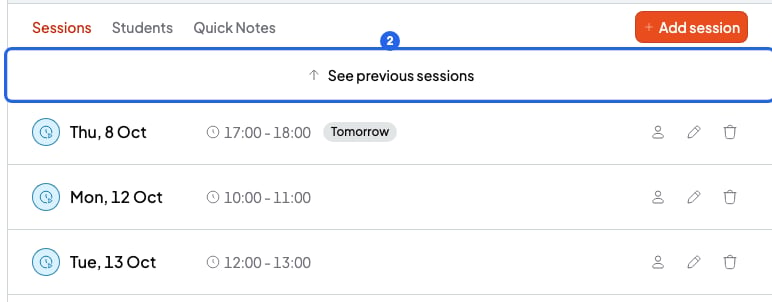 To load up to 10 older sessions, click **See previous sessions** again. When there are no more, the button goes away. If the course has no past sessions yet, the message **No earlier sessions** appears when you click it.
## Load more upcoming sessions
The list starts with your next 10 sessions, soonest first. A session that is happening right now counts as upcoming.
If the course has more upcoming sessions, click **Load more**, at the end of the list. Up to 10 more sessions are added.
## Move notes between past and upcoming sessions
Past and upcoming sessions are in the same list. So you can drag a note from a past session to an upcoming one, for example homework that is still pending.
First load the past sessions with **See previous sessions**. Then click a session to open its notes. To move a note, read [Session notes and quick notes](/en/notes/session-notes). On a phone, you can't drag notes.
## What you can't do
* You can't search for a session by date in this list. To go to a specific day, use the **Calendar**.
* You can't see only the past sessions. They always show above the upcoming ones.
## Related articles
* [Session notes and quick notes](/en/notes/session-notes)
* [Mark attendance for a session](/en/calendar/attendance)
* [Add a session](/en/calendar/add-a-session)
This documentation is built and hosted on [Mintlify](https://mintlify.com), a developer documentation platform.
To load up to 10 older sessions, click **See previous sessions** again. When there are no more, the button goes away. If the course has no past sessions yet, the message **No earlier sessions** appears when you click it.
## Load more upcoming sessions
The list starts with your next 10 sessions, soonest first. A session that is happening right now counts as upcoming.
If the course has more upcoming sessions, click **Load more**, at the end of the list. Up to 10 more sessions are added.
## Move notes between past and upcoming sessions
Past and upcoming sessions are in the same list. So you can drag a note from a past session to an upcoming one, for example homework that is still pending.
First load the past sessions with **See previous sessions**. Then click a session to open its notes. To move a note, read [Session notes and quick notes](/en/notes/session-notes). On a phone, you can't drag notes.
## What you can't do
* You can't search for a session by date in this list. To go to a specific day, use the **Calendar**.
* You can't see only the past sessions. They always show above the upcoming ones.
## Related articles
* [Session notes and quick notes](/en/notes/session-notes)
* [Mark attendance for a session](/en/calendar/attendance)
* [Add a session](/en/calendar/add-a-session)
This documentation is built and hosted on [Mintlify](https://mintlify.com), a developer documentation platform.