> ## Documentation Index
> Fetch the complete documentation index at: https://docs.smartcookieapp.com/llms.txt
> Use this file to discover all available pages before exploring further.
> ## Agent Instructions
> This is the SmartCookie help center for teachers and their students. Answer in the reader's language (Spanish pages have no prefix, English pages start with /en). Only describe features documented here; if something is not documented, say you don't know and point to /contact-support.
# Students: book, reschedule or cancel a session
> Book a session from your teacher's booking link, then reschedule or cancel it from your confirmation email.
Book from your teacher's booking link: choose the course, day and time, then confirm. You don't need to log in to the portal or have an account to book. To reschedule or cancel the session, use the confirmation email you get.
## Before you start
* You need your teacher's booking link. If you don't have it, ask them.
* If your teacher has set up a course just for you (a private course), you need the email you gave them.
## Book a session
1. Open your teacher's booking link. You'll see their name and the courses you can book.
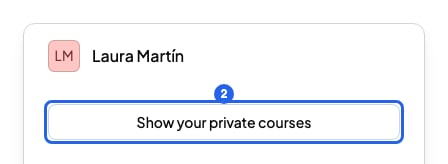
2. If your course isn't there, click **Show your private courses**.
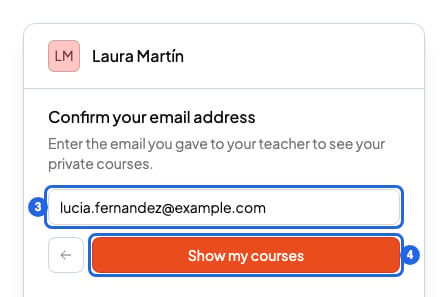
 3. If you clicked **Show your private courses**, type the email you gave your teacher.
4. Click **Show my courses**. **Your private courses** will appear.
3. If you clicked **Show your private courses**, type the email you gave your teacher.
4. Click **Show my courses**. **Your private courses** will appear.
 5. Click your course.
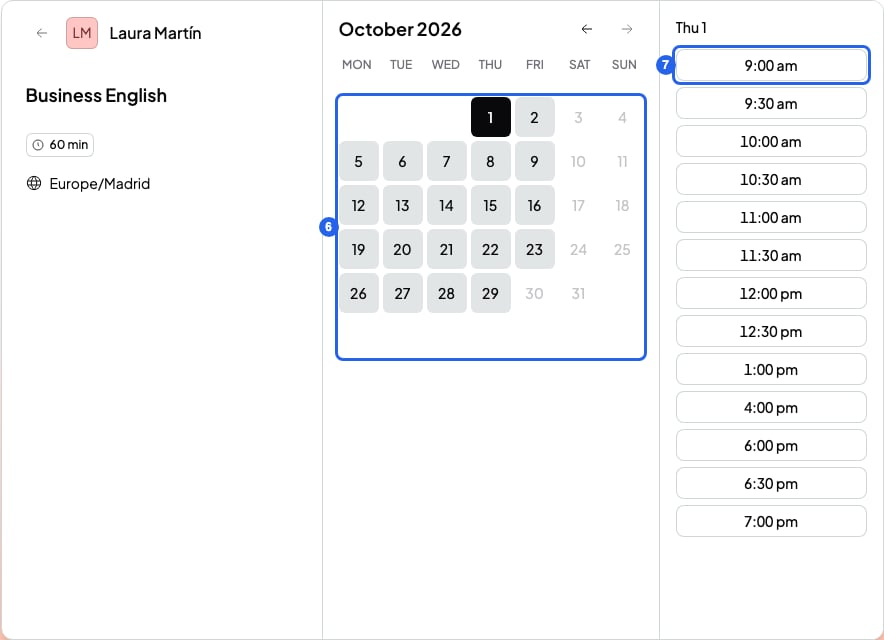
6. Choose a day in the calendar. Days with no free times can't be chosen.
7. Click a time. Times show in your own time zone, which you'll see under the course name.
5. Click your course.
6. Choose a day in the calendar. Days with no free times can't be chosen.
7. Click a time. Times show in your own time zone, which you'll see under the course name.
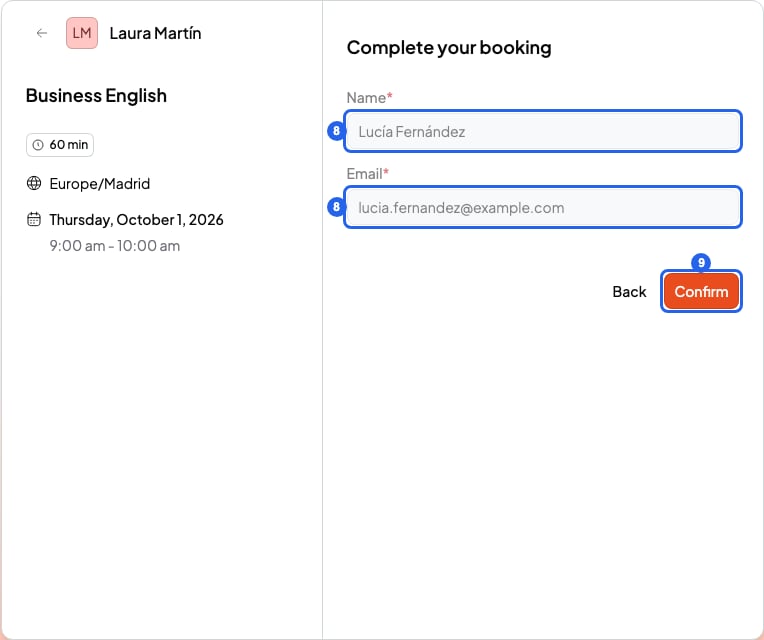
 8. Check your **Name** and **Email**. For a private course, they're already filled in.
9. Click **Confirm**. You'll see **Booking confirmed** and get a confirmation email. If you can't see it, check your spam folder.
8. Check your **Name** and **Email**. For a private course, they're already filled in.
9. Click **Confirm**. You'll see **Booking confirmed** and get a confirmation email. If you can't see it, check your spam folder.
 For group courses, choosing a day shows a list of sessions. Each one shows how many spots are left, or **Full** if there are none.
If you already log in to your teacher's portal, click **Book a class** at the top. Your private courses show up straight away and your details are already filled in.
## Reschedule your session
1. Open your booking confirmation email.
2. Click **Reschedule**.
3. Choose a new day and time.
4. Click **Confirm new time**. You'll see your new time, get a new email, and your teacher will be notified.
## Cancel your session
1. Open your booking confirmation email.
2. Click **Cancel**. Your booking page opens.
3. Click **Cancel** again.
4. Click **Yes, cancel**. You'll see **Booking cancelled** and your teacher will be notified.
On your booking page you can save it to your calendar with **Add to Google Calendar** or **Download ICS** (for Apple Calendar, Outlook and other calendars).
## What you can't do
* You can't reschedule or cancel a session when it's about to start. Your teacher decides how many hours' notice they need, and your confirmation email tells you. After that limit, talk to your teacher.
* You can't reschedule a group session. Cancel it and book another one.
* You can't reschedule or cancel sessions from the portal. Use the confirmation email.
* If your teacher scheduled the session, you don't have a confirmation email. Talk to your teacher to change or cancel it.
* You don't pay when you book. If your teacher charges you, they'll send you a payment request: [Students: pay your teacher's bill](/en/for-students/pay-a-bill).
## Related articles
* [Students: log in to your teacher's portal](/en/for-students/log-in)
* [Students: pay your teacher's bill](/en/for-students/pay-a-bill)
* [Contact support](/en/contact-support)
For group courses, choosing a day shows a list of sessions. Each one shows how many spots are left, or **Full** if there are none.
If you already log in to your teacher's portal, click **Book a class** at the top. Your private courses show up straight away and your details are already filled in.
## Reschedule your session
1. Open your booking confirmation email.
2. Click **Reschedule**.
3. Choose a new day and time.
4. Click **Confirm new time**. You'll see your new time, get a new email, and your teacher will be notified.
## Cancel your session
1. Open your booking confirmation email.
2. Click **Cancel**. Your booking page opens.
3. Click **Cancel** again.
4. Click **Yes, cancel**. You'll see **Booking cancelled** and your teacher will be notified.
On your booking page you can save it to your calendar with **Add to Google Calendar** or **Download ICS** (for Apple Calendar, Outlook and other calendars).
## What you can't do
* You can't reschedule or cancel a session when it's about to start. Your teacher decides how many hours' notice they need, and your confirmation email tells you. After that limit, talk to your teacher.
* You can't reschedule a group session. Cancel it and book another one.
* You can't reschedule or cancel sessions from the portal. Use the confirmation email.
* If your teacher scheduled the session, you don't have a confirmation email. Talk to your teacher to change or cancel it.
* You don't pay when you book. If your teacher charges you, they'll send you a payment request: [Students: pay your teacher's bill](/en/for-students/pay-a-bill).
## Related articles
* [Students: log in to your teacher's portal](/en/for-students/log-in)
* [Students: pay your teacher's bill](/en/for-students/pay-a-bill)
* [Contact support](/en/contact-support)