> ## Documentation Index
> Fetch the complete documentation index at: https://docs.smartcookieapp.com/llms.txt
> Use this file to discover all available pages before exploring further.
> ## Agent Instructions
> This is the SmartCookie help center for teachers and their students. Answer in the reader's language (Spanish pages have no prefix, English pages start with /en). Only describe features documented here; if something is not documented, say you don't know and point to /contact-support.
# Students: pay your teacher's bill
> Open the payment request your teacher sends you and pay it by card or the way they tell you.
Open the payment request from your teacher's email or from your portal. If your teacher takes cards, click **Pay now**. If not, follow the payment details shown on the request.
A payment request is a summary of what you owe your teacher: sessions, session packs or other items.
## Open your payment request
You can open it in two ways:
* **From the email**: SmartCookie sends you an email with the subject "Payment request" and your teacher's name. Click **View payment request**.
* **From your portal**: if you log in to your teacher's portal, go to **Bills** (your payment requests are there) and click **View bill** on the request's row.
On the request you see who sent it, each item, the total and its status: **Unpaid**, **Paid** or **Canceled**. If it has a deadline, it shows under **Due by**.
## Pay by card
1. Open the payment request.
2. Click **Pay now**. A secure Stripe page opens. Stripe is the service that processes the payment.
3. Pay with your card. If your teacher is in Spain, you may also see Bizum.
4. You go back to the request and see "We're confirming your payment". Wait a minute and reload the page: the request will show as **Paid**.
Stripe emails you a receipt for the payment.
## Pay by bank transfer or another method
1. Open the payment request.
2. Find the **Payment information** box. It has your teacher's **IBAN**, their **Instructions**, or both.
3. Pay the way it says, for example with a transfer from your bank.
4. Once your teacher gets the money, they'll mark the request as **Paid**.
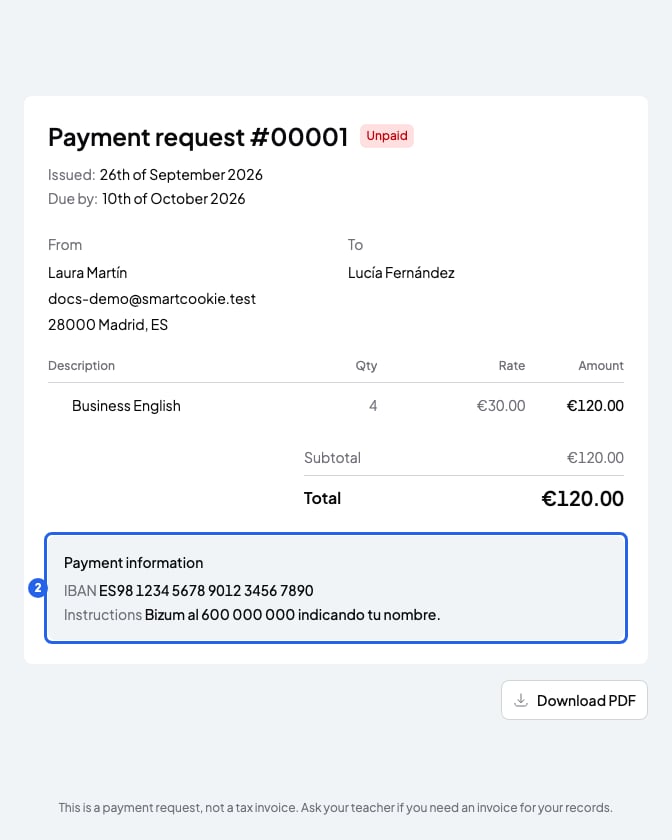 To keep a copy, click **Download PDF**.
## What you can't do
* You can't pay just part of it with **Pay now**. It charges everything still left to pay.
* You can't pay by card if you don't see **Pay now**. Your teacher doesn't take cards: use the **Payment information**.
* You can't ask for a refund from the request. Talk to your teacher.
* Even though the tab is called **Bills**, a payment request isn't a tax invoice. If you need one, ask your teacher.
Questions about the request? Write to your teacher: their email is at the end of the payment request email.
## Related articles
* [Students: log in to your teacher's portal](/en/for-students/log-in)
* [Students: book, reschedule or cancel a session](/en/for-students/book-a-session)
* [Contact support](/en/contact-support)
To keep a copy, click **Download PDF**.
## What you can't do
* You can't pay just part of it with **Pay now**. It charges everything still left to pay.
* You can't pay by card if you don't see **Pay now**. Your teacher doesn't take cards: use the **Payment information**.
* You can't ask for a refund from the request. Talk to your teacher.
* Even though the tab is called **Bills**, a payment request isn't a tax invoice. If you need one, ask your teacher.
Questions about the request? Write to your teacher: their email is at the end of the payment request email.
## Related articles
* [Students: log in to your teacher's portal](/en/for-students/log-in)
* [Students: book, reschedule or cancel a session](/en/for-students/book-a-session)
* [Contact support](/en/contact-support)