> ## Documentation Index
> Fetch the complete documentation index at: https://docs.smartcookieapp.com/llms.txt
> Use this file to discover all available pages before exploring further.
> ## Agent Instructions
> This is the SmartCookie help center for teachers and their students. Answer in the reader's language (Spanish pages have no prefix, English pages start with /en). Only describe features documented here; if something is not documented, say you don't know and point to /contact-support.
# Import your sessions from Google Calendar
> Copy your sessions from Google Calendar into SmartCookie in a few clicks: SmartCookie creates the courses, sessions and students for you.
If you already keep your sessions in Google Calendar, SmartCookie can read them and create your courses, sessions and students. All you need is a Google account and a few minutes.
SmartCookie only reads your calendar: it never changes or deletes any Google Calendar event. It doesn't create anything until you confirm, and your students don't get any email.
## Connect your Google Calendar
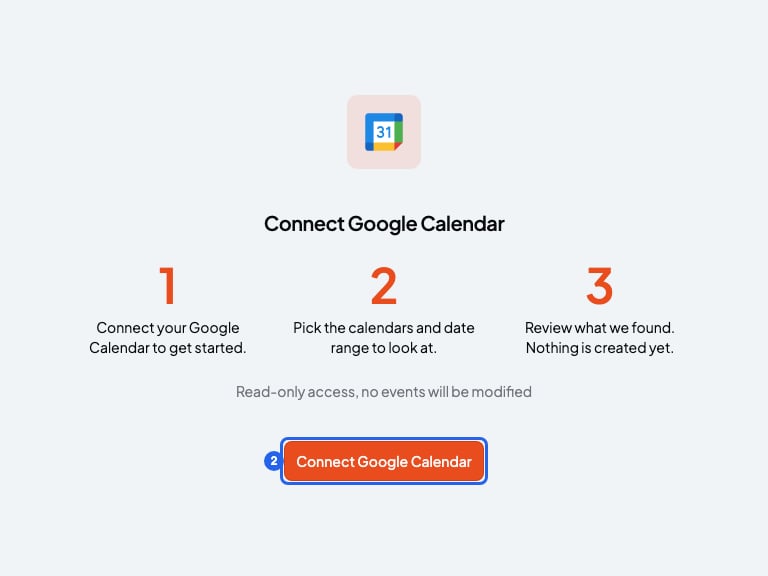
1. Open the [Import from Google Calendar](https://www.smartcookieapp.com/en/portal/calendar-import) page. If you're not logged in to SmartCookie, it asks you to log in first.
2. Click **Connect Google Calendar**.
3. Choose your Google account and allow SmartCookie to see your calendar. You'll come back to SmartCookie.
 ## Choose what to import
1. In **Date range**, choose the first and last day to look at. It's already set from 6 months back to 6 months ahead.
2. In **Which calendar should we read?**, keep your main calendar ticked (the one with your name or email). If your sessions are in another calendar, open **Add other calendars** and tick it.
3. To skip events that aren't sessions, use **Exclude events containing**. Type a word, like "Dentist", and press Enter. Repeat to add more. SmartCookie ignores events with those words in the title.
4. Click **Find sessions**.
## Review the courses and confirm
SmartCookie groups your Google Calendar events into courses. It puts together events that repeat in Google Calendar, events with the same title and events with the same guests.
The guests of each event become students of the course. You don't count as a student.
1. Check the name of each course. You can change it right there.
2. Untick the courses you don't want to import.
3. Click a course to see its details. There you can remove sessions or students, or add a student with **Add**.
4. Check the **one-off events**: these happen only once. They aren't imported, except the ones you tick: each becomes a course with a single session.
5. Click **Confirm import**.
A course with a single student is created as **1 to 1 lessons**. A course with several students, or none, is created as **Group lessons**.
If you don't invite your students to your Google Calendar events, the courses arrive with no students and are created as **Group lessons**. If it was a one-student course, open the course and add the student before you confirm. You can't change the type later.
Another option is to untick that course and create it yourself as **1 to 1 lessons**. We explain how in [Create a course](/en/courses/create-a-course).
When it's done, you'll see **Import from Google Calendar complete**, with how many courses, sessions and students were created.
## Undo the import
You can only undo the import on the screen you see right after you confirm. If you leave it, you'll have to delete the courses one by one.
If something didn't turn out as expected, click **Undo** on that screen. The button tells you how many courses it will delete. SmartCookie deletes those courses with their sessions, and also the new students who aren't in another course.
## If you import more than once
* Your sessions aren't duplicated: SmartCookie skips the ones it already imported.
* If a guest is already one of your students (same email), SmartCookie uses that student and doesn't create a new one.
## What you can't do
* You can't import all-day events, like public holidays.
* You can't import more than 50 courses at once. Untick some and import them later, in another import.
* Changes you make later in Google Calendar don't reach SmartCookie: the import happens only once. If you change an event there, change it in SmartCookie too.
* The import doesn't keep the two calendars connected. To see your SmartCookie sessions in Google Calendar, follow [Connect Google Calendar](/en/integrations/google-calendar).
## Related articles
* [How SmartCookie is organized: courses, students and sessions](/en/getting-started/how-smartcookie-works)
* [Add or import students](/en/students/add-students)
* [Connect Google Calendar](/en/integrations/google-calendar)
## Choose what to import
1. In **Date range**, choose the first and last day to look at. It's already set from 6 months back to 6 months ahead.
2. In **Which calendar should we read?**, keep your main calendar ticked (the one with your name or email). If your sessions are in another calendar, open **Add other calendars** and tick it.
3. To skip events that aren't sessions, use **Exclude events containing**. Type a word, like "Dentist", and press Enter. Repeat to add more. SmartCookie ignores events with those words in the title.
4. Click **Find sessions**.
## Review the courses and confirm
SmartCookie groups your Google Calendar events into courses. It puts together events that repeat in Google Calendar, events with the same title and events with the same guests.
The guests of each event become students of the course. You don't count as a student.
1. Check the name of each course. You can change it right there.
2. Untick the courses you don't want to import.
3. Click a course to see its details. There you can remove sessions or students, or add a student with **Add**.
4. Check the **one-off events**: these happen only once. They aren't imported, except the ones you tick: each becomes a course with a single session.
5. Click **Confirm import**.
A course with a single student is created as **1 to 1 lessons**. A course with several students, or none, is created as **Group lessons**.
If you don't invite your students to your Google Calendar events, the courses arrive with no students and are created as **Group lessons**. If it was a one-student course, open the course and add the student before you confirm. You can't change the type later.
Another option is to untick that course and create it yourself as **1 to 1 lessons**. We explain how in [Create a course](/en/courses/create-a-course).
When it's done, you'll see **Import from Google Calendar complete**, with how many courses, sessions and students were created.
## Undo the import
You can only undo the import on the screen you see right after you confirm. If you leave it, you'll have to delete the courses one by one.
If something didn't turn out as expected, click **Undo** on that screen. The button tells you how many courses it will delete. SmartCookie deletes those courses with their sessions, and also the new students who aren't in another course.
## If you import more than once
* Your sessions aren't duplicated: SmartCookie skips the ones it already imported.
* If a guest is already one of your students (same email), SmartCookie uses that student and doesn't create a new one.
## What you can't do
* You can't import all-day events, like public holidays.
* You can't import more than 50 courses at once. Untick some and import them later, in another import.
* Changes you make later in Google Calendar don't reach SmartCookie: the import happens only once. If you change an event there, change it in SmartCookie too.
* The import doesn't keep the two calendars connected. To see your SmartCookie sessions in Google Calendar, follow [Connect Google Calendar](/en/integrations/google-calendar).
## Related articles
* [How SmartCookie is organized: courses, students and sessions](/en/getting-started/how-smartcookie-works)
* [Add or import students](/en/students/add-students)
* [Connect Google Calendar](/en/integrations/google-calendar)