> ## Documentation Index
> Fetch the complete documentation index at: https://docs.smartcookieapp.com/llms.txt
> Use this file to discover all available pages before exploring further.
> ## Agent Instructions
> This is the SmartCookie help center for teachers and their students. Answer in the reader's language (Spanish pages have no prefix, English pages start with /en). Only describe features documented here; if something is not documented, say you don't know and point to /contact-support.
# Take card payments: connect Stripe
> Connect your Stripe account so students can pay your bills by card (and Bizum, in Spain) with one button.
If you connect Stripe, every bill gets a **Pay now** button and your students pay by card in a minute. Stripe is the company that processes the payments. The money goes to your Stripe account, and card details never pass through SmartCookie.
Connecting Stripe is optional. Without Stripe, students pay you by bank transfer to your IBAN or as you explain in **Other payment methods**, and you pay no fees.
## Before you start
* Fill in your billing details: [Fill in your billing details](/en/payments/billing-details).
* You must live and get paid in one of these 32 countries: Austria, Belgium, Bulgaria, Croatia, Cyprus, Czechia, Denmark, Estonia, Finland, France, Germany, Gibraltar, Greece, Hungary, Ireland, Italy, Latvia, Liechtenstein, Lithuania, Luxembourg, Malta, the Netherlands, Norway, Poland, Portugal, Romania, Slovakia, Slovenia, Spain, Sweden, Switzerland and the United Kingdom.
## Connect your account
When you connect Stripe, your country is fixed. If you haven't created any bills yet, your billing currency changes to your country's currency in Stripe. After that, you can't change your country or your currency.
1. At the top right, click your profile picture (or your initials).
2. In that menu, click **Payments** (not the **Payments** page in the left menu). The **Payment setup** page opens.
3. Under **Online payments**, click **Connect Stripe**.
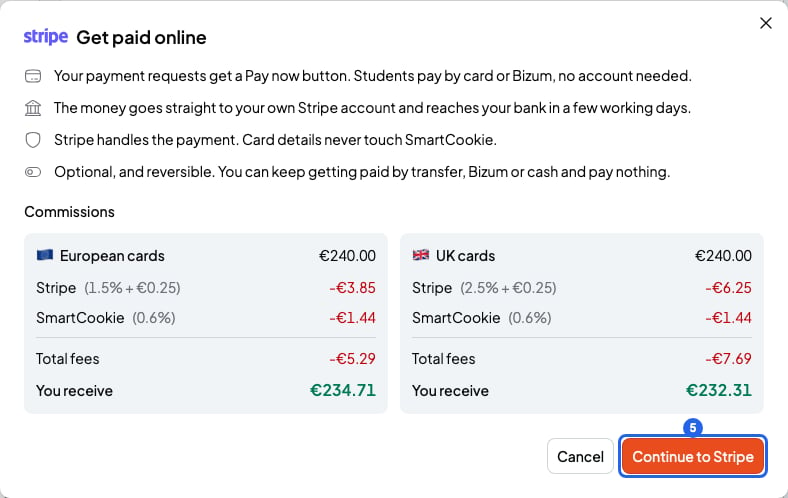
 4. Read the **Get paid online** window: it explains how it works and what it costs. If your billing currency is going to change, it tells you too.
5. Click **Continue to Stripe**. The Stripe website opens.
4. Read the **Get paid online** window: it explains how it works and what it costs. If your billing currency is going to change, it tells you too.
5. Click **Continue to Stripe**. The Stripe website opens.
 6. In Stripe, fill in the details it asks for, like your personal details and your bank account. When you finish, Stripe sends you back to SmartCookie.
7. Once Stripe approves your account, you'll see **Ready for card payments** next to **Online payments**. All done!
Stripe decides which details it asks for and how long it takes to check them. SmartCookie doesn't email you: go back to **Payment setup** to see the status.
You can also start from the **Payments** page, with the **Connect Stripe** button in the **Online payments** box.
If you see **In progress**, Stripe is missing some details or is still checking them. Click **Finish setup** to pick up where you left off.
## What your students see
* Every bill shows the **Pay now** button. Students pay without creating an account.
* They can pay by card. If your Stripe account is in Spain, also with Bizum.
* They still see your IBAN and your other payment methods, in case they'd rather pay that way.
* When they pay with **Pay now**, the bill is marked **Paid** on its own.
Every Stripe payment has fees: [Stripe fees and when you get your money](/en/payments/fees-and-payouts).
## Disconnect Stripe
1. On the **Payment setup** page, under **Online payments**, click **Disconnect Stripe**.
2. In the **Disconnect Stripe?** window, click **Disconnect**. You'll see "Stripe disconnected" and the **Stripe paused** label.
Your bills stop showing **Pay now**. Bills you already sent stay open, and students can pay them with your IBAN or other methods. Your Stripe account stays open. You can see your money with **View your payouts**, under **Online payments**. To come back, click **Reconnect Stripe**: you don't set up again.
## What you can't do
* You can't connect Stripe if you live in another country. You can keep getting paid by bank transfer or with your own payment instructions.
* You can't change your country or billing currency after connecting Stripe.
* Students can't pay by direct debit with **Pay now**.
## Related articles
* [Stripe fees and when you get your money](/en/payments/fees-and-payouts)
* [Send a bill to a student](/en/payments/send-a-bill)
* [Fill in your billing details](/en/payments/billing-details)
6. In Stripe, fill in the details it asks for, like your personal details and your bank account. When you finish, Stripe sends you back to SmartCookie.
7. Once Stripe approves your account, you'll see **Ready for card payments** next to **Online payments**. All done!
Stripe decides which details it asks for and how long it takes to check them. SmartCookie doesn't email you: go back to **Payment setup** to see the status.
You can also start from the **Payments** page, with the **Connect Stripe** button in the **Online payments** box.
If you see **In progress**, Stripe is missing some details or is still checking them. Click **Finish setup** to pick up where you left off.
## What your students see
* Every bill shows the **Pay now** button. Students pay without creating an account.
* They can pay by card. If your Stripe account is in Spain, also with Bizum.
* They still see your IBAN and your other payment methods, in case they'd rather pay that way.
* When they pay with **Pay now**, the bill is marked **Paid** on its own.
Every Stripe payment has fees: [Stripe fees and when you get your money](/en/payments/fees-and-payouts).
## Disconnect Stripe
1. On the **Payment setup** page, under **Online payments**, click **Disconnect Stripe**.
2. In the **Disconnect Stripe?** window, click **Disconnect**. You'll see "Stripe disconnected" and the **Stripe paused** label.
Your bills stop showing **Pay now**. Bills you already sent stay open, and students can pay them with your IBAN or other methods. Your Stripe account stays open. You can see your money with **View your payouts**, under **Online payments**. To come back, click **Reconnect Stripe**: you don't set up again.
## What you can't do
* You can't connect Stripe if you live in another country. You can keep getting paid by bank transfer or with your own payment instructions.
* You can't change your country or billing currency after connecting Stripe.
* Students can't pay by direct debit with **Pay now**.
## Related articles
* [Stripe fees and when you get your money](/en/payments/fees-and-payouts)
* [Send a bill to a student](/en/payments/send-a-bill)
* [Fill in your billing details](/en/payments/billing-details)