> ## Documentation Index
> Fetch the complete documentation index at: https://docs.smartcookieapp.com/llms.txt
> Use this file to discover all available pages before exploring further.
> ## Agent Instructions
> This is the SmartCookie help center for teachers and their students. Answer in the reader's language (Spanish pages have no prefix, English pages start with /en). Only describe features documented here; if something is not documented, say you don't know and point to /contact-support.
# Add a discount or VAT to a bill
> Take off a discount, add a surcharge or change the VAT on a bill before you create it.
You can add a discount or a surcharge to a bill with the **Adjustment** field, and change its VAT with the **VAT** field. Both sit at the bottom of the bill form, above the **Total**.
## Before you start
* Open a new bill and tick what you want to charge for: [Send a bill to a student](/en/payments/send-a-bill).
## Add a discount or a surcharge
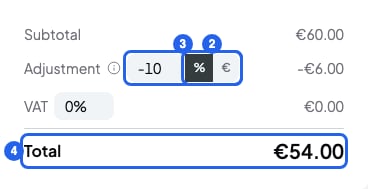
1. In the new bill, scroll down to the **Adjustment** row.
2. Choose the type of adjustment: **%** for a percentage or **€** (your currency's symbol) for a fixed amount. If you switch type, the number goes back to 0.
3. Type the number. With a minus sign in front it's a discount: -10 takes off 10% or €10. Without a sign it's a surcharge.
4. Check the **Total**: it already includes the adjustment.
 Then create and send the bill as usual.
## Change the VAT on a bill
Each new bill takes the **VAT rate** from your billing details. If you usually charge the same VAT, change it there: [Fill in your billing details](/en/payments/billing-details). To change it on one bill only:
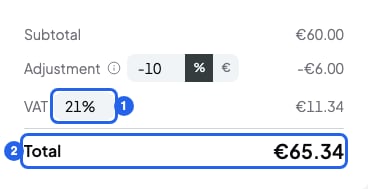
1. In the **VAT** row, delete the percentage and type the new one. For example, 21.
2. Check the **Total**: it already includes the VAT.
Then create and send the bill as usual.
## Change the VAT on a bill
Each new bill takes the **VAT rate** from your billing details. If you usually charge the same VAT, change it there: [Fill in your billing details](/en/payments/billing-details). To change it on one bill only:
1. In the **VAT** row, delete the percentage and type the new one. For example, 21.
2. Check the **Total**: it already includes the VAT.
 ## How the total is worked out
SmartCookie applies the adjustment first, then works out the VAT on the adjusted amount. For example:
* 2 sessions at €30: €60.
* **Adjustment** of -10%: -€6. That leaves €54.
* **VAT** at 21% on €54: €11.34.
* **Total**: €65.34.
Your student sees the adjustment and the VAT as separate lines on the payment page. The email only shows the total.
## What you can't do
* You can't change the adjustment or the VAT after you create the bill. Cancel it and create a new one: [Mark a bill as paid or cancel it](/en/payments/mark-paid-or-cancel).
* A % adjustment goes from -100 to 100. VAT goes from 0% to 100%.
* A fixed discount can't be bigger than what you're charging on the bill.
* The total can't go below your currency's minimum (€0.50 in euros). If it's 0 or less, you can't click **Create**. If it's between 0 and the minimum, you'll see a warning when you click **Create**.
## Related articles
* [Send a bill to a student](/en/payments/send-a-bill)
* [Fill in your billing details](/en/payments/billing-details)
* [Mark a bill as paid or cancel it](/en/payments/mark-paid-or-cancel)
## How the total is worked out
SmartCookie applies the adjustment first, then works out the VAT on the adjusted amount. For example:
* 2 sessions at €30: €60.
* **Adjustment** of -10%: -€6. That leaves €54.
* **VAT** at 21% on €54: €11.34.
* **Total**: €65.34.
Your student sees the adjustment and the VAT as separate lines on the payment page. The email only shows the total.
## What you can't do
* You can't change the adjustment or the VAT after you create the bill. Cancel it and create a new one: [Mark a bill as paid or cancel it](/en/payments/mark-paid-or-cancel).
* A % adjustment goes from -100 to 100. VAT goes from 0% to 100%.
* A fixed discount can't be bigger than what you're charging on the bill.
* The total can't go below your currency's minimum (€0.50 in euros). If it's 0 or less, you can't click **Create**. If it's between 0 and the minimum, you'll see a warning when you click **Create**.
## Related articles
* [Send a bill to a student](/en/payments/send-a-bill)
* [Fill in your billing details](/en/payments/billing-details)
* [Mark a bill as paid or cancel it](/en/payments/mark-paid-or-cancel)