> ## Documentation Index
> Fetch the complete documentation index at: https://docs.smartcookieapp.com/llms.txt
> Use this file to discover all available pages before exploring further.
> ## Agent Instructions
> This is the SmartCookie help center for teachers and their students. Answer in the reader's language (Spanish pages have no prefix, English pages start with /en). Only describe features documented here; if something is not documented, say you don't know and point to /contact-support.
# Mark a bill as paid or cancel it
> Record payments you get in cash or by bank transfer, and cancel bills that are no longer owed.
When a student pays you in cash, by bank transfer or by Bizum (a Spanish mobile payment app) outside SmartCookie, mark their bill as paid. If a bill is no longer owed, cancel it. If your student pays with **Pay now** (through Stripe), SmartCookie marks it as paid on its own.
## Mark a bill as paid
1. In the menu on the left, click **Payments**.
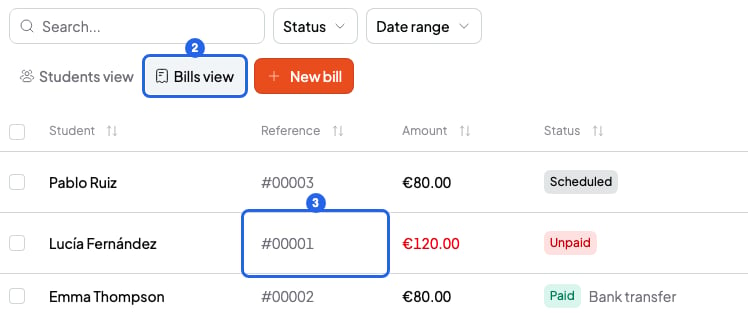
2. Click **Bills view**, next to **New bill**.
3. Click the bill. It opens on the right.
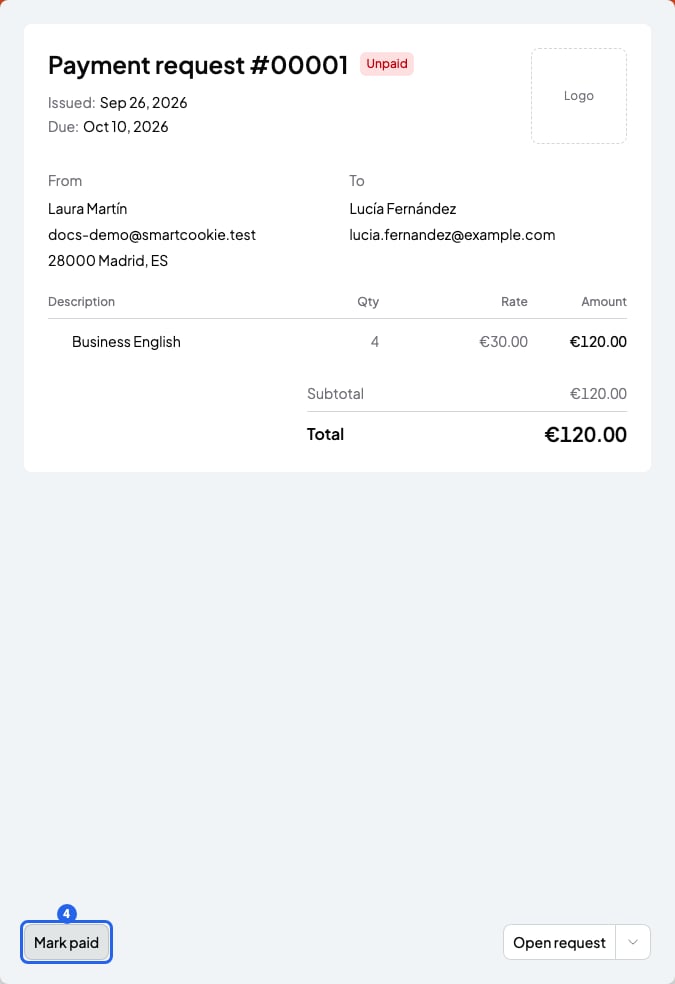
 4. Click **Mark paid**.
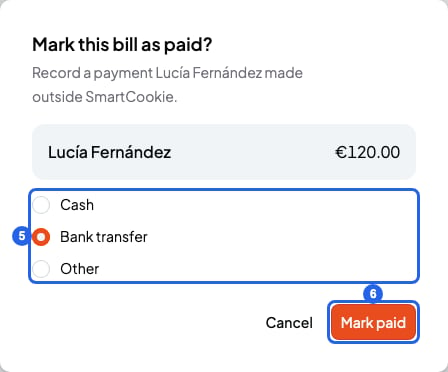
 5. Choose how they paid you: **Cash**, **Bank transfer** or **Other** (for example, Bizum).
6. Click **Mark paid**. You'll see "Bill marked as paid." and the bill changes to **Paid**.
5. Choose how they paid you: **Cash**, **Bank transfer** or **Other** (for example, Bizum).
6. Click **Mark paid**. You'll see "Bill marked as paid." and the bill changes to **Paid**.
 You can only mark **Unpaid** or **Overdue** bills as paid.
## Mark or cancel several at once
1. In **Payments** > **Bills view**, tick the box next to each bill.
2. In the bar that appears, click **Mark paid** or **Cancel bill**.
The bills you tick must all have the same status. If you mix statuses, you'll see "Select bills with the same status."
## Cancel a bill
1. Open the bill from **Payments** > **Bills view**.
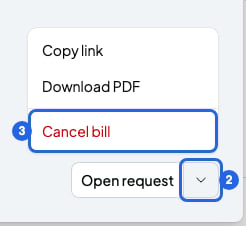
2. Click the arrow next to the **Open request** button. If the bill is **Scheduled**, skip this step: the **Cancel bill** button is at the bottom right.
3. Choose **Cancel bill**.
You can only mark **Unpaid** or **Overdue** bills as paid.
## Mark or cancel several at once
1. In **Payments** > **Bills view**, tick the box next to each bill.
2. In the bar that appears, click **Mark paid** or **Cancel bill**.
The bills you tick must all have the same status. If you mix statuses, you'll see "Select bills with the same status."
## Cancel a bill
1. Open the bill from **Payments** > **Bills view**.
2. Click the arrow next to the **Open request** button. If the bill is **Scheduled**, skip this step: the **Cancel bill** button is at the bottom right.
3. Choose **Cancel bill**.
 4. In the **Cancel this bill?** window, click **Cancel bill**. You'll see "Bill canceled."
Your student no longer owes that amount. The sessions and packs on it are free again, so you can charge for them on another bill.
Canceled bills don't show in the list. To see them, click **Status** and choose **Canceled**.
## If your student pays only part of it
**Mark paid** always records the bill's full total. If your student pays only part of it, swap the bill for one that asks for what's left:
1. Cancel the bill (arrow next to **Open request** > **Cancel bill**). Its sessions and packs are free again.
2. Create a new bill with the same sessions and packs.
3. In **Adjustment**, choose **€** and type what they already paid, with a minus sign in front. For example, -40.
4. Check the **Total**: it's what's left to pay.
5. Click **Create** and send the bill.
The part they already paid isn't recorded in SmartCookie. If the bill has VAT, the adjustment comes off before VAT is added. Type what they paid without the VAT: with 21% VAT, divide it by 1.21. For example, if they paid €40, type -33.06. More in [Add a discount or VAT to a bill](/en/payments/discounts-and-vat).
## If you refund a Stripe payment
You can't refund money from SmartCookie. If your student paid through Stripe, make the refund from your Stripe dashboard.
* If you refund the full amount, the bill changes to **Refunded**. Its sessions and packs are free again, so you can charge for them on another bill.
* If you refund only part of it, the bill stays **Paid** and shows the **Refunded** amount.
* Stripe decides what happens to the fees on a refunded payment. Check your Stripe dashboard.
## What you can't do
* You can't mark a **Scheduled** bill as paid. Wait until the day it's sent, or cancel it.
* You can't undo **Mark paid** or **Cancel bill**. If you cancel by mistake, create a new bill. If you marked it as paid by mistake, write to us: [Contact support](/en/contact-support).
* You can't cancel a bill that's already paid.
## Related articles
* [Send a bill to a student](/en/payments/send-a-bill)
* [Stripe fees and when you get your money](/en/payments/fees-and-payouts)
4. In the **Cancel this bill?** window, click **Cancel bill**. You'll see "Bill canceled."
Your student no longer owes that amount. The sessions and packs on it are free again, so you can charge for them on another bill.
Canceled bills don't show in the list. To see them, click **Status** and choose **Canceled**.
## If your student pays only part of it
**Mark paid** always records the bill's full total. If your student pays only part of it, swap the bill for one that asks for what's left:
1. Cancel the bill (arrow next to **Open request** > **Cancel bill**). Its sessions and packs are free again.
2. Create a new bill with the same sessions and packs.
3. In **Adjustment**, choose **€** and type what they already paid, with a minus sign in front. For example, -40.
4. Check the **Total**: it's what's left to pay.
5. Click **Create** and send the bill.
The part they already paid isn't recorded in SmartCookie. If the bill has VAT, the adjustment comes off before VAT is added. Type what they paid without the VAT: with 21% VAT, divide it by 1.21. For example, if they paid €40, type -33.06. More in [Add a discount or VAT to a bill](/en/payments/discounts-and-vat).
## If you refund a Stripe payment
You can't refund money from SmartCookie. If your student paid through Stripe, make the refund from your Stripe dashboard.
* If you refund the full amount, the bill changes to **Refunded**. Its sessions and packs are free again, so you can charge for them on another bill.
* If you refund only part of it, the bill stays **Paid** and shows the **Refunded** amount.
* Stripe decides what happens to the fees on a refunded payment. Check your Stripe dashboard.
## What you can't do
* You can't mark a **Scheduled** bill as paid. Wait until the day it's sent, or cancel it.
* You can't undo **Mark paid** or **Cancel bill**. If you cancel by mistake, create a new bill. If you marked it as paid by mistake, write to us: [Contact support](/en/contact-support).
* You can't cancel a bill that's already paid.
## Related articles
* [Send a bill to a student](/en/payments/send-a-bill)
* [Stripe fees and when you get your money](/en/payments/fees-and-payouts)