> ## Documentation Index
> Fetch the complete documentation index at: https://docs.smartcookieapp.com/llms.txt
> Use this file to discover all available pages before exploring further.
> ## Agent Instructions
> This is the SmartCookie help center for teachers and their students. Answer in the reader's language (Spanish pages have no prefix, English pages start with /en). Only describe features documented here; if something is not documented, say you don't know and point to /contact-support.
# Download a payments summary for your accountant
> Download a PDF of every paid bill in a period, with VAT and totals, ready for your accountant.
The **Summary** button on the **Payments** page downloads a PDF with every bill paid in a period, with its VAT and totals. It includes the payments you record yourself and the ones that come in through Stripe. SmartCookie doesn't send it to your accountant: email it to them yourself.
## Download the summary
1. In the menu on the left, click **Payments**.
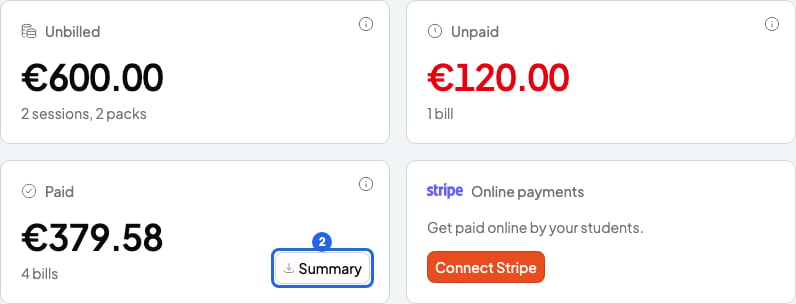
2. On the **Paid** card, click **Summary**. On a phone, tap the download button on the **Paid** row.
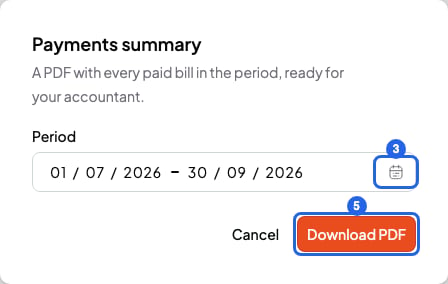
 3. Click the calendar icon, on the right of **Period**. This quarter is picked by default.
4. Choose **This month**, **Last month**, **This quarter** or **Last quarter**. For other dates, click the first and the last day in the calendar, or type them in **Period**.
5. Click **Download PDF**. You'll see "Summary downloaded". The file is saved to your downloads folder, for example `payments-summary-2026-07-01_2026-09-30.pdf`.
3. Click the calendar icon, on the right of **Period**. This quarter is picked by default.
4. Choose **This month**, **Last month**, **This quarter** or **Last quarter**. For other dates, click the first and the last day in the calendar, or type them in **Period**.
5. Click **Download PDF**. You'll see "Summary downloaded". The file is saved to your downloads folder, for example `payments-summary-2026-07-01_2026-09-30.pdf`.
 If it fails, the window stays open and you'll see "We couldn't create the summary. Try again in a moment."
## Pick a valid period
* The period can be 1 year long at most. If not, you'll see "Pick a period of 1 year or less."
* The end date can't be before the start date. A single day works too.
* The dates must be between 2000 and 2099.
While the dates aren't valid, you can't click **Download PDF** and the error shows under **Period**.
## Which bills go into the summary
* Only **Paid** bills that were paid within the period. The paid date is the day you clicked **Mark paid**, or the day your student paid with **Pay now**. The day you sent the bill doesn't count.
* Days are counted in your time zone. You can change it in [Change your name, email, language, time zone or password](/en/account/account-settings).
* **Unpaid**, **Overdue**, **Scheduled**, **Canceled** and **Refunded** bills aren't included.
* If you refunded only part of a Stripe payment, the bill stays **Paid** and goes in with its full total.
## What's in the PDF
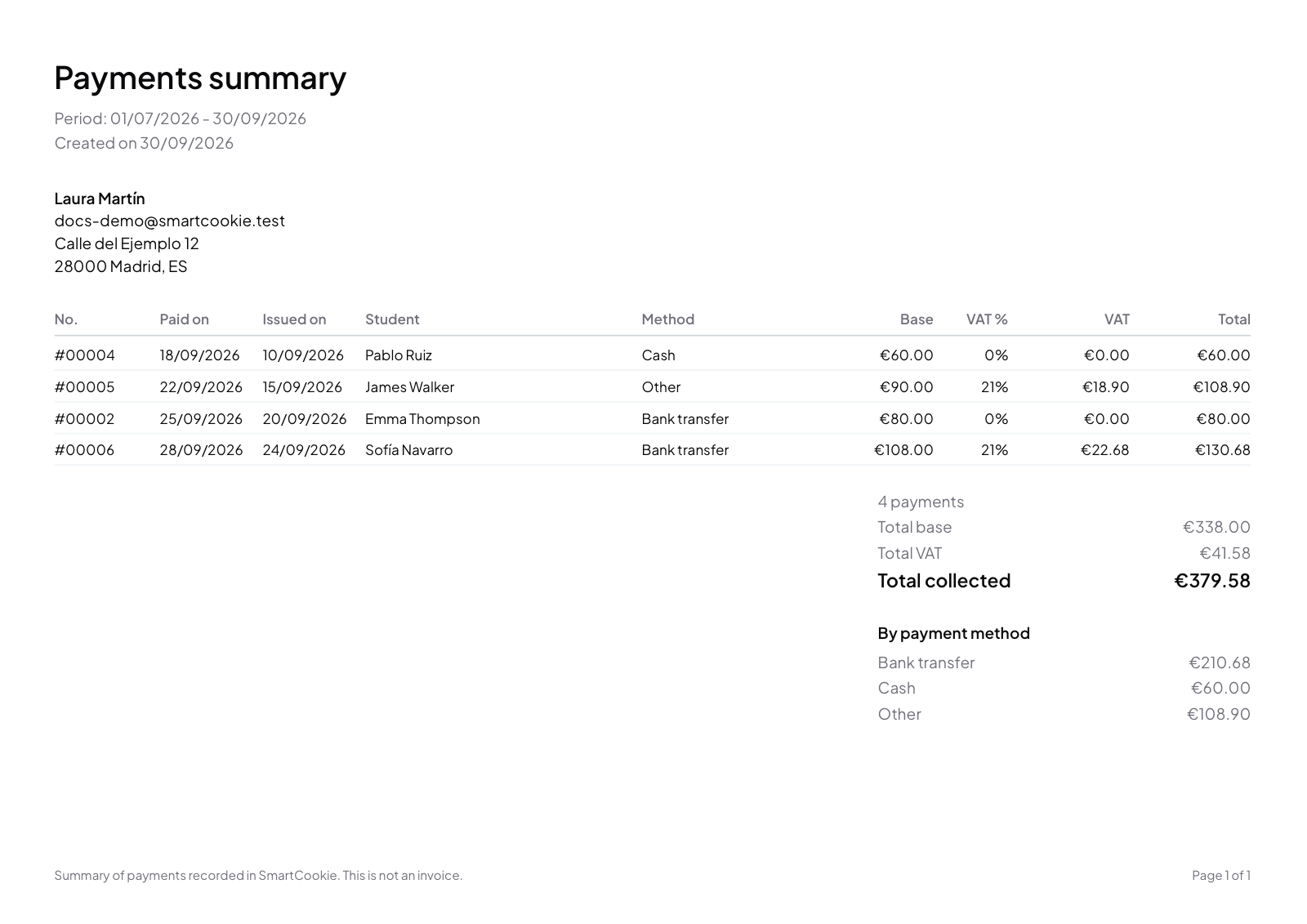
The PDF uses landscape A4 pages and comes out in the language you use SmartCookie in.
* At the top: the title **Payments summary**, the period and the day you created it.
* Your current billing details and your logo, if you added one. Check them in [Fill in your billing details](/en/payments/billing-details).
* One row per bill, sorted by paid date. Columns: **No.**, **Paid on**, **Issued on**, **Student**, **Method**, **Base**, **VAT %**, **VAT** and **Total**.
* **Issued on** is the day you sent the bill. **Base** is the amount without VAT, with any discount already taken off.
* The totals: the number of payments, **Total base**, **Total VAT** and **Total collected**.
* **By payment method**: how much you got in **Cash**, **Bank transfer**, **Stripe** or **Other**.
* At the bottom of every page: "Summary of payments recorded in SmartCookie. This is not an invoice."
If there are no paid bills in the period, the PDF still downloads, with "No paid bills in this period." and the totals at zero.
## What you can't do
* You can't use the summary as an invoice. If you need invoices, ask your accountant.
* You can't ask for more than 1 year at once. Download one summary per year.
* You can't download more than 10 summaries in 1 minute. If you go over, you'll see "We couldn't create the summary. Try again in a moment." Wait a minute and try again.
* You can't see refunds or fees in the summary. Check them in your Stripe dashboard.
## Related articles
* [Mark a bill as paid or cancel it](/en/payments/mark-paid-or-cancel)
* [Fill in your billing details](/en/payments/billing-details)
* [Stripe fees and when you get your money](/en/payments/fees-and-payouts)
If it fails, the window stays open and you'll see "We couldn't create the summary. Try again in a moment."
## Pick a valid period
* The period can be 1 year long at most. If not, you'll see "Pick a period of 1 year or less."
* The end date can't be before the start date. A single day works too.
* The dates must be between 2000 and 2099.
While the dates aren't valid, you can't click **Download PDF** and the error shows under **Period**.
## Which bills go into the summary
* Only **Paid** bills that were paid within the period. The paid date is the day you clicked **Mark paid**, or the day your student paid with **Pay now**. The day you sent the bill doesn't count.
* Days are counted in your time zone. You can change it in [Change your name, email, language, time zone or password](/en/account/account-settings).
* **Unpaid**, **Overdue**, **Scheduled**, **Canceled** and **Refunded** bills aren't included.
* If you refunded only part of a Stripe payment, the bill stays **Paid** and goes in with its full total.
## What's in the PDF
The PDF uses landscape A4 pages and comes out in the language you use SmartCookie in.
* At the top: the title **Payments summary**, the period and the day you created it.
* Your current billing details and your logo, if you added one. Check them in [Fill in your billing details](/en/payments/billing-details).
* One row per bill, sorted by paid date. Columns: **No.**, **Paid on**, **Issued on**, **Student**, **Method**, **Base**, **VAT %**, **VAT** and **Total**.
* **Issued on** is the day you sent the bill. **Base** is the amount without VAT, with any discount already taken off.
* The totals: the number of payments, **Total base**, **Total VAT** and **Total collected**.
* **By payment method**: how much you got in **Cash**, **Bank transfer**, **Stripe** or **Other**.
* At the bottom of every page: "Summary of payments recorded in SmartCookie. This is not an invoice."
If there are no paid bills in the period, the PDF still downloads, with "No paid bills in this period." and the totals at zero.
## What you can't do
* You can't use the summary as an invoice. If you need invoices, ask your accountant.
* You can't ask for more than 1 year at once. Download one summary per year.
* You can't download more than 10 summaries in 1 minute. If you go over, you'll see "We couldn't create the summary. Try again in a moment." Wait a minute and try again.
* You can't see refunds or fees in the summary. Check them in your Stripe dashboard.
## Related articles
* [Mark a bill as paid or cancel it](/en/payments/mark-paid-or-cancel)
* [Fill in your billing details](/en/payments/billing-details)
* [Stripe fees and when you get your money](/en/payments/fees-and-payouts)