> ## Documentation Index
> Fetch the complete documentation index at: https://docs.smartcookieapp.com/llms.txt
> Use this file to discover all available pages before exploring further.
> ## Agent Instructions
> This is the SmartCookie help center for teachers and their students. Answer in the reader's language (Spanish pages have no prefix, English pages start with /en). Only describe features documented here; if something is not documented, say you don't know and point to /contact-support.
# Send a bill to a student
> Create a bill with a student's sessions or packs and email it to them, today or on the day you choose.
A bill is the payment request you send a student to charge them for their sessions or packs. Your student gets an email with a link showing how much they owe and how to pay you.
## Before you start
* Fill in your billing details: [Fill in your billing details](/en/payments/billing-details).
* Your course needs a price before you can charge for its sessions: [Create a course](/en/courses/create-a-course).
* If you want students to pay by card: [Take card payments: connect Stripe](/en/payments/connect-stripe).
## Open a new bill
1. In the menu on the left, click **Payments**.
2. Click **New bill**, above the list of students.
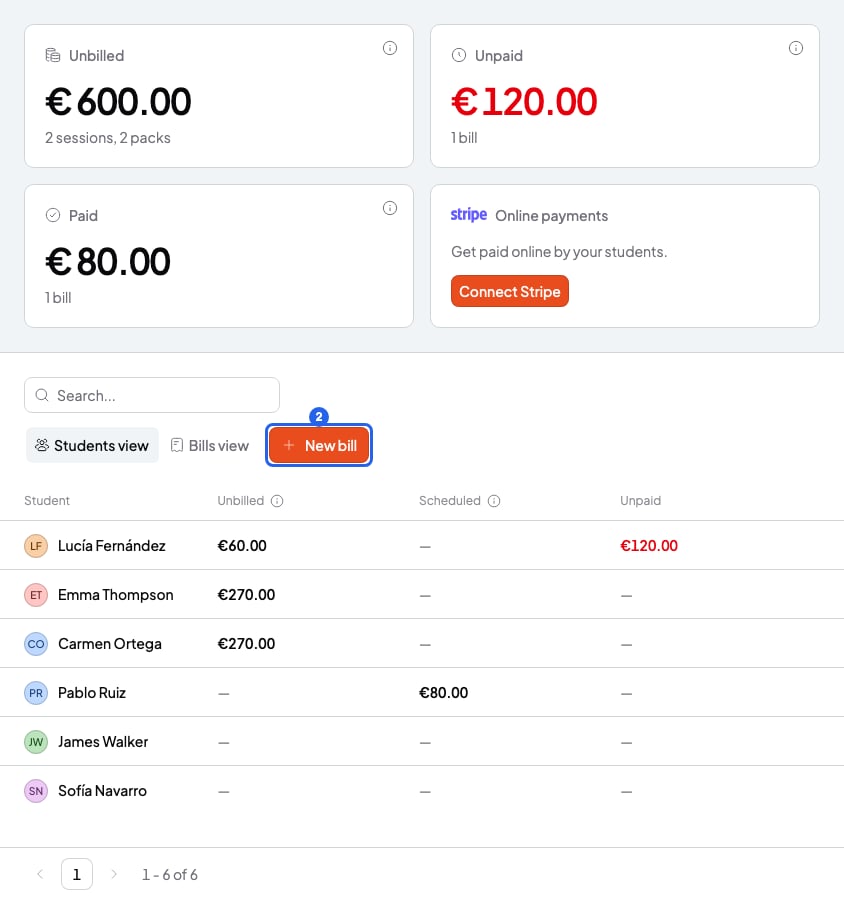 On **Payments** you see what's **Unbilled** (sessions and packs not on any bill yet), what's **Unpaid** and what's **Paid**.
## Fill in the bill
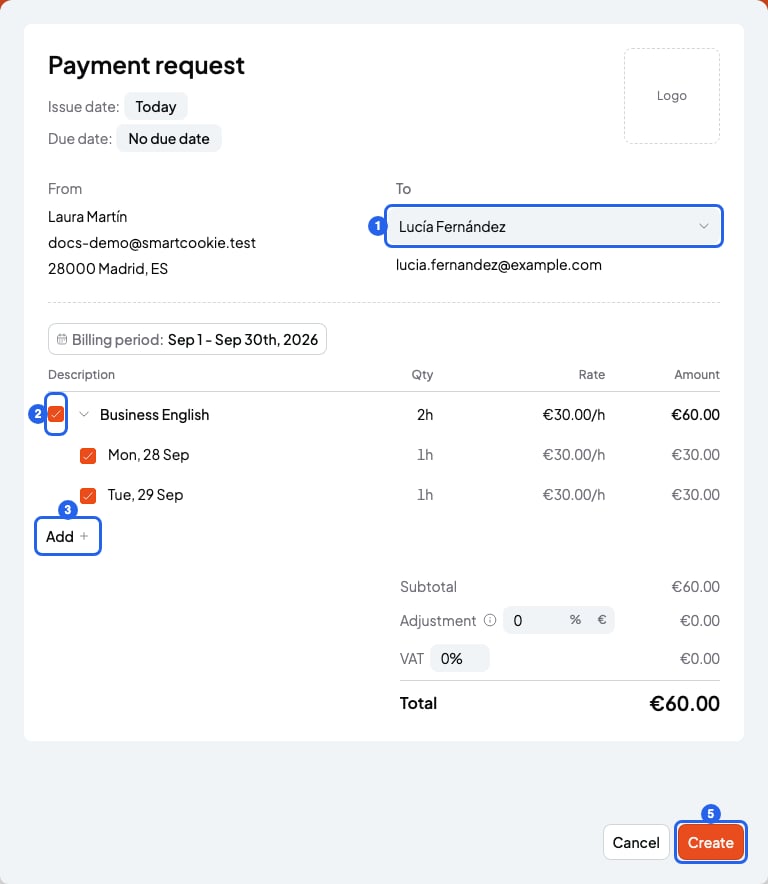
1. In **To**, choose the student.
2. Tick the sessions and packs you want to charge for. You see this month's; to see other dates, click **Billing period**.
3. To charge for something else, click **Add** and type the description, quantity and price.
4. To give them a deadline, choose a **Due date**: **No due date**, 7, 14 or 30 days. If it passes without payment, the bill shows as **Overdue**.
5. Check the **Total** and click **Create**.
On **Payments** you see what's **Unbilled** (sessions and packs not on any bill yet), what's **Unpaid** and what's **Paid**.
## Fill in the bill
1. In **To**, choose the student.
2. Tick the sessions and packs you want to charge for. You see this month's; to see other dates, click **Billing period**.
3. To charge for something else, click **Add** and type the description, quantity and price.
4. To give them a deadline, choose a **Due date**: **No due date**, 7, 14 or 30 days. If it passes without payment, the bill shows as **Overdue**.
5. Check the **Total** and click **Create**.
 ## Send the bill
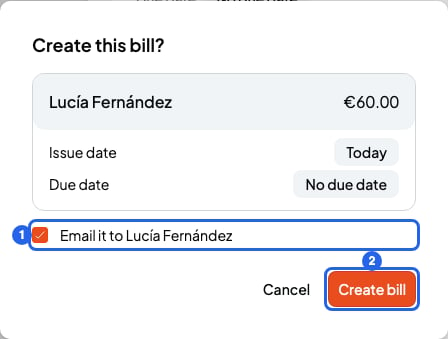
1. In the **Create this bill?** window, leave **Email it to** (with your student's name) ticked.
2. Click **Create bill**. You'll see "Bill created." and the bill appears in **Payments** as **Unpaid**.
## Send the bill
1. In the **Create this bill?** window, leave **Email it to** (with your student's name) ticked.
2. Click **Create bill**. You'll see "Bill created." and the bill appears in **Payments** as **Unpaid**.
 Your student gets the email straight away.
If your student has no email, you won't see the **Email it to** box. Create the bill anyway and send them the link yourself. To copy it, open the bill, click the arrow next to the **Open request** button and choose **Copy link**.
## Schedule the bill for another day
You can create the bill today and have it sent later on its own:
1. While you fill in the bill, before you click **Create**, click **Today**, next to **Issue date** at the top of the form.
2. Choose **Next month** (the 1st of next month), **In 2 months** or another day in the calendar.
Your student gets the email straight away.
If your student has no email, you won't see the **Email it to** box. Create the bill anyway and send them the link yourself. To copy it, open the bill, click the arrow next to the **Open request** button and choose **Copy link**.
## Schedule the bill for another day
You can create the bill today and have it sent later on its own:
1. While you fill in the bill, before you click **Create**, click **Today**, next to **Issue date** at the top of the form.
2. Choose **Next month** (the 1st of next month), **In 2 months** or another day in the calendar.
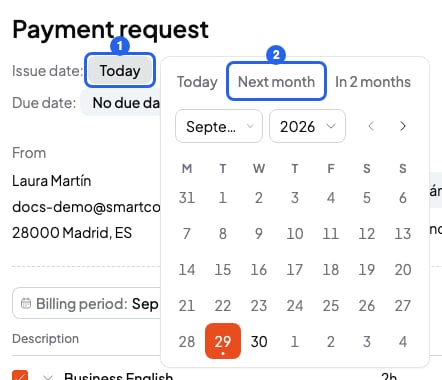 3. The **Create** button changes to **Schedule**. Click **Schedule**, then **Schedule bill**. You'll see "Bill scheduled."
SmartCookie sends it that morning, from 9:00am in your time zone. Until then it shows as **Scheduled**, and you can change the day with **Reschedule**. If your student has no email, copy the link that day and send it to them yourself.
## What you can't do
* You can't edit or delete a bill after creating it. Cancel it and create a new one: [Mark a bill as paid or cancel it](/en/payments/mark-paid-or-cancel).
* A bill is not a tax invoice. If your student needs an invoice, you'll have to make it separately.
* You can't charge for the same session or pack twice.
* You can't create a bill with a total below your currency's minimum. It's the smallest payment Stripe accepts, and it applies even if you haven't connected Stripe:
| Currency | Minimum total |
| - | - |
| Euro (EUR) | €0.50 |
| Pound (GBP) | £0.30 |
| Swedish, Norwegian or Danish krone | 3 SEK, NOK or DKK |
| Mexican peso (MXN) | 10 MXN |
| Czech koruna (CZK) | 15 CZK |
| Yen (JPY) | 50 JPY |
| Forint (HUF) | 175 HUF |
| Any other currency | 0.50 in your currency |
## Related articles
* [Mark a bill as paid or cancel it](/en/payments/mark-paid-or-cancel)
* [Add a discount or VAT to a bill](/en/payments/discounts-and-vat)
* [Automatic email reminders](/en/reminders/automatic-reminders)
* [Students: pay your teacher's bill](/en/for-students/pay-a-bill)
3. The **Create** button changes to **Schedule**. Click **Schedule**, then **Schedule bill**. You'll see "Bill scheduled."
SmartCookie sends it that morning, from 9:00am in your time zone. Until then it shows as **Scheduled**, and you can change the day with **Reschedule**. If your student has no email, copy the link that day and send it to them yourself.
## What you can't do
* You can't edit or delete a bill after creating it. Cancel it and create a new one: [Mark a bill as paid or cancel it](/en/payments/mark-paid-or-cancel).
* A bill is not a tax invoice. If your student needs an invoice, you'll have to make it separately.
* You can't charge for the same session or pack twice.
* You can't create a bill with a total below your currency's minimum. It's the smallest payment Stripe accepts, and it applies even if you haven't connected Stripe:
| Currency | Minimum total |
| - | - |
| Euro (EUR) | €0.50 |
| Pound (GBP) | £0.30 |
| Swedish, Norwegian or Danish krone | 3 SEK, NOK or DKK |
| Mexican peso (MXN) | 10 MXN |
| Czech koruna (CZK) | 15 CZK |
| Yen (JPY) | 50 JPY |
| Forint (HUF) | 175 HUF |
| Any other currency | 0.50 in your currency |
## Related articles
* [Mark a bill as paid or cancel it](/en/payments/mark-paid-or-cancel)
* [Add a discount or VAT to a bill](/en/payments/discounts-and-vat)
* [Automatic email reminders](/en/reminders/automatic-reminders)
* [Students: pay your teacher's bill](/en/for-students/pay-a-bill)