> ## Documentation Index
> Fetch the complete documentation index at: https://docs.smartcookieapp.com/llms.txt
> Use this file to discover all available pages before exploring further.
> ## Agent Instructions
> This is the SmartCookie help center for teachers and their students. Answer in the reader's language (Spanish pages have no prefix, English pages start with /en). Only describe features documented here; if something is not documented, say you don't know and point to /contact-support.
# Use session packs
> Create a session pack, give it to a student, start it and charge for it with a bill.
A session pack is a block of sessions your student pays for up front, for example 10 sessions to use within 90 days. You can use packs in every course except **Meetings 1 to 1** courses.
A pack goes through four steps: you create it, give it to a student, start it and charge for it. You create the pack once and can give it in any of your courses.
## Create a pack
1. In the menu on the left, click **Courses**.
2. Open the course.
3. Click **Packs**, at the top right.
 4. Click **New**.
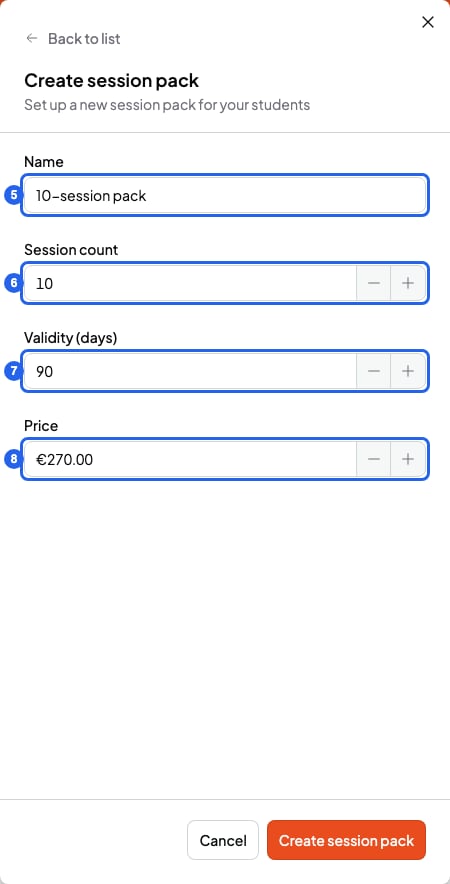
5. Type a **Name**, for example "10-session pack". Up to 50 characters.
6. In **Session count**, enter how many sessions the pack includes.
7. In **Validity (days)**, enter how many days the student has to use them, counted from when the pack starts.
8. In **Price**, enter what the whole pack costs.
9. Click **Create session pack**. The pack appears in the **Session packs** list.
4. Click **New**.
5. Type a **Name**, for example "10-session pack". Up to 50 characters.
6. In **Session count**, enter how many sessions the pack includes.
7. In **Validity (days)**, enter how many days the student has to use them, counted from when the pack starts.
8. In **Price**, enter what the whole pack costs.
9. Click **Create session pack**. The pack appears in the **Session packs** list.
 ## Give the pack to a student
1. In the course, click **Packs**.
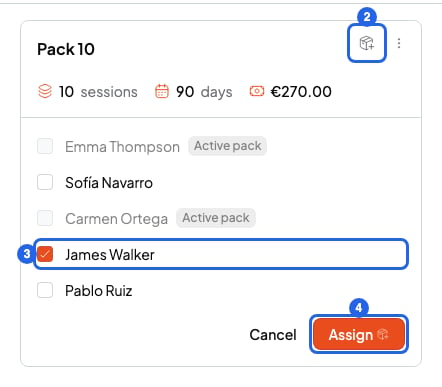
2. On the pack's card, click **Assign pack**: the box-with-a-plus button at the top right. If the course has only one student, the pack is assigned straight away and you're done.
3. If the course has several students, tick who gets the pack. Students who already have one in that course show **Active pack** and can't be ticked.
4. Click **Assign**.
## Give the pack to a student
1. In the course, click **Packs**.
2. On the pack's card, click **Assign pack**: the box-with-a-plus button at the top right. If the course has only one student, the pack is assigned straight away and you're done.
3. If the course has several students, tick who gets the pack. Students who already have one in that course show **Active pack** and can't be ticked.
4. Click **Assign**.
 ## Start the pack
The pack doesn't count sessions until you start it. That way you choose the day it counts from.
1. In the course, open the **Students** tab.
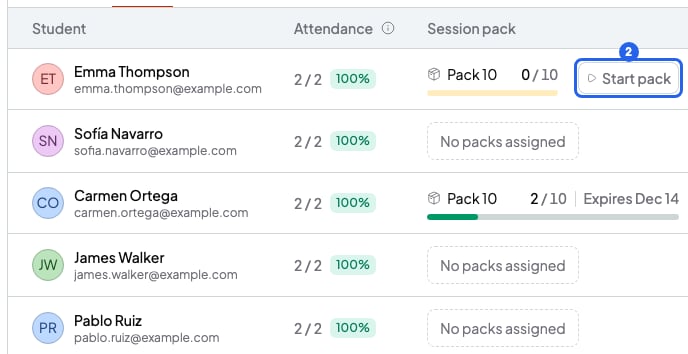
2. In the **Session pack** column, click **Start pack**.
## Start the pack
The pack doesn't count sessions until you start it. That way you choose the day it counts from.
1. In the course, open the **Students** tab.
2. In the **Session pack** column, click **Start pack**.
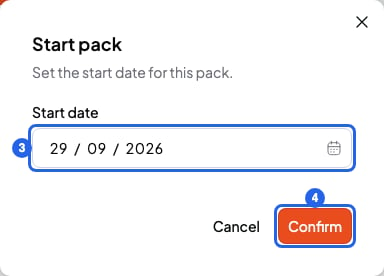
 3. Choose the **Start date**.
4. Click **Confirm**. You'll see a bar with the sessions used and when the pack expires. Which sessions it counts is in [Track or remove a student's pack](/en/payments/manage-packs).
3. Choose the **Start date**.
4. Click **Confirm**. You'll see a bar with the sessions used and when the pack expires. Which sessions it counts is in [Track or remove a student's pack](/en/payments/manage-packs).
 ## Charge for the pack
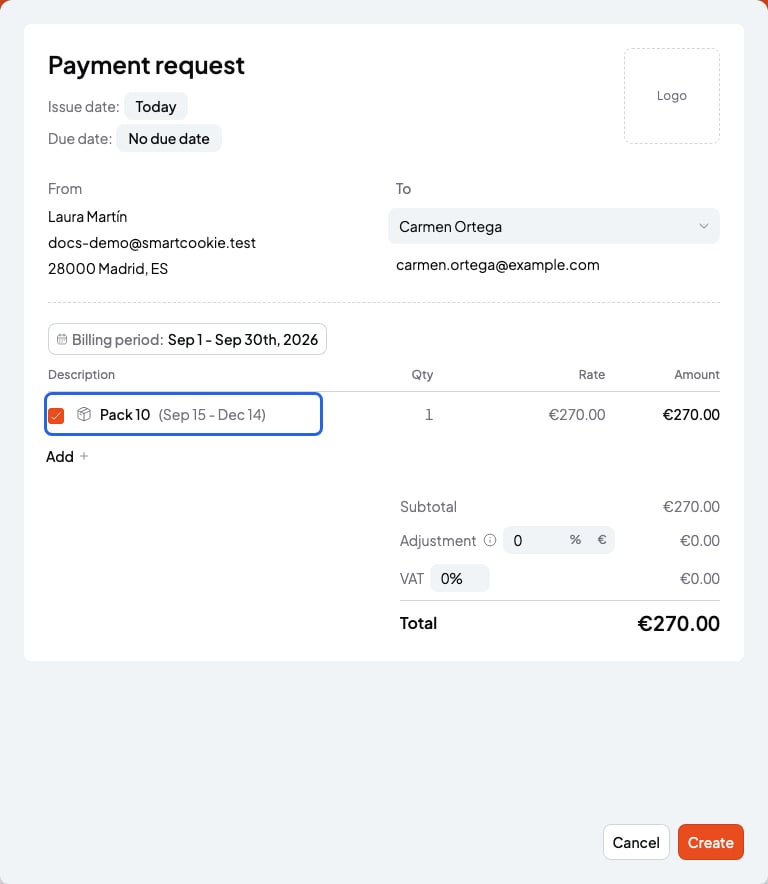
You can charge for it as soon as you give it, even before you start it. Create a bill for that student: the pack appears in the list with its price. Tick it to charge for it. Sessions the pack covers show **In a pack** and aren't charged separately. The full steps are in [Send a bill to a student](/en/payments/send-a-bill).
## Charge for the pack
You can charge for it as soon as you give it, even before you start it. Create a bill for that student: the pack appears in the list with its price. Tick it to charge for it. Sessions the pack covers show **In a pack** and aren't charged separately. The full steps are in [Send a bill to a student](/en/payments/send-a-bill).
 If the pack's price is 0, you can't charge for it. Set a price before you give it: changing the price later doesn't change the pack you already gave.
## What you can't do
* You can't give another pack to a student who already has an active pack (not started or in progress) in that course. Wait until it's completed or expires, or remove it: [Track or remove a student's pack](/en/payments/manage-packs).
* If you edit a pack, students who already have it keep the old session count, validity and price.
## Related articles
* [Track or remove a student's pack](/en/payments/manage-packs)
* [Send a bill to a student](/en/payments/send-a-bill)
* [Automatic email reminders](/en/reminders/automatic-reminders)
If the pack's price is 0, you can't charge for it. Set a price before you give it: changing the price later doesn't change the pack you already gave.
## What you can't do
* You can't give another pack to a student who already has an active pack (not started or in progress) in that course. Wait until it's completed or expires, or remove it: [Track or remove a student's pack](/en/payments/manage-packs).
* If you edit a pack, students who already have it keep the old session count, validity and price.
## Related articles
* [Track or remove a student's pack](/en/payments/manage-packs)
* [Send a bill to a student](/en/payments/send-a-bill)
* [Automatic email reminders](/en/reminders/automatic-reminders)