> ## Documentation Index
> Fetch the complete documentation index at: https://docs.smartcookieapp.com/llms.txt
> Use this file to discover all available pages before exploring further.
> ## Agent Instructions
> This is the SmartCookie help center for teachers and their students. Answer in the reader's language (Spanish pages have no prefix, English pages start with /en). Only describe features documented here; if something is not documented, say you don't know and point to /contact-support.
# Add or import students
> Add students to SmartCookie one by one, or paste a whole list at once.
You can add students one at a time, or import a whole list by pasting it into SmartCookie. Only the name is required; email and phone are optional.
## Before you start
* If you want to invite the student to the student portal (their private space to see their sessions, session packs and payments), you'll need their email. Then follow [Invite students to the portal](/en/student-portal/invite-students).
* Are your sessions already in Google Calendar? SmartCookie can add your students for you: [Import your sessions from Google Calendar](/en/getting-started/import-from-google-calendar).
## Add a student
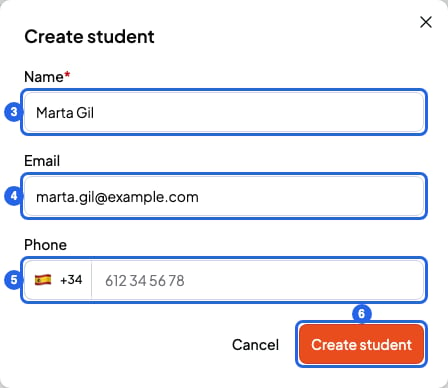
1. In the menu on the left, click **Students**.
2. Click **New student**, at the top right.
3. Type the student's **Name**.
4. If you like, add their **Email**.
5. If you like, add their **Phone**. The country is set to Spain at first: for another country, click the flag and search for it.
6. Click **Create student**. You'll see "Student created successfully" and the student appears in your list.
 ## Import a list of students
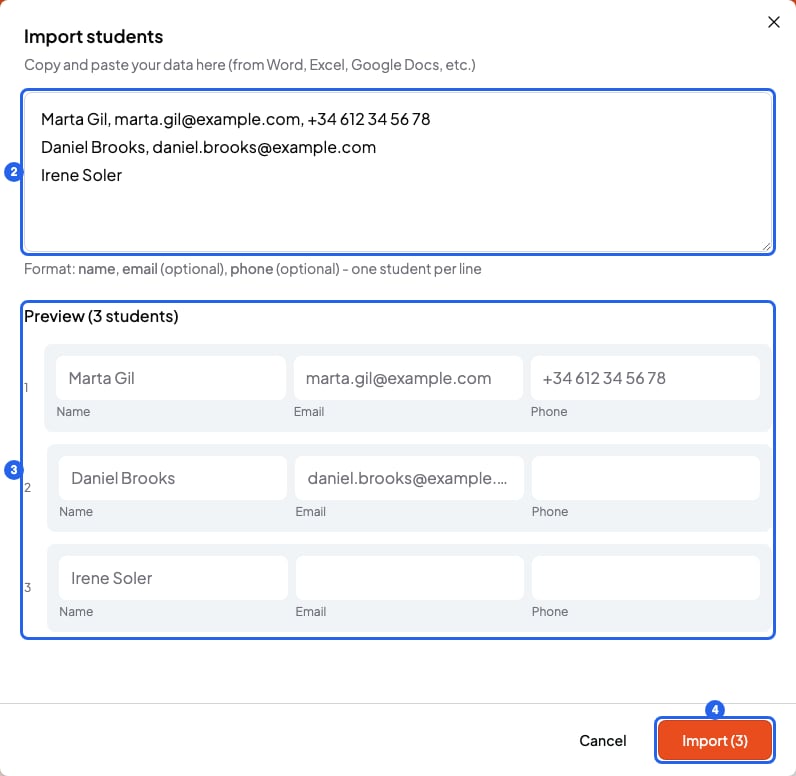
1. In **Students**, click **Import**, at the top right.
2. Paste your list into the text box. Write one student per line, with their details separated by commas: `name, email, phone`. For example:
```text theme={null}
Marta Gil, marta.gil@example.com, +34 612 34 56 78
Daniel Brooks, daniel.brooks@example.com
Irene Soler
```
3. Check the **Preview** below the box. Each line should show the name, email and phone in the right place.
4. Click **Import**. The button shows how many students you're about to import. You'll see "Students imported successfully".
## Import a list of students
1. In **Students**, click **Import**, at the top right.
2. Paste your list into the text box. Write one student per line, with their details separated by commas: `name, email, phone`. For example:
```text theme={null}
Marta Gil, marta.gil@example.com, +34 612 34 56 78
Daniel Brooks, daniel.brooks@example.com
Irene Soler
```
3. Check the **Preview** below the box. Each line should show the name, email and phone in the right place.
4. Click **Import**. The button shows how many students you're about to import. You'll see "Students imported successfully".
 A few details that save you errors:
* Write phone numbers with the country code, for example `+44`. Without it, SmartCookie doesn't accept them.
* If you have the phone but not the email, leave the gap between the commas empty: `Irene Soler, , +34 600 11 22 33`.
If you copy the list from Excel or Google Sheets, the details have no commas. Check the preview: if everything lands in **Name**, add commas between the name, email and phone.
## If a line turns red
If any line has an error, SmartCookie doesn't import any students. The line with the error turns red, with the reason underneath. Fix it or delete it, then click **Import** again.
The most common errors are:
* The name is missing.
* The email or phone isn't valid.
* The same email or phone appears twice in your list.
* The email or phone already belongs to another of your students.
## Add the student to a course
A new student isn't in any course yet. To schedule their sessions, add them to a new course or to one you already have. We explain how in [Create a course](/en/courses/create-a-course).
## What you can't do
* You can't have two students with the same email or the same phone. If two siblings share an email or phone, add it to only one of them.
* You can't upload a file (like an Excel file). Copy the details and paste them into the text box.
## Related articles
* [How SmartCookie is organized: courses, students and sessions](/en/getting-started/how-smartcookie-works)
* [Import your sessions from Google Calendar](/en/getting-started/import-from-google-calendar)
* [Create a course](/en/courses/create-a-course)
* [Invite students to the portal](/en/student-portal/invite-students)
A few details that save you errors:
* Write phone numbers with the country code, for example `+44`. Without it, SmartCookie doesn't accept them.
* If you have the phone but not the email, leave the gap between the commas empty: `Irene Soler, , +34 600 11 22 33`.
If you copy the list from Excel or Google Sheets, the details have no commas. Check the preview: if everything lands in **Name**, add commas between the name, email and phone.
## If a line turns red
If any line has an error, SmartCookie doesn't import any students. The line with the error turns red, with the reason underneath. Fix it or delete it, then click **Import** again.
The most common errors are:
* The name is missing.
* The email or phone isn't valid.
* The same email or phone appears twice in your list.
* The email or phone already belongs to another of your students.
## Add the student to a course
A new student isn't in any course yet. To schedule their sessions, add them to a new course or to one you already have. We explain how in [Create a course](/en/courses/create-a-course).
## What you can't do
* You can't have two students with the same email or the same phone. If two siblings share an email or phone, add it to only one of them.
* You can't upload a file (like an Excel file). Copy the details and paste them into the text box.
## Related articles
* [How SmartCookie is organized: courses, students and sessions](/en/getting-started/how-smartcookie-works)
* [Import your sessions from Google Calendar](/en/getting-started/import-from-google-calendar)
* [Create a course](/en/courses/create-a-course)
* [Invite students to the portal](/en/student-portal/invite-students)