> ## Documentation Index
> Fetch the complete documentation index at: https://docs.smartcookieapp.com/llms.txt
> Use this file to discover all available pages before exploring further.
> ## Agent Instructions
> This is the SmartCookie help center for teachers and their students. Answer in the reader's language (Spanish pages have no prefix, English pages start with /en). Only describe features documented here; if something is not documented, say you don't know and point to /contact-support.
# Build your team and invite teachers
> Invite other teachers to your SmartCookie space by email, see what you'll pay and manage pending invites.
To build your team, invite each teacher with their email. Your teachers join your space, where your courses and students live, and only see the courses you assign them. Your students and courses stay as they are: nothing moves or gets copied.
## Before you start
* You need an active membership: you can't invite during the free trial. See [Free trial and SmartCookie membership](/en/account/trial-and-plans).
## Invite a teacher
1. At the top of the menu on the left, click your space's name (if you haven't changed it, it's your own name).
2. Click **Build your team**. If you already have teachers, click **Add teachers**. The **Grow your team** card opens.
3. Type the teacher's email.
4. Check below what you'll pay once they join: "Your plan goes from… to…".
5. Click **Send invite**. You'll see "Invite sent".
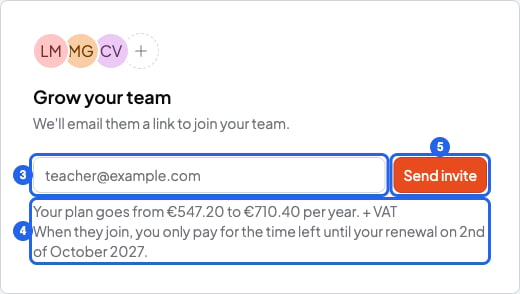 The teacher gets an email with the **Join the team** button. They have 7 days to accept the invite. How they join: [Join a team and switch spaces](/en/team/join-a-team).
## When you pay for a new teacher
You pay when the teacher joins, not when you invite them. That day, you only pay for the time left until your next renewal. Pending invites don't count.
The price per teacher goes down as your team grows. You count as a teacher too. Prices in [Free trial and SmartCookie membership](/en/account/trial-and-plans).
## Manage pending invites
1. Click your profile photo (or your initials) at the top right.
2. Click **Profile**.
3. In the menu on the left, under **Your business**, click **Your team**. Once your first teacher joins, it's called **Teachers**.
4. Click the **Pending** tab.
5. On the invite's row, click the three-dots button.
6. Click **Resend**. You'll see "Invite sent": the teacher gets the email again and has 7 more days.
The teacher gets an email with the **Join the team** button. They have 7 days to accept the invite. How they join: [Join a team and switch spaces](/en/team/join-a-team).
## When you pay for a new teacher
You pay when the teacher joins, not when you invite them. That day, you only pay for the time left until your next renewal. Pending invites don't count.
The price per teacher goes down as your team grows. You count as a teacher too. Prices in [Free trial and SmartCookie membership](/en/account/trial-and-plans).
## Manage pending invites
1. Click your profile photo (or your initials) at the top right.
2. Click **Profile**.
3. In the menu on the left, under **Your business**, click **Your team**. Once your first teacher joins, it's called **Teachers**.
4. Click the **Pending** tab.
5. On the invite's row, click the three-dots button.
6. Click **Resend**. You'll see "Invite sent": the teacher gets the email again and has 7 more days.
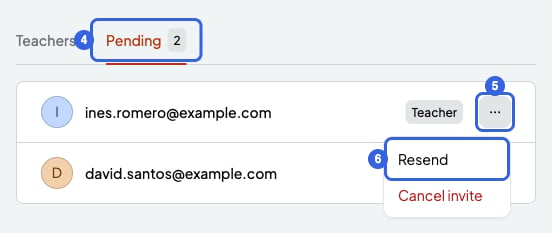 To withdraw it, choose **Cancel invite** in step 6. The invite disappears from the list and its link stops working.
## What you can't do
* You can't invite during the free trial. You'll see "Subscribe to invite teachers". Subscribe first.
* You can't invite an email that already has a pending invite. Instead, use **Resend**.
* You can't invite a student's email.
* You can't have more than 100 people on your team (you included) or more than 100 pending invites. If you need more, write to us.
* If you see "Your current plan covers one teacher", you have an old plan, from before teams existed. Write to us: [Contact support](/en/contact-support).
## Related articles
* [Coordinator and teacher: what each one can do](/en/team/roles)
* [Assign courses to your teachers and see their calendar](/en/team/assign-courses)
* [Remove a teacher or leave a team](/en/team/remove-or-leave)
This documentation is built and hosted on [Mintlify](https://mintlify.com), a developer documentation platform.
To withdraw it, choose **Cancel invite** in step 6. The invite disappears from the list and its link stops working.
## What you can't do
* You can't invite during the free trial. You'll see "Subscribe to invite teachers". Subscribe first.
* You can't invite an email that already has a pending invite. Instead, use **Resend**.
* You can't invite a student's email.
* You can't have more than 100 people on your team (you included) or more than 100 pending invites. If you need more, write to us.
* If you see "Your current plan covers one teacher", you have an old plan, from before teams existed. Write to us: [Contact support](/en/contact-support).
## Related articles
* [Coordinator and teacher: what each one can do](/en/team/roles)
* [Assign courses to your teachers and see their calendar](/en/team/assign-courses)
* [Remove a teacher or leave a team](/en/team/remove-or-leave)
This documentation is built and hosted on [Mintlify](https://mintlify.com), a developer documentation platform.