> ## Documentation Index
> Fetch the complete documentation index at: https://docs.smartcookieapp.com/llms.txt
> Use this file to discover all available pages before exploring further.
> ## Agent Instructions
> This is the SmartCookie help center for teachers and their students. Answer in the reader's language (Spanish pages have no prefix, English pages start with /en). Only describe features documented here; if something is not documented, say you don't know and point to /contact-support.
# Remove a teacher or leave a team
> Remove a teacher from your team and choose who takes over their courses, or leave a team you were invited to.
The coordinator can remove a teacher from the team, and a teacher can leave on their own. Either way, their courses and sessions stay on the team: nothing is deleted in SmartCookie.
## Remove a teacher from your team
Only the coordinator can do this.
1. Click your profile photo (or your initials) at the top right.
2. Click **Profile**.
3. In the menu on the left, under **Your business**, click **Teachers**.
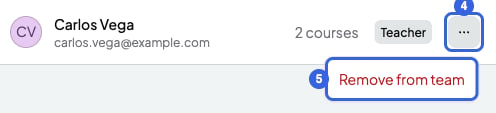
4. On the teacher's row, click the three-dots button.
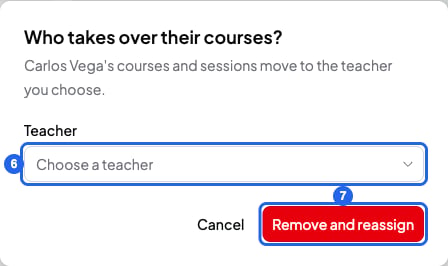
5. Click **Remove from team**. The **Who takes over their courses?** window opens.
6. In **Teacher**, choose who takes over their courses: you or another teacher.
7. Click **Remove and reassign**. The teacher disappears from the list.
 What happens when you remove them:
* Their courses move to the teacher you choose, with all their sessions (past ones and series too) and their session notes. From then on, the new teacher sees those notes.
* They lose access to the team straight away. Their SmartCookie account stays active.
* Their sessions disappear from their Google Calendar. Future ones move to the new teacher's Google Calendar, if they have it connected.
* From then on, you stop paying for that teacher. What you already paid for the time left comes off your next payments.
* The teacher doesn't get an email.
## Leave a team
If you're a teacher on a team, you can leave whenever you like.
1. At the top of the menu on the left, click the team's name.
2. Click **Team settings**. **General** opens.
3. On the **Leave team** card, click **Leave team**. A window opens to confirm.
4. Click **Leave**. SmartCookie reloads and takes you to your space or another of your teams.
Your courses and sessions go back to the coordinator. If you didn't have your own space and aren't on another team, SmartCookie creates one for you with a 14-day free trial.
## What you can't do
* The coordinator can't leave their own team or remove themselves.
* You can't undo a teacher leaving, whether they leave or you remove them. To come back, they need a new invite: [Join a team and switch spaces](/en/team/join-a-team).
* You can't remove a teacher without moving their courses to someone else on the team.
## Related articles
* [Build your team and invite teachers](/en/team/build-your-team)
* [Coordinator and teacher: what each one can do](/en/team/roles)
* [Delete your SmartCookie account](/en/account/delete-account)
This documentation is built and hosted on [Mintlify](https://mintlify.com), a developer documentation platform.
What happens when you remove them:
* Their courses move to the teacher you choose, with all their sessions (past ones and series too) and their session notes. From then on, the new teacher sees those notes.
* They lose access to the team straight away. Their SmartCookie account stays active.
* Their sessions disappear from their Google Calendar. Future ones move to the new teacher's Google Calendar, if they have it connected.
* From then on, you stop paying for that teacher. What you already paid for the time left comes off your next payments.
* The teacher doesn't get an email.
## Leave a team
If you're a teacher on a team, you can leave whenever you like.
1. At the top of the menu on the left, click the team's name.
2. Click **Team settings**. **General** opens.
3. On the **Leave team** card, click **Leave team**. A window opens to confirm.
4. Click **Leave**. SmartCookie reloads and takes you to your space or another of your teams.
Your courses and sessions go back to the coordinator. If you didn't have your own space and aren't on another team, SmartCookie creates one for you with a 14-day free trial.
## What you can't do
* The coordinator can't leave their own team or remove themselves.
* You can't undo a teacher leaving, whether they leave or you remove them. To come back, they need a new invite: [Join a team and switch spaces](/en/team/join-a-team).
* You can't remove a teacher without moving their courses to someone else on the team.
## Related articles
* [Build your team and invite teachers](/en/team/build-your-team)
* [Coordinator and teacher: what each one can do](/en/team/roles)
* [Delete your SmartCookie account](/en/account/delete-account)
This documentation is built and hosted on [Mintlify](https://mintlify.com), a developer documentation platform.