> ## Documentation Index
> Fetch the complete documentation index at: https://docs.smartcookieapp.com/llms.txt
> Use this file to discover all available pages before exploring further.
> ## Agent Instructions
> This is the SmartCookie help center for teachers and their students. Answer in the reader's language (Spanish pages have no prefix, English pages start with /en). Only describe features documented here; if something is not documented, say you don't know and point to /contact-support.
# See your team's analytics
> Check your team's hours taught, sessions, attendance, income and unpaid bills, and what each teacher teaches.
**Analytics** shows on one page how your team is doing: hours taught, sessions, attendance, income and what you're still owed. Only the coordinator sees it, and only when the team has at least one other teacher.
## Before you start
* Have at least one teacher on your team: [Build your team and invite teachers](/en/team/build-your-team). Pending invites don't count.
## Open your analytics
1. In the menu on the left, click **Analytics**.
2. At the top, choose the period: **This month**, **Last month**, **This quarter** or **Last quarter**. When you open the page, you'll see **This month**. Hours, sessions, attendance and **By teacher** change to the period you choose.
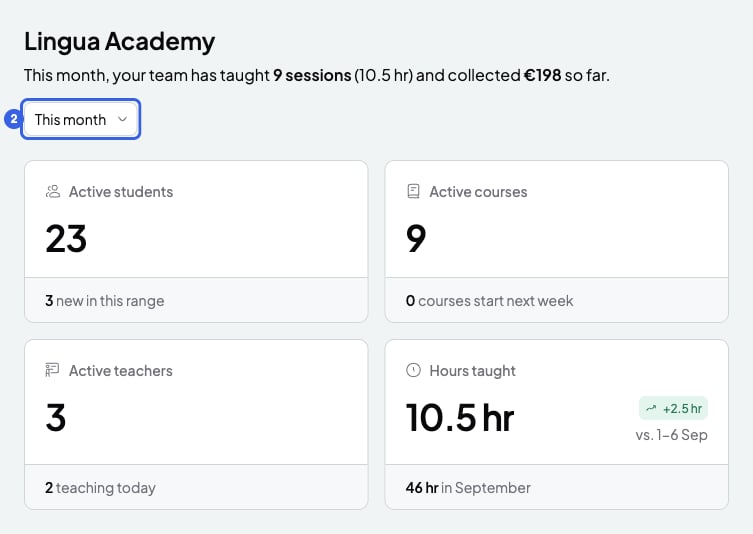 At the top you'll see a sentence summing up the chosen period: sessions taught, hours and what you collected. It doesn't show on phones.
## What each part shows
* **Active students**: students with at least one session still to come. Below, how many new students you added in the period.
* **Active courses**: the courses that aren't archived. Below, how many start next week.
* **Active teachers**: everyone on the team, you included. Below, how many are teaching today.
* **Hours taught**: the hours of the sessions that already ended in the period, compared with the previous period. Below, the previous period's total.
* **Income**: what you collected in the last 12 months, month by month. Hover over a month to see how you were paid: **Stripe**, **Bank transfer**, **Cash** or **Other**.
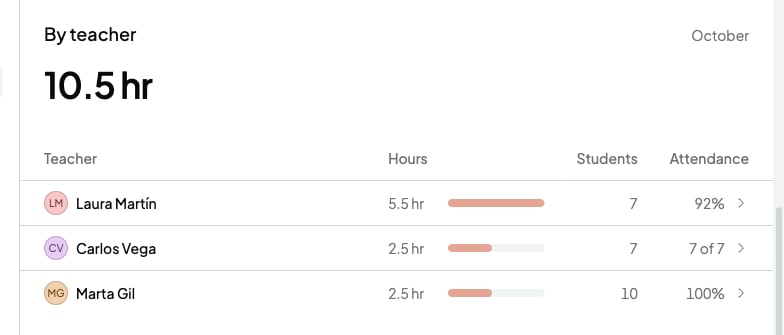
* **By teacher**: each teacher's hours, students and attendance. Click a teacher to open the calendar with only their sessions. If a teacher has fewer than 10 attendances, it shows as "7 of 7" instead of a percentage.
* **Sessions**: the sessions **Taught**, **Still to teach** and **Cancelled** in the period. **See in calendar** opens the calendar on the period's first month.
* **Attendance**: **Attended**, **Absent, with notice** and **Absent, no notice**, in sessions that already ended.
* **Unpaid**: what you're owed today, with the 3 oldest bills.
At the top you'll see a sentence summing up the chosen period: sessions taught, hours and what you collected. It doesn't show on phones.
## What each part shows
* **Active students**: students with at least one session still to come. Below, how many new students you added in the period.
* **Active courses**: the courses that aren't archived. Below, how many start next week.
* **Active teachers**: everyone on the team, you included. Below, how many are teaching today.
* **Hours taught**: the hours of the sessions that already ended in the period, compared with the previous period. Below, the previous period's total.
* **Income**: what you collected in the last 12 months, month by month. Hover over a month to see how you were paid: **Stripe**, **Bank transfer**, **Cash** or **Other**.
* **By teacher**: each teacher's hours, students and attendance. Click a teacher to open the calendar with only their sessions. If a teacher has fewer than 10 attendances, it shows as "7 of 7" instead of a percentage.
* **Sessions**: the sessions **Taught**, **Still to teach** and **Cancelled** in the period. **See in calendar** opens the calendar on the period's first month.
* **Attendance**: **Attended**, **Absent, with notice** and **Absent, no notice**, in sessions that already ended.
* **Unpaid**: what you're owed today, with the 3 oldest bills.
 ## How the numbers are counted
* A session counts towards hours and attendance once it has ended. Cancelled sessions only count in **Cancelled**.
* If you don't mark attendance, your student counts in **Attended**: everyone starts as **Present**.
* **Income** adds up paid bills, in the month they were paid. **Unpaid** adds up the bills you sent that aren't paid yet.
* These don't change with the period: **Active students** (the big number), **Active courses**, **Active teachers** and **Unpaid** show your team today. The **Income** chart always shows the last 12 months.
* While the period is still running, **Hours taught** is compared with the same days of the previous period.
* A course's hours count for the teacher who has it now, past sessions included.
* Dates follow your time zone.
## What you can't do
* You can't pick other dates, only the 4 periods.
* You can't filter the page by teacher or by course. To see one teacher, click their name in **By teacher**.
* You can't download your analytics. For your accountant, download a payments summary.
* The teachers on your team don't see **Analytics**.
## Related articles
* [Download a payments summary for your accountant](/en/payments/payments-summary)
* [Mark attendance for a session](/en/calendar/attendance)
* [Coordinator and teacher: what each one can do](/en/team/roles)
This documentation is built and hosted on [Mintlify](https://mintlify.com), a developer documentation platform.
## How the numbers are counted
* A session counts towards hours and attendance once it has ended. Cancelled sessions only count in **Cancelled**.
* If you don't mark attendance, your student counts in **Attended**: everyone starts as **Present**.
* **Income** adds up paid bills, in the month they were paid. **Unpaid** adds up the bills you sent that aren't paid yet.
* These don't change with the period: **Active students** (the big number), **Active courses**, **Active teachers** and **Unpaid** show your team today. The **Income** chart always shows the last 12 months.
* While the period is still running, **Hours taught** is compared with the same days of the previous period.
* A course's hours count for the teacher who has it now, past sessions included.
* Dates follow your time zone.
## What you can't do
* You can't pick other dates, only the 4 periods.
* You can't filter the page by teacher or by course. To see one teacher, click their name in **By teacher**.
* You can't download your analytics. For your accountant, download a payments summary.
* The teachers on your team don't see **Analytics**.
## Related articles
* [Download a payments summary for your accountant](/en/payments/payments-summary)
* [Mark attendance for a session](/en/calendar/attendance)
* [Coordinator and teacher: what each one can do](/en/team/roles)
This documentation is built and hosted on [Mintlify](https://mintlify.com), a developer documentation platform.