
Mark a bill as paid
- In the menu on the left, click Payments.
- Click Bills view, next to New bill.
- Click the bill. It opens on the right.
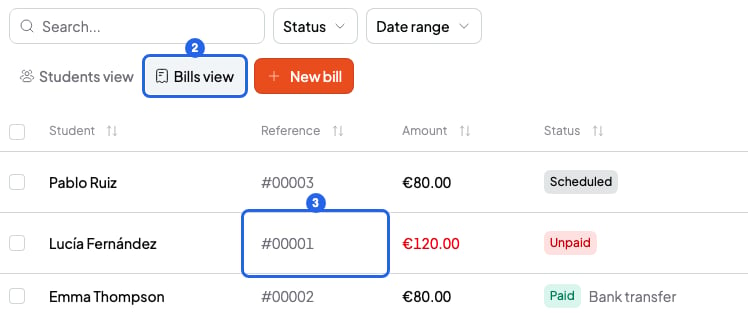
Your bills, in Bills view
- Click Mark paid.
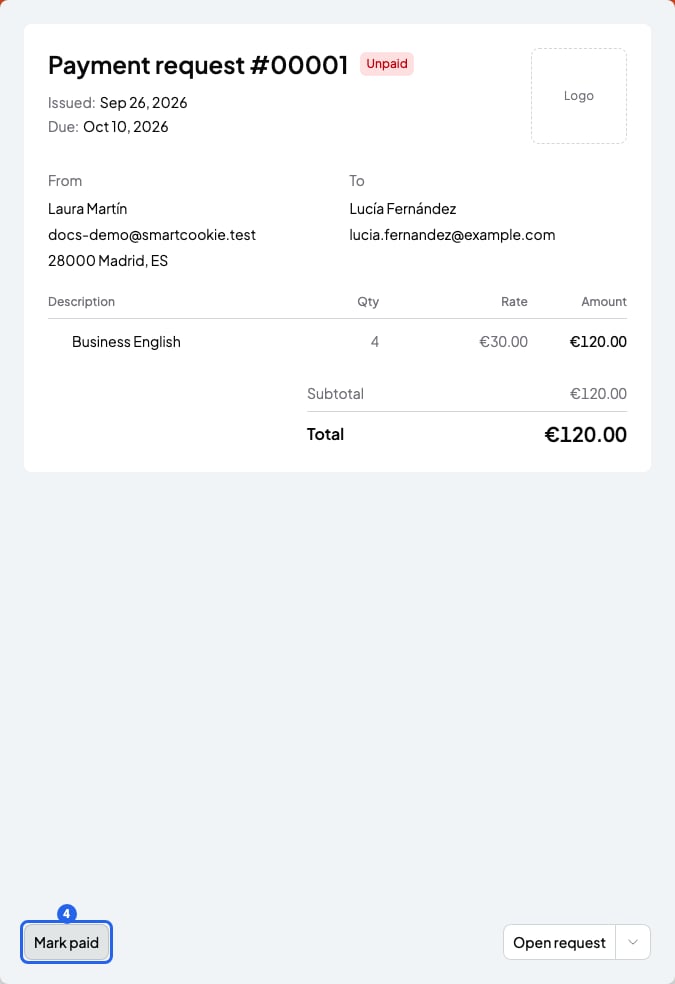
An unpaid bill, open
- Choose how they paid you: Cash, Bank transfer or Other (for example, Bizum).
- Click Mark paid. You’ll see “Bill marked as paid.” and the bill changes to Paid.
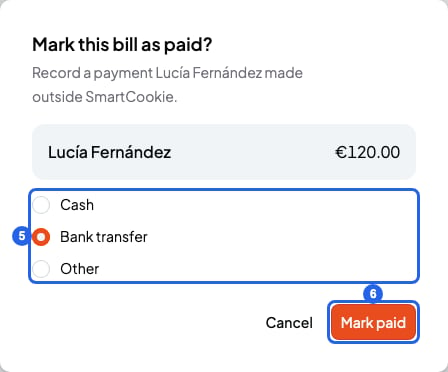
Choose how your student paid
Mark or cancel several at once
- In Payments > Bills view, tick the box next to each bill.
- In the bar that appears, click Mark paid or Cancel bill.
Cancel a bill
- Open the bill from Payments > Bills view.
- Click the arrow next to the Open request button. If the bill is Scheduled, skip this step: the Cancel bill button is at the bottom right.
- Choose Cancel bill.
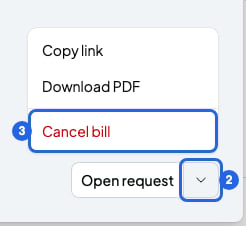
The arrow menu of an open bill
- In the Cancel this bill? window, click Cancel bill. You’ll see “Bill canceled.”
If your student pays only part of it
Mark paid always records the bill’s full total. If your student pays only part of it, swap the bill for one that asks for what’s left:- Cancel the bill (arrow next to Open request > Cancel bill). Its sessions and packs are free again.
- Create a new bill with the same sessions and packs.
- In Adjustment, choose € and type what they already paid, with a minus sign in front. For example, -40.
- Check the Total: it’s what’s left to pay.
- Click Create and send the bill.
If you refund a Stripe payment
You can’t refund money from SmartCookie. If your student paid through Stripe, make the refund from your Stripe dashboard.- If you refund the full amount, the bill changes to Refunded. Its sessions and packs are free again, so you can charge for them on another bill.
- If you refund only part of it, the bill stays Paid and shows the Refunded amount.
- Stripe decides what happens to the fees on a refunded payment. Check your Stripe dashboard.
What you can’t do
- You can’t mark a Scheduled bill as paid. Wait until the day it’s sent, or cancel it.
- You can’t undo Mark paid or Cancel bill. If you cancel by mistake, create a new bill. If you marked it as paid by mistake, write to us: Contact support.
- You can’t cancel a bill that’s already paid.