
Which note to use
Add a session note
- In Courses, open the course.
- In the Sessions tab, click the session. Its two columns open: Private notes and Shared notes.
- In the column you want, click Add.
- Type the note and press Enter. The note saves on its own. To start a new line, press Shift + Enter.
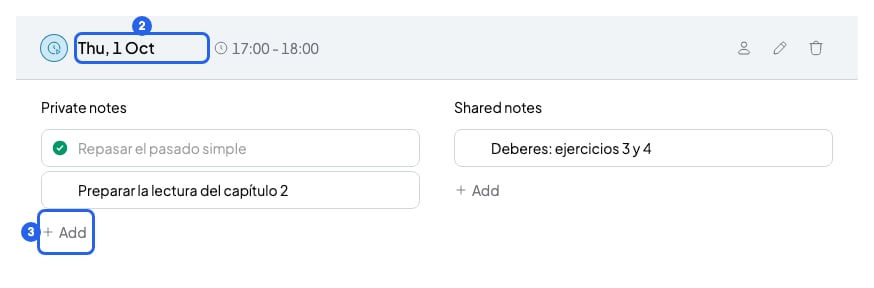
A session's notes on the course page
Add a quick note
- In Courses, open the course.
- Find Quick notes. On a large screen it’s on the right. On a small screen, it’s the Quick Notes tab.
- Click Add, type the note and press Enter.
Organize your notes
On a computer, move your mouse over a note to see its buttons. On a phone, the bin always shows.- Edit: click the note’s text.
- Mark as done: click the circle on the left (Mark as done). Click it again to unmark it.
- Move: drag the note by the six-dot icon, at the top right. You can take it to the other column, to another session of the same course or to your quick notes. On a phone, this icon doesn’t show.
- Delete: press and hold the bin until the circle that appears around it fills up. On a phone, just tap it.
What your students see
Your students see the Shared notes of their sessions in the student portal. In a group session, every student in that session sees the same shared notes. They never see your Private notes or your Quick notes. To give them access to the portal, read Invite students to the portal.If you move a note to Shared notes, your students will be able to see it.
What you can’t do
- You can’t write more than 500 characters in a note.
- You can’t edit a note marked as done. Unmark it first.
- You can’t share a quick note. Move it to a session’s Shared notes.