
Open your payment request
You can open it in two ways:- From the email: SmartCookie sends you an email with the subject “Payment request” and your teacher’s name. Click View payment request.
- From your portal: if you log in to your teacher’s portal, go to Bills (your payment requests are there) and click View bill on the request’s row.
Pay by card
- Open the payment request.
- Click Pay now. A secure Stripe page opens. Stripe is the service that processes the payment.
- Pay with your card. If your teacher is in Spain, you may also see Bizum.
- You go back to the request and see “We’re confirming your payment”. Wait a minute and reload the page: the request will show as Paid.
Pay by bank transfer or another method
- Open the payment request.
- Find the Payment information box. It has your teacher’s IBAN, their Instructions, or both.
- Pay the way it says, for example with a transfer from your bank.
- Once your teacher gets the money, they’ll mark the request as Paid.
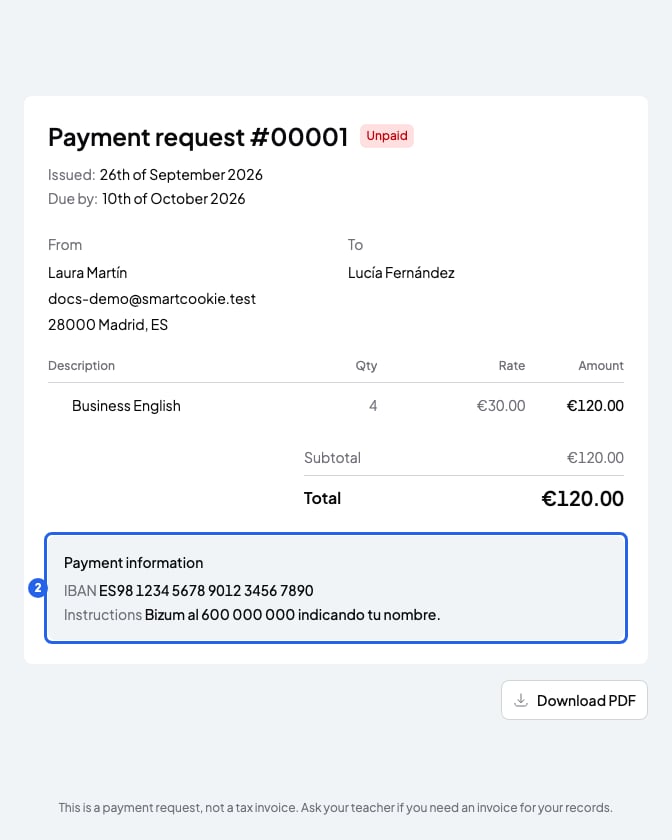
Payment request with the details to pay
What you can’t do
- You can’t pay just part of it with Pay now. It charges everything still left to pay.
- You can’t pay by card if you don’t see Pay now. Your teacher doesn’t take cards: use the Payment information.
- You can’t ask for a refund from the request. Talk to your teacher.
- Even though the tab is called Bills, a payment request isn’t a tax invoice. If you need one, ask your teacher.
Questions about the request? Write to your teacher: their email is at the end of the payment request email.