
Before you start
- You need your teacher’s booking link. If you don’t have it, ask them.
- If your teacher has set up a course just for you (a private course), you need the email you gave them.
Book a session
- Open your teacher’s booking link. You’ll see their name and the courses you can book.
- If your course isn’t there, click Show your private courses.
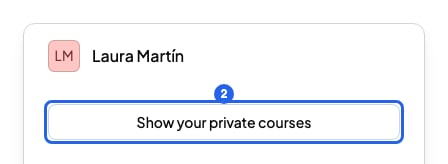
Your teacher's booking link
- If you clicked Show your private courses, type the email you gave your teacher.
- Click Show my courses. Your private courses will appear.
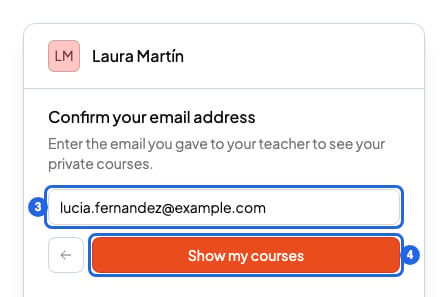
Type your email to see your private courses
- Click your course.
- Choose a day in the calendar. Days with no free times can’t be chosen.
- Click a time. Times show in your own time zone, which you’ll see under the course name.
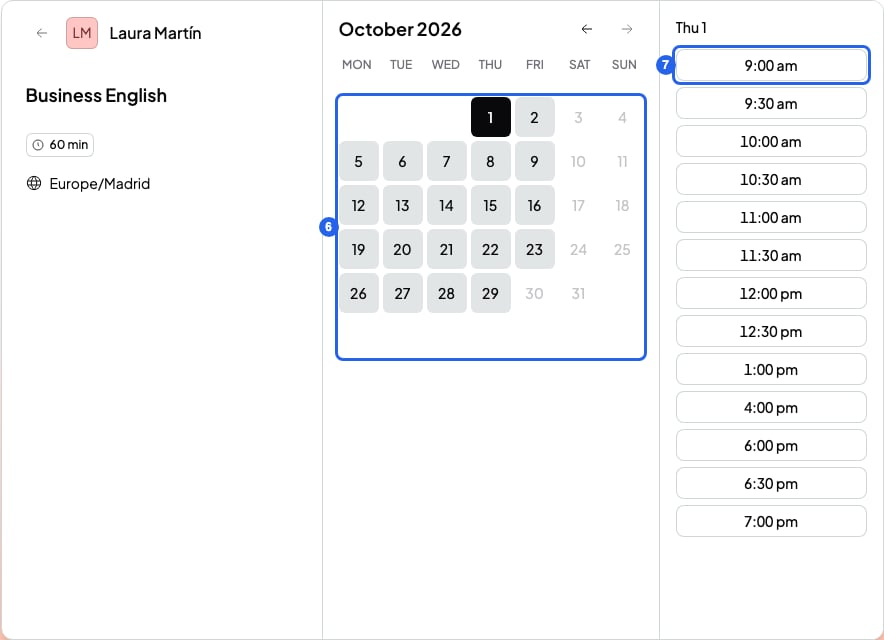
Calendar to choose a day and time
- Check your Name and Email. For a private course, they’re already filled in.
- Click Confirm. You’ll see Booking confirmed and get a confirmation email. If you can’t see it, check your spam folder.
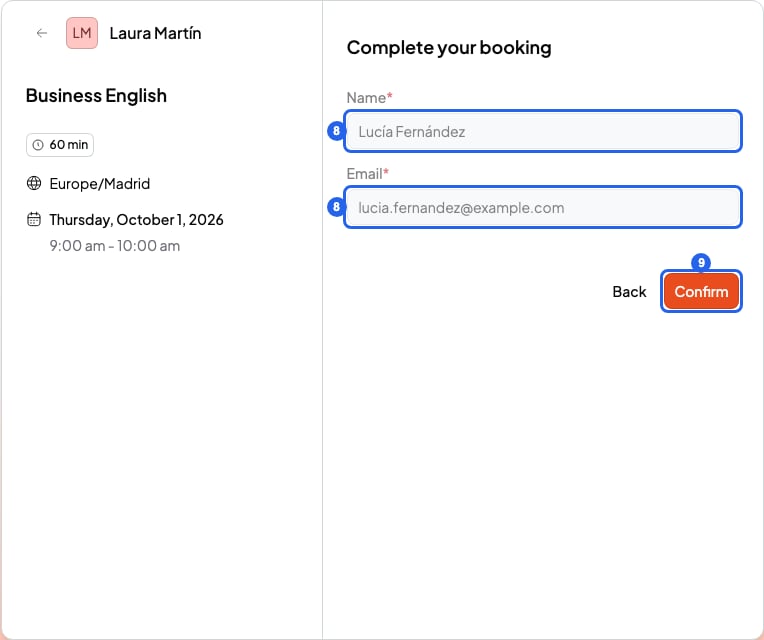
Check your details and confirm
Reschedule your session
- Open your booking confirmation email.
- Click Reschedule.
- Choose a new day and time.
- Click Confirm new time. You’ll see your new time, get a new email, and your teacher will be notified.
Cancel your session
- Open your booking confirmation email.
- Click Cancel. Your booking page opens.
- Click Cancel again.
- Click Yes, cancel. You’ll see Booking cancelled and your teacher will be notified.
What you can’t do
- You can’t reschedule or cancel a session when it’s about to start. Your teacher decides how many hours’ notice they need, and your confirmation email tells you. After that limit, talk to your teacher.
- You can’t reschedule a group session. Cancel it and book another one.
- You can’t reschedule or cancel sessions from the portal. Use the confirmation email.
- If your teacher scheduled the session, you don’t have a confirmation email. Talk to your teacher to change or cancel it.
- You don’t pay when you book. If your teacher charges you, they’ll send you a payment request: Students: pay your teacher’s bill.