
Before you start
- If you want to invite the student to the student portal (their private space to see their sessions, session packs and payments), you’ll need their email. Then follow Invite students to the portal.
- Are your sessions already in Google Calendar? SmartCookie can add your students for you: Import your sessions from Google Calendar.
Add a student
- In the menu on the left, click Students.
- Click New student, at the top right.
- Type the student’s Name.
- If you like, add their Email.
- If you like, add their Phone. The country is set to Spain at first: for another country, click the flag and search for it.
- Click Create student. You’ll see “Student created successfully” and the student appears in your list.
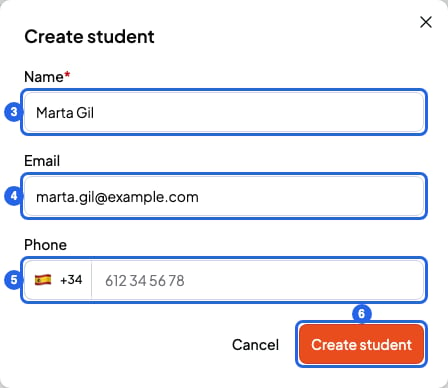
Form to create a student
Import a list of students
- In Students, click Import, at the top right.
- Paste your list into the text box. Write one student per line, with their details separated by commas:
name, email, phone. For example: - Check the Preview below the box. Each line should show the name, email and phone in the right place.
- Click Import. The button shows how many students you’re about to import. You’ll see “Students imported successfully”.
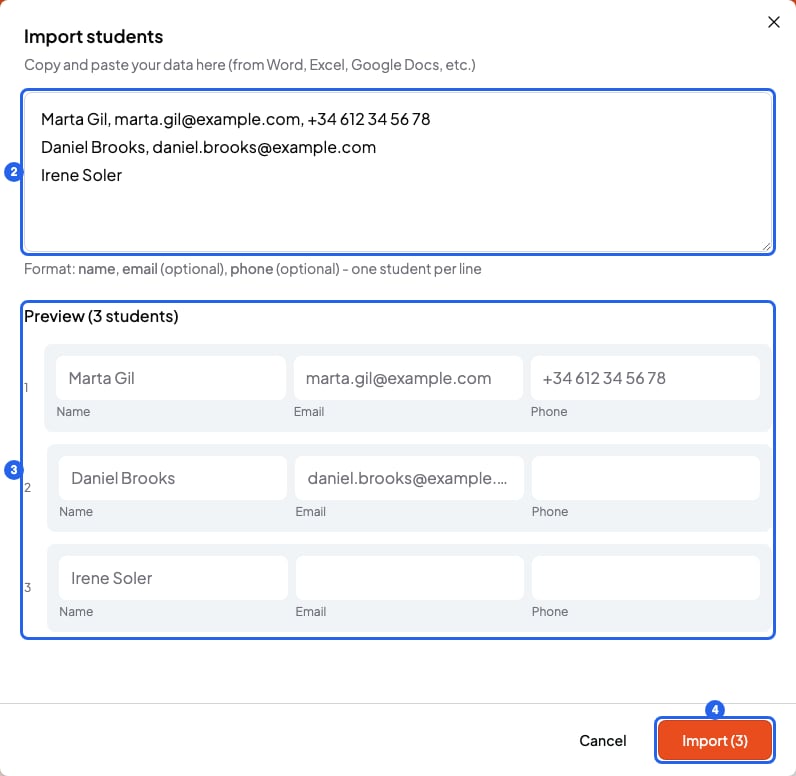
Window to import students
- Write phone numbers with the country code, for example
+44. Without it, SmartCookie doesn’t accept them. - If you have the phone but not the email, leave the gap between the commas empty:
Irene Soler, , +34 600 11 22 33.
If a line turns red
If any line has an error, SmartCookie doesn’t import any students. The line with the error turns red, with the reason underneath. Fix it or delete it, then click Import again. The most common errors are:- The name is missing.
- The email or phone isn’t valid.
- The same email or phone appears twice in your list.
- The email or phone already belongs to another of your students.
Add the student to a course
A new student isn’t in any course yet. To schedule their sessions, add them to a new course or to one you already have. We explain how in Create a course.What you can’t do
- You can’t have two students with the same email or the same phone. If two siblings share an email or phone, add it to only one of them.
- You can’t upload a file (like an Excel file). Copy the details and paste them into the text box.