
Mark attendance from the calendar
- In Calendar, click the session.
- Under Attendees, hover over the status icon next to your student’s name (at first, the green tick). On a phone, tap it. The three statuses open up.
- Click the status: the green tick is Present, the X is Absent and the triangle is Absent with notice. It saves straight away.
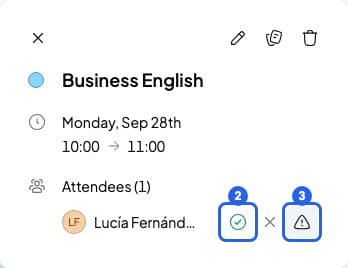
Attendance, in a session open in the calendar
Mark attendance from the course page
- In Courses, open the course.
- In the Sessions tab, click the person icon (Open session details) on the session.

The button that opens a session's panel
- The session panel opens on the Attendance tab.
- Click each student’s status. It saves straight away.
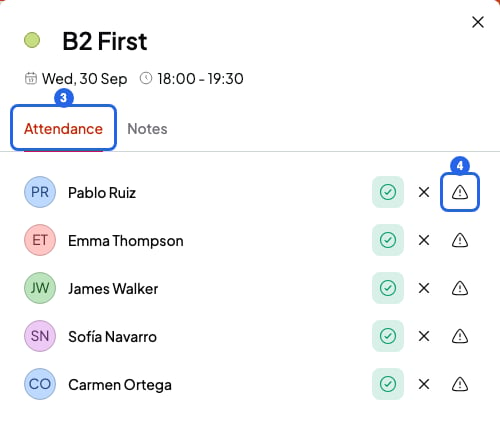
The Attendance tab in a session's panel
What each status changes
- Present: the session counts as done. If your student has a pack, it uses one session of the pack when the session starts, not before.
- Absent: your student missed it without telling you. It doesn’t use a pack session. If the course charges Per hour, you can still charge for the session.
- Absent with notice: your student told you they couldn’t come. It doesn’t use a pack session. If the course charges Per hour, you can’t add the session to a bill.
- If the course charges Per month, attendance doesn’t change what you charge.
What you can’t do
- You can’t leave a student without a status. If you don’t change it, it counts as Present and uses a session of their pack.
- SmartCookie doesn’t tell your student when you change their attendance.