
- Student portal (
https://your-name.smartcookieapp.com): your students choose to book or log in to their portal. - Booking link (
https://your-name.smartcookieapp.com/book): goes straight to booking.
Before you start
- Let students book sessions: your link only shows courses with booking turned on.
Share your booking link
- Click your photo or initials, top right, and choose My link.
- On the Booking link card, click the copy button (Copy booking link). The button turns green: the link is copied.
- Paste it in a message to your students: WhatsApp, email or your website.
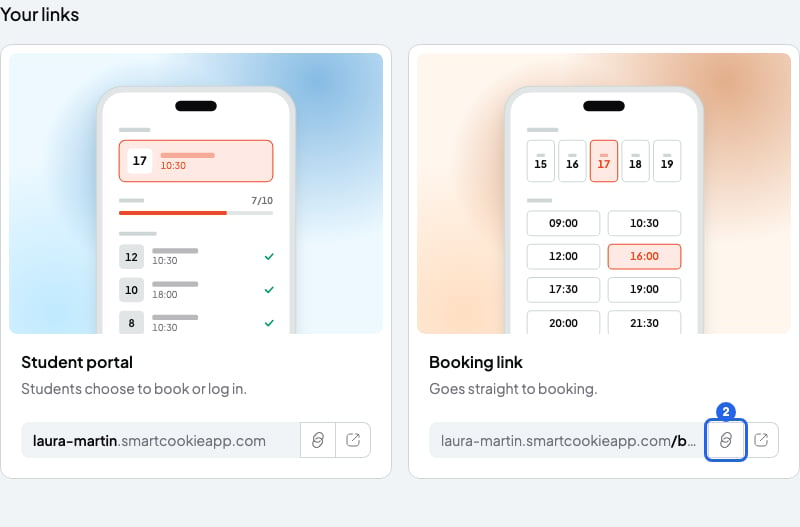
Your links in My link. The blue number is step 2.
What your students see
Your page shows your name and the courses they can book. 1 to 1 lessons courses aren’t shown straight away. Your student clicks Show your private courses, types the email you have saved for them and clicks Show my courses. If it matches, they see their courses.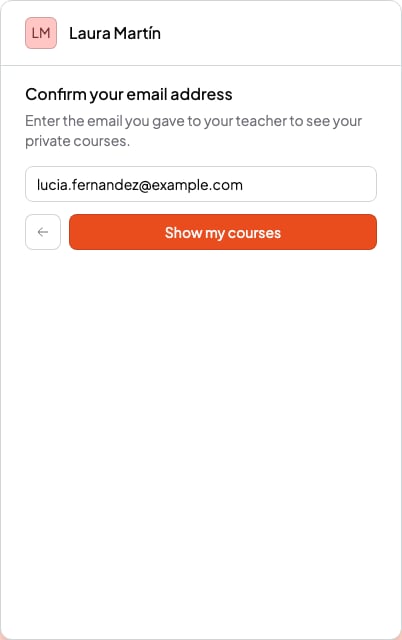
What a student sees when they open your booking link
Change your link name
- In My link, delete the name in the box at the top and type the new one.
- Wait until you see Available below the box.
- Click Save. You’ll see “Link updated successfully”. All done!
- From 3 to 63 characters.
- Only letters without accents, numbers and hyphens. Capitals become lowercase and spaces become hyphens.
- Accented letters and ñ are deleted whole as you type (
josébecomesjos). Typejoseinstead ofjosé, andninstead ofñ. - It can’t start or end with a hyphen, or have two hyphens in a row.
- It can’t be a reserved name, like
adminorhelp, or someone else’s. If it is, you’ll see “This link isn’t available” or “This link is already being used”.
What you can’t do
- You can’t have a different link for each course. Your students choose the course on your page.
- You can’t keep your old link after you change it.