
Before you start
- You need Google Calendar connected: Connect Google Calendar. Without it, the Google Meet button is greyed out and does nothing. If you hover over it, you’ll see Connect Google Calendar to enable.
Add Google Meet to a new session
- Open the new session window, as in Add a session.
- Choose the course, the date and the time.
- Click the Google Meet button (the Google Meet logo, below Does not repeat). The button is now marked. The Zoom button next to it isn’t available yet.
- Click Add session. In your calendar, the session shows the Google Meet logo.
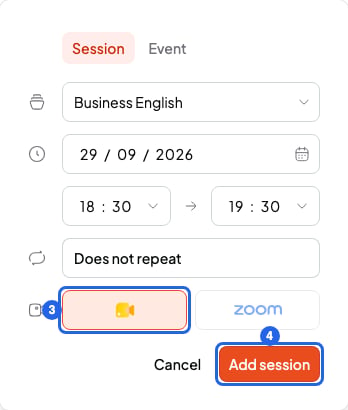
The Google Meet button, in the session window
Add or remove Google Meet on a session you already have
- In Calendar, click the session.
- Click the pencil (Edit session).
- Click the Google Meet button. If it was already marked, it’s unmarked and the link is removed.
- Click Save.
- If the session repeats, Edit recurring session opens: choose which sessions the change affects and click Continue.
Who gets the link
- You: click the session in the calendar. Join Google Meet opens the video call and Copy link copies the link.
- Your students with an email: in the Google Calendar invite.
- Whoever books from your booking link: in their confirmation email. You get it too, in the new booking email.
- Your students with portal access: in Classes, with the session’s Join button. More in Students: log in to your teacher’s portal.
Google Meet on repeating sessions
All the sessions in a series share the same link. So if you add or remove Google Meet and choose This session, the change still applies to the whole series. If you change the series with This and following sessions, those sessions get a new link. The earlier ones keep theirs. More in Edit or delete recurring sessions.Google Meet on booked sessions
- 1 to 1 lessons and Meetings 1 to 1: in the course, under Online booking, choose Google Meet in Online meeting. Each booked session gets its own link. More in Booking rules: notice, cancellation and buffers.
- Open doors: add Google Meet in the window of each session you put in your calendar.
If you disconnect Google Calendar
- The links you already have stay on your sessions.
- You can’t add or remove Google Meet until you connect again: the button is greyed out.
- Sessions booked in the meantime have no link, even if the course has Google Meet in Online meeting.
What you can’t do
- You can’t add a Zoom link yet.
- You can’t use your own video call link. SmartCookie always creates a new Google Meet link.
- You can’t add Google Meet to sessions you imported from Google Calendar. If they already had a Meet link in Google, they keep it.