
Set your hours
- Click your photo or initials, top right, and choose Availability.
- Each row is a day of the week. Each slot has a start time and an end time. To change a time, click it and pick another from the list, or type it.
- To add a slot to a day, click the + (New slot). On an Unavailable day, the + creates its first slot.
- To remove a slot, click the bin (Remove slot). A day with no slots becomes Unavailable.
- To repeat one day’s slots on other days, click the copy button (Copy slots to other days). Tick the days and click Apply.
- Click Save. The Unsaved changes note disappears: your availability is saved.
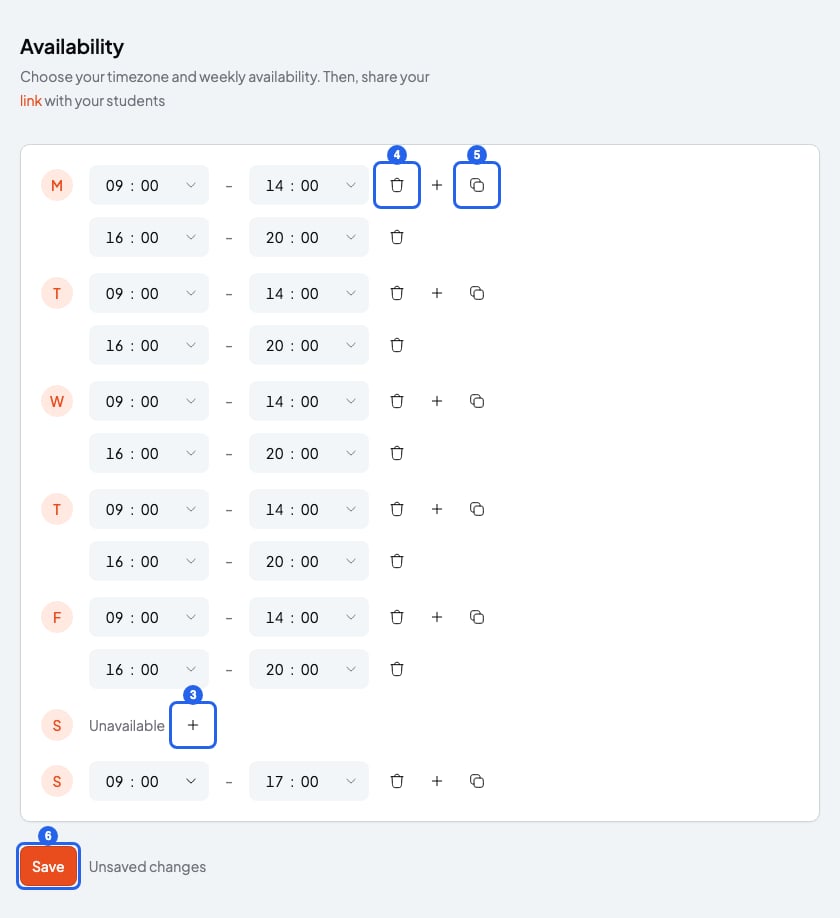
Your weekly availability. The blue numbers are the steps.
How slots are worked out
- The hours are in your timezone. You can change it in Profile, under Timezone: Change your name, email, language, time zone or password.
- Your students see the slots in their own time, even if they live in another country.
- Sessions you already have take up their time, whatever course they belong to. Nobody can book on top of them.
- Each course sets the session length, how far ahead students can book and the buffer between sessions. See Booking rules: notice, cancellation and buffers.
What you can’t do
- You can’t have different availability for each course. If a course needs other hours, change your availability, but the change applies to all your courses.
- You can’t mark a single date as off (a public holiday, for example). Remove that weekday’s slot. It’s removed from every week, so add it back as soon as the holiday is over.
- Your events and your Google Calendar don’t block slots: only your SmartCookie sessions count. If you have a commitment, remove that slot for the time being.