
What the student portal is
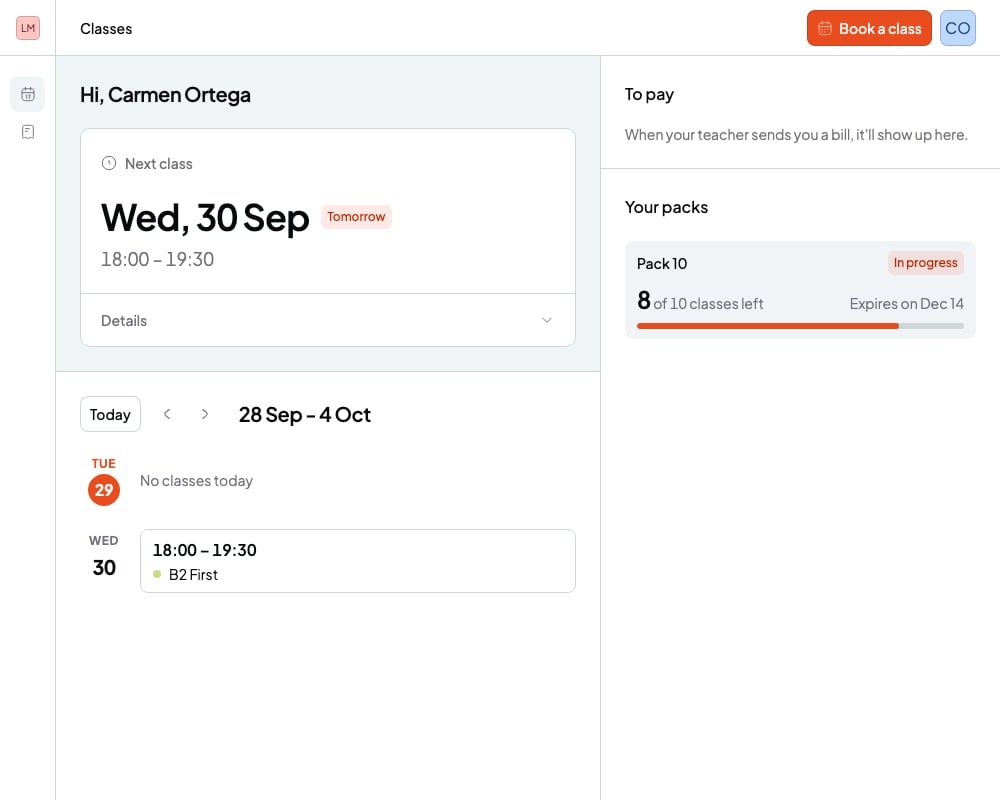
It’s each student’s private page with you. The menu on the left shows your photo (or initials) and two pages: Classes (the calendar icon) and Bills (the page icon). At the top is the Book a class button, which opens your booking link with their details already filled in. Your student logs in with the invitation you send them: Invite students to the portal.What they see on the Classes page
It’s the first thing they see when they log in. At the top there are three figures. On a small screen, the last two are under Details.- Next class: the day and time of their next session. If it’s online, with the Join the class button.
- Classes taken: how many of their sessions have already happened, out of the total.
- Attendance: the percentage of sessions they came to.
The Classes page of the student portal
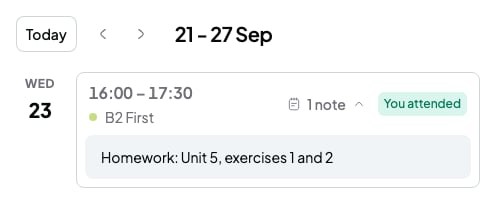
- On past sessions they see their attendance: You attended, You missed it or You gave notice. To mark it, read Mark attendance for a session.
- On upcoming online sessions they see the Join button.
- If a session has shared notes, they see how many and can open them.
A past session with its shared note
- To pay: your pending bills, with their amount, their due date and the View bill button. Paid ones are hidden, but they can show them.
- Your packs: each pack with the sessions left and when it expires. With 30 days or fewer to go, they see the days left.
What they see on the Bills page
Bills holds your bills. At the top they see how much they owe you in total (Outstanding) and how many they’ve paid (Settled). Below is a table with all of them: reference, date, due date, status and amount. View bill opens the bill so they can pay it: Students: pay your teacher’s bill. Scheduled bills don’t show up until the day they’re sent. Bills you cancel disappear from their portal.What they never see
- Other students. In a group session they see the session, but not who else is in it.
- Your Private notes or your Quick notes. They only see the Shared notes of their own sessions: Session notes and quick notes.
- Other students’ bills, packs or attendance.
- The price of your courses or packs. They only see the amounts on their own bills.
- Cancelled sessions. They disappear from their portal.
Portal limits
- You can’t view the portal as your student. If you log in with your teacher account, you’ll see “This isn’t a student account”.
- Your student can’t reschedule or cancel sessions from the portal. They do it from their booking confirmation email: Students: book, reschedule or cancel a session.
- In the portal, your student can’t change their name, email or password. Their menu only shows their name, their email and Logout.
- Your student only sees their sessions from the last 90 days and the next 365 days.