
Connect your Google account
- Click your photo or initials, top right, and choose Profile.
- In the menu on the left of Profile, click Integrations.
- On the Google Calendar card, click Connect. A window opens explaining what will happen.
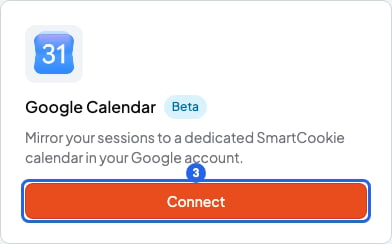
Google Calendar card in Integrations. The blue number is step 3.
- Click Connect Google Calendar.
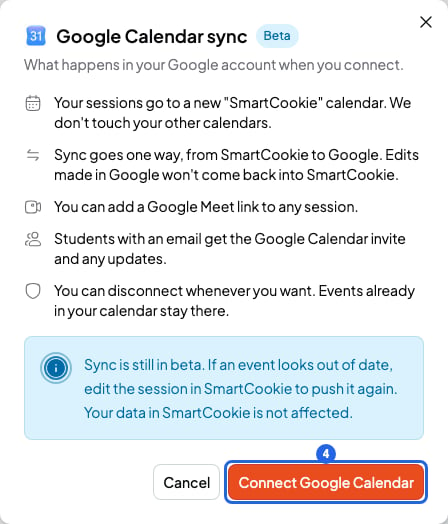
The window that explains what will happen
- Choose your Google account and give SmartCookie permission. If Google shows you checkboxes, tick them all: without them, your sessions don’t reach Google Calendar. You’ll come back to Integrations and the card will show the Disconnect button: you’re connected.
What happens after you connect
- SmartCookie creates a new calendar called “SmartCookie” in your Google account. Your other calendars aren’t touched.
- The sessions you create or change from now on are copied to that calendar. The ones you already had aren’t copied on their own: to send one, open it in SmartCookie, change something and save it. If you don’t change anything, you can’t save.
- Your students with an email get the Google Calendar invite, and an update when you change the session. You can’t turn these invites off. If they book from your booking link, they don’t get the Google invite. They get the SmartCookie confirmation email instead, with the Google Meet link if the session has one.
- You can add a Google Meet link to your sessions: Add a Google Meet link to a session.
The Google Calendar connection is new and we’re still improving it. If an event looks out of date, change something in the session in SmartCookie and save it to send it again.
If you change something in Google Calendar
Changes you make in Google Calendar don’t reach SmartCookie. If you move an event in Google, your session stays at the old time in SmartCookie. Always change your sessions in SmartCookie.Sessions you imported from Google Calendar
Sessions you imported aren’t copied to the “SmartCookie” calendar: they were already in your usual Google Calendar. If you change them in SmartCookie, the change doesn’t reach Google: change them in Google Calendar too.Disconnect Google Calendar
In Integrations, click Disconnect. You’ll see “Google Calendar disconnected”. Events already in the “SmartCookie” calendar stay there. If you connect again, SmartCookie uses the same calendar. If you don’t want it, delete it yourself in Google Calendar. If the card shows Reconnect, SmartCookie has lost permission to use your Google Calendar. Click that button and follow steps 4 and 5.What you can’t do
- You can’t choose which Google calendar your sessions go to: they always go to the “SmartCookie” calendar.
- You can’t bring changes you make in Google Calendar into SmartCookie.
- You can’t turn off the Google Calendar invites your students with an email get.