
Before you start
- Have at least one teacher on your team: Build your team and invite teachers. Pending invites don’t count.
Choose the teacher when you create a course
- In the menu on the left, click Courses.
- Click New course. The New course panel opens.
- At the top of the panel, in Teacher, choose who teaches the course. You’re selected by default.
- Fill in the rest of the course.
- Click Create. The new course’s page opens. In Courses, its card shows its teacher.
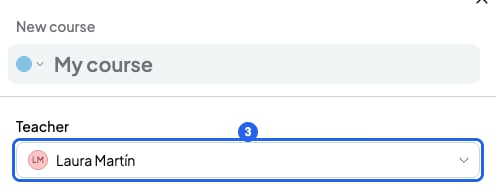
The Teacher field, at the top of the New course panel. The blue number is step 3.
Change a course’s teacher
- In the menu on the left, click Courses.
- On the course, click its teacher’s name.
- Choose the new teacher. You’ll see “Course updated successfully”.
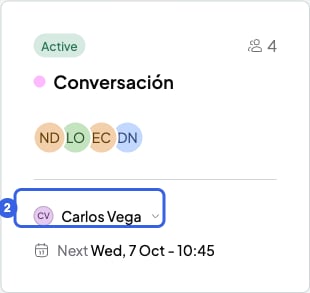
A course's teacher, in Courses. The blue number is step 2.
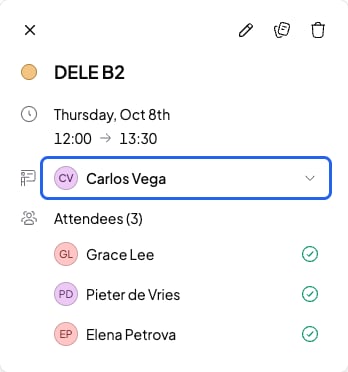
The teacher, in a calendar session
- All the course’s sessions move to the new teacher. In Analytics, its past hours count for them too.
- The course’s sessions disappear from the previous teacher’s Google Calendar. Your students don’t get any notice from Google.
- Future sessions move to the new teacher’s Google Calendar, if they have it connected.
- Future sessions with Google Meet get a new link, from the new teacher’s account, if they have Google Calendar connected. If not, they’re left without a link.
Add sessions to a teacher’s course
Teachers can’t add sessions: you add them. Follow the steps in Add a session and choose the teacher’s course. The session belongs to that course’s teacher.Filter your calendar by teacher
In Calendar you see your whole team’s sessions. In the day and week views, each session shows the teacher’s photo. If it lasts more than 30 minutes, their name too.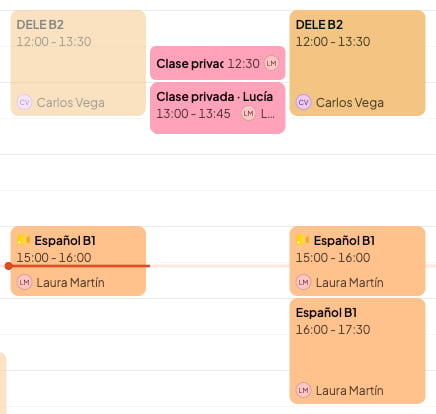
Your team's sessions, with each teacher's photo and name
- In Calendar, go to the panel on the right, to Teachers. On your phone, it’s in Calendar options.
- Untick the teachers you don’t want to see. Their sessions disappear from the calendar.
- To see everyone again, tick All teachers. You see everyone’s sessions again.
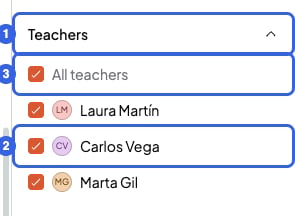
The Teachers filter. The blue numbers are the steps.
What you can’t do
- You can’t give a session a different teacher from its course. Instead, create a course for that teacher.
- You can’t filter the Courses list by teacher.
- The Teachers filter isn’t saved: when you reload the page, you see everyone again.
- Your teachers don’t see the filter: each teacher only sees their own sessions.