
Accept the invite
- Open the invite email: “[name] has invited you to [team]”.
- Click Join the team. The invite opens in SmartCookie.
- If you see the Continue as button (with your email), click it and log in to SmartCookie, as explained below. Then you come back to the invite.
- Click Join (with the team’s name). The team’s Home opens.
Log in if you already have an account
- Click Continue with email, or the Google button if you use Google. With Google, you come straight back to the invite.
- Type your password.
- Click Login. You come back to the invite.
Create your account if you’re new
- Click Continue with email, or the Google button. With Google, you come straight back to the invite.
- Type a password in Password and again in Confirm password.
- Click Register.
- Open the confirmation email and click Verify Email Address. You come back to the invite.
Switch teams
The team switcher is the name at the top of the menu on the left. It lists your own space, if you have one, and the teams you were invited to. If you already used SmartCookie, you keep your space. Your space and the team are separate: the team’s coordinator doesn’t see your courses, students or payments.- At the top of the menu on the left, click the team’s name.
- Choose another team or your space. SmartCookie reloads and takes you to its Home.
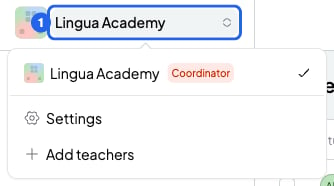
A coordinator's team switcher. The blue number is step 1.
Create your own space
If you’re only on teams you were invited to, you can create your own space for your own students.- At the top of the menu on the left, click the team’s name.
- Click Create my own space. SmartCookie reloads and takes you to your new space.
What you can’t do
- You can’t join with a different email from the invite’s. Instead, ask for an invite to your other email.
- You can’t join with a student account.
- You can’t have more than one space of your own.