
Before you start
- You need an active membership: you can’t invite during the free trial. See Free trial and SmartCookie membership.
Invite a teacher
- At the top of the menu on the left, click your space’s name (if you haven’t changed it, it’s your own name).
- Click Build your team. If you already have teachers, click Add teachers. The Grow your team card opens.
- Type the teacher’s email.
- Check below what you’ll pay once they join: “Your plan goes from… to…”.
- Click Send invite. You’ll see “Invite sent”.
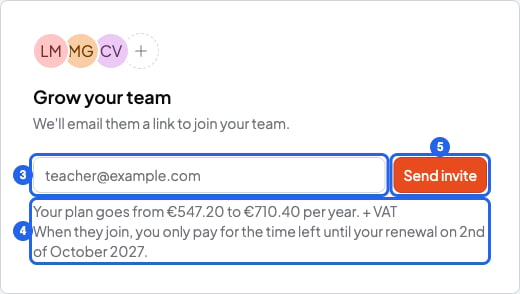
Inviting a teacher. The blue numbers are the steps.
When you pay for a new teacher
You pay when the teacher joins, not when you invite them. That day, you only pay for the time left until your next renewal. Pending invites don’t count. The price per teacher goes down as your team grows. You count as a teacher too. Prices in Free trial and SmartCookie membership.Manage pending invites
- Click your profile photo (or your initials) at the top right.
- Click Profile.
- In the menu on the left, under Your business, click Your team. Once your first teacher joins, it’s called Teachers.
- Click the Pending tab.
- On the invite’s row, click the three-dots button.
- Click Resend. You’ll see “Invite sent”: the teacher gets the email again and has 7 more days.
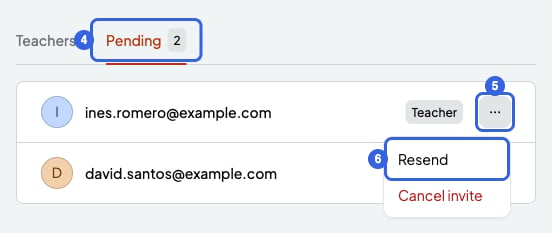
Pending invites. The blue numbers are the steps.
What you can’t do
- You can’t invite during the free trial. You’ll see “Subscribe to invite teachers”. Subscribe first.
- You can’t invite an email that already has a pending invite. Instead, use Resend.
- You can’t invite a student’s email.
- You can’t have more than 100 people on your team (you included) or more than 100 pending invites. If you need more, write to us.
- If you see “Your current plan covers one teacher”, you have an old plan, from before teams existed. Write to us: Contact support.