
See your past sessions
- In Courses, open the course.
- In the Sessions tab, click See previous sessions, at the top of the list. If the course has no upcoming sessions, the button is in the middle of the page.
- Up to 10 past sessions appear under the button, oldest first. The most recent one sits right above your upcoming sessions.
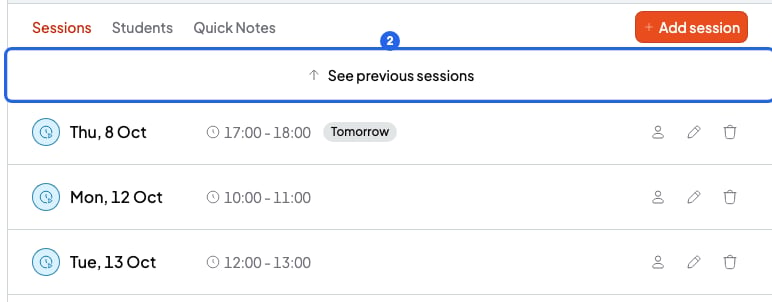
The button to see a course's past sessions
Load more upcoming sessions
The list starts with your next 10 sessions, soonest first. A session that is happening right now counts as upcoming. If the course has more upcoming sessions, click Load more, at the end of the list. Up to 10 more sessions are added.Move notes between past and upcoming sessions
Past and upcoming sessions are in the same list. So you can drag a note from a past session to an upcoming one, for example homework that is still pending. First load the past sessions with See previous sessions. Then click a session to open its notes. To move a note, read Session notes and quick notes. On a phone, you can’t drag notes.What you can’t do
- You can’t search for a session by date in this list. To go to a specific day, use the Calendar.
- You can’t see only the past sessions. They always show above the upcoming ones.