
Open the billing details
- In the menu on the left, click Students.
- Click the student’s row to open their profile.
- At the side of the profile, find the Billing details card, right under Personal details. It starts closed, so click its title to open it.
- Click the value next to Tax ID or next to Billing address. Both open the same side panel, titled “Billing details for” followed by the student’s name.
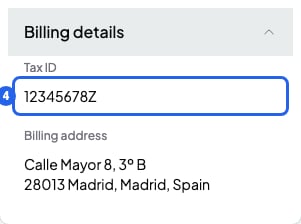
Billing details card on the student's profile
Add or change the tax ID and address
- In the Billing details card, click the value next to Tax ID or Billing address. A side panel opens titled “Billing details for” followed by the student’s name.
- If you like, type or change the Tax ID.
- Choose the Country. When you change it, the Province / State is emptied.
- Fill in the address fields you want: Address line 1, Address line 2, Postal code, City and Province / State. The list of provinces depends on the country.
- Click Save. The panel closes at once and the card shows the new details. If something fails, SmartCookie puts the old details back and shows an error message.
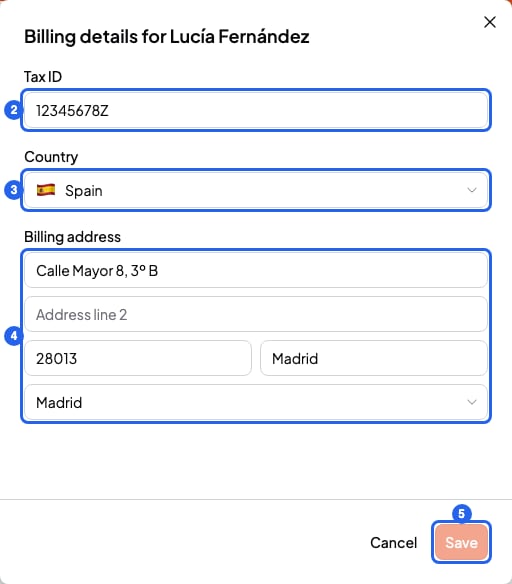
Panel to edit the billing details
Add them from a bill
You can also open this same panel while creating a bill:- In New bill, choose the student in To.
- Under the field you’ll see their tax ID and address. Click them to open the panel. If they’re empty, click Add tax ID and address.
What happens to bills you already created
Each bill keeps the student’s tax ID and address as they were when you created it. If you change them later, only new bills use the new details. What each bill shows is explained in Send a bill to a student.What you can’t do
- A bill is not a tax invoice. If the student needs one, make it separately.
- You can’t import the tax ID or address with the student list. Add them one by one in each student’s profile.