
Add your first student
- Open the Setup guide. It opens by itself when you finish the 4 sign-up questions and click Submit. To come back to it, use the Setup guide button in the top bar.
- In Student name, type their name (50 characters max). The course gets the same name.
- In Day, choose the day of the week, Monday to Sunday. It’s pre-filled with tomorrow’s weekday.
- In Time, type the time or pick it from the list. It’s pre-filled with 10:00am.
- Click Add to my calendar. You’ll see your Calendar with the new session.
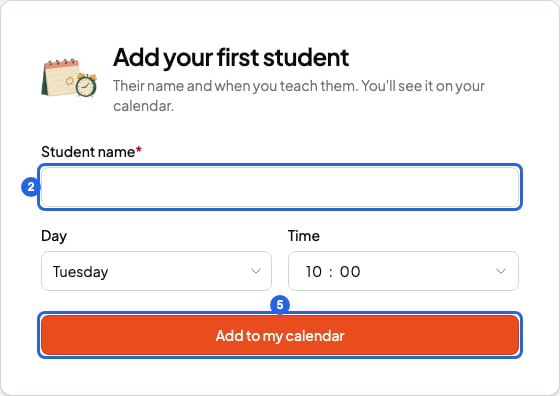
Setup guide card. The blue numbers are steps 2 and 5.
- A course named after the student, of type 1 to 1 lessons. It’s private.
- The student, with only a name.
- A 60-minute session that repeats every week, with no end date. It starts the next time that day and hour comes (if today is that day and the hour has passed, it starts next week).
What example your account comes with
When you finish the sign-up questions, SmartCookie adds an example so your calendar isn’t empty, if you don’t have any course yet.- By default: the course 1-on-1 class (example) with the student Lucía (example), and a 60-minute session every week, starting tomorrow at 6:00pm.
- If you signed up from a SmartCookie guide about academies: the group course Conversation group (example) with Lucía (example), Marco (example) and Sara (example).
- If you signed up from a guide about prices and getting paid: Lucía also has a pack, 10-class pack (10 sessions).
The example doesn’t count as your first session in the Setup guide.
Delete the example
- In the left menu, open Courses and go into the example course.
- At the top right, click the trash button (Delete course).
- In the window, click Delete course. The course and its sessions are deleted.
Your starting availability
When you finish the sign-up questions, your account gets availability from Monday to Friday, 9:00am to 5:00pm, if you had no availability saved yet. Saturday and Sunday have no hours. To change it, follow Set your availability.What you can’t do
- You can’t create a group course from this card: it always creates 1 to 1 lessons. For a group course, follow Create a course.
- You can’t change the duration or repetition from the card: the session always lasts 60 minutes and repeats every week. To change them, edit the session on the calendar with Edit or delete recurring sessions.
- You can’t bring the example back after you delete it.