
Add Zoom to SmartCookie
- Click your photo or initials, top right, and choose Profile.
- In the menu on the left of Profile, click Integrations. Look for the Calendar & video calls section.
- On the Zoom card, click Connect. Zoom opens its permission screen.
- Sign in to Zoom if asked and allow SmartCookie. You’ll come back to Integrations and the card will show the Disconnect button: you’re connected.
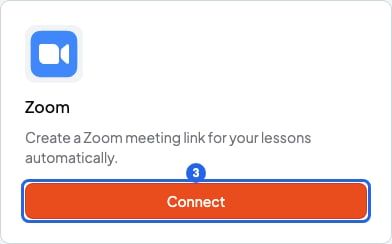
Zoom card in Integrations. The blue number is step 3.
Use Zoom in your sessions
In the session window (new session, or when editing one), below Does not repeat, there are two buttons: Google Meet and Zoom. Click Zoom and it gets marked. Choose only one: Google Meet, Zoom or none. If you click Zoom again, it’s unmarked. Only the course’s own teacher can add Zoom, from their own Zoom account.Add Zoom to a new session
- Open the new session window, as in Add a session.
- Choose the course, date and time.
- Click the Zoom button. The button is marked.
- Click Add session. In your calendar, the session shows the Zoom logo.
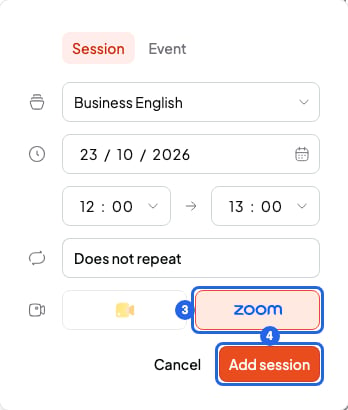
The Zoom button (step 3) and Add session (step 4)
Add or remove Zoom on a session you already have
- In Calendar, click the session.
- Click the pencil (Edit session).
- Click the Zoom button. If it was already marked, it’s unmarked and the link is removed.
- Click Save.
- If the session repeats, Edit recurring session opens: choose which sessions it affects and click Continue.
Repeating sessions
Each one-off session gets its own Zoom meeting. A weekly series shares one recurring Zoom meeting, reused every week. More in Edit or delete recurring sessions. The meeting is named after the course and uses your Zoom account’s default settings (waiting room, passcode, recording). SmartCookie doesn’t change those settings. The meeting has no fixed time in Zoom, so if you change the session’s time, the link stays the same.Booked sessions
For 1 to 1 lessons and Meetings 1 to 1: in the course, under Online booking, choose Zoom in Online meeting. Online bookings will get a Zoom link, included in the booking confirmation email. More in Booking rules: notice, cancellation and buffers. It only works while Zoom is connected. Bookings made while Zoom is disconnected get no link.Where the link shows
- You: click the session in the calendar. Join Zoom meeting opens the meeting and Copy link copies the link. It also shows on your dashboard’s next session card, with Join Zoom meeting.
- Your students with student portal access: in Classes, with the session’s Join button.
- Whoever books from your booking link: in the confirmation email and its calendar file (.ics).
- If you also connected Google Calendar: in the location of the Google Calendar event, so your students with email see it in the Google invite.
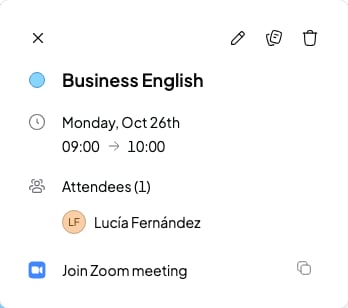
Session details with Join Zoom meeting and Copy link
If Zoom isn’t connected
The Zoom button is greyed out. If you hover over it, you’ll see Connect Zoom to enable. If you’re a team owner and you edit a session of another teacher’s course, the button is also greyed out, with the hint “The course’s teacher adds Zoom from their own Zoom account”.Remove Zoom
To remove Zoom from one session, unmark Zoom and save, or delete the session. The meeting is deleted from your Zoom account by a daily cleanup, so within 24 hours. To remove the whole connection, you have two ways. Both have the same effect.Disconnect Zoom in SmartCookie
- Click your photo or initials, top right, and choose Profile.
- Click Integrations.
- On the Zoom card, click Disconnect. You’ll see “Zoom disconnected”.
Uninstall SmartCookie from the Zoom App Marketplace
- Sign in at marketplace.zoom.us.
- Click Manage, then Added Apps.
- Find SmartCookie and click Remove.
What happens after
- Zoom links already on your sessions stay there: the meetings still exist in Zoom.
- You can’t add Zoom to new sessions until you connect again: the button is greyed out.
- To reconnect, click Connect on the Zoom card and allow SmartCookie on Zoom again.
- To ask SmartCookie to delete your data, Contact support.
What Zoom data SmartCookie uses
SmartCookie asks Zoom for only three permissions:user:read:user: identify your Zoom account when you connect.meeting:write:meeting: create the meetings.meeting:delete:meeting: delete them.
- It reads your Zoom user ID and the name and email of your Zoom account, only to link the account.
- It stores your Zoom user ID and the access tokens Zoom gives (encrypted). For each meeting it creates, it stores the meeting ID, join link and passcode, saved with the session so you and your students can join.
- It uses them only to create Zoom meetings for the sessions you choose and delete them when you remove Zoom or delete the session.
- It never sells them, and never uses them for advertising or to train AI models.
- Tokens are deleted when you disconnect or uninstall.
If something doesn’t work
- If you cancel on Zoom’s screen or something fails, you’re back on Integrations with “Something went wrong. Please try again.” Click Connect again.
- If the card shows Reconnect and Disconnect, with “Zoom access was lost. Reconnect to keep creating Zoom links.”, click Reconnect and allow SmartCookie on Zoom again.
- If the Zoom button is greyed out, connect Zoom or check that the session belongs to one of your courses.
- If a link doesn’t show yet, wait a few seconds: it’s being generated.
What you can’t do
- You can’t use Google Meet and Zoom on the same session.
- You can’t use your own Zoom link. SmartCookie always creates a new meeting.
- You can’t add Zoom to sessions you imported from Google Calendar.
- You can’t change the Zoom meeting’s settings from SmartCookie: change your defaults in Zoom.
- You can’t use a Zoom account that’s already connected to another SmartCookie account.
- You can’t add Zoom to a session of another teacher’s course.