
- This session: only the session you opened. If you add or remove Google Meet, it still changes for the whole series.
- This and following sessions: that session and every one after it. Earlier ones don’t change.
- All sessions: the whole series, including past sessions.
Edit a recurring session
- In Calendar, click the session.
- Click the pencil (Edit session).
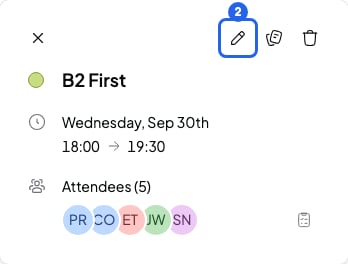
A session opened in the calendar
- Change the date, the time or the repeat rule. To change the rule, click the button that shows it, below the time: the Custom recurrence rule window opens.
- Click Save, in the session window. The Edit recurring session window opens.
- Choose which sessions the change affects.
- Click Continue. You’ll see the change in your calendar.
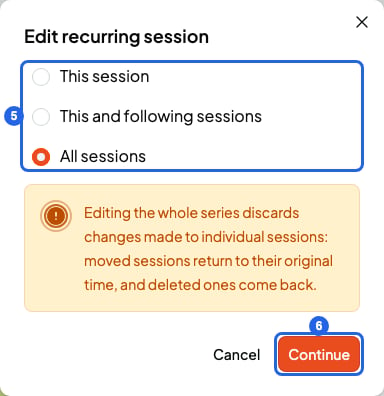
Window to choose which sessions the change affects
- If you change the repeat rule, This session doesn’t show.
- If you change the date, All sessions doesn’t show.
Delete a recurring session
- In Calendar, click the session. You can also do this from the course’s session list.
- Click the bin (Delete session). The Delete recurring session window opens.
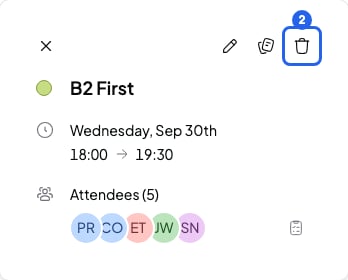
The bin, in a session opened in the calendar
- Choose which sessions to delete.
- Click Delete.
- This session: the session is cancelled, not deleted. It disappears from the calendar and stays crossed out in the course’s session list. SmartCookie keeps its notes and attendance.
- This and following sessions: that session and the following ones are deleted, with their notes.
- All sessions: the whole series is deleted, including past sessions and their notes.
Stop a session from repeating
To end a series and keep the past sessions, delete the first session you no longer want and choose This and following sessions.When the series reaches its end
A series has at most 52 sessions, and SmartCookie doesn’t extend it on its own or warn you when it ends. Check in your calendar when the last session is. Before that date, create a new session that repeats and starts after the last one: Repeat a session (recurring sessions).What you can’t do
- You can’t move the whole series by dragging it in the calendar. Dragging only moves that session. To move the series, edit it.
- SmartCookie doesn’t email your students when you change or delete a session. If you have Google Calendar connected, Google tells your students who have an email. If not, let them know yourself.