
Pick the period
- In the menu on the left, click Payments.
- At the top right, open the period picker, next to Summary. It shows the period picked, for example This month. Choose This month, Last month, This quarter or Last quarter. The totals change to the period you pick.
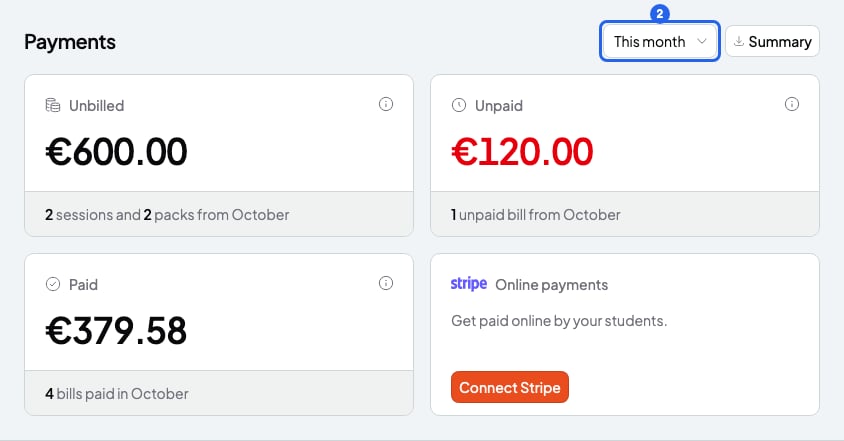
The totals on the Payments page
What each card counts
- Unbilled: the sessions and packs in the period that aren’t on any bill yet. A session counts on the day it takes place. A pack counts on the day it starts, or today if it has no start date. A course with a Per month price counts once a month, at its monthly price.
- Unpaid: the bills sent in the period that aren’t paid yet, Overdue ones included. Scheduled bills don’t count until the day they’re sent. An unpaid bill from an earlier period doesn’t show here: pick that period to see it.
- Paid: the bills paid in the period, by the day they were paid. It adds up the same as the payments summary PDF.
- The Stripe card doesn’t change with the period.
How paid compares
On Paid you see a percentage: how much more or less you got than in the period before.- If the period isn’t over yet, it’s compared with the same days of the period before. For example, if today is 7 October, This month is compared with 1 to 7 September.
- If you got nothing in the period before, the percentage doesn’t show.
- Unbilled and Unpaid aren’t compared with the period before.
What you can’t do
- You can’t pick other dates, only the 4 periods. For other dates, download a payments summary PDF.
- You can’t see only the period’s bills by clicking Unpaid or Paid. The list shows every bill with that status, from any date. To see the bills paid in the period, download a payments summary PDF.