
Before you start
- The student needs a pack in that course: Use session packs.
See how many sessions are left
In the course, open the Students tab. The Session pack column shows the pack’s name, the sessions used (for example, 2 / 10) and when it expires. If a student has no pack, you’ll see No packs assigned.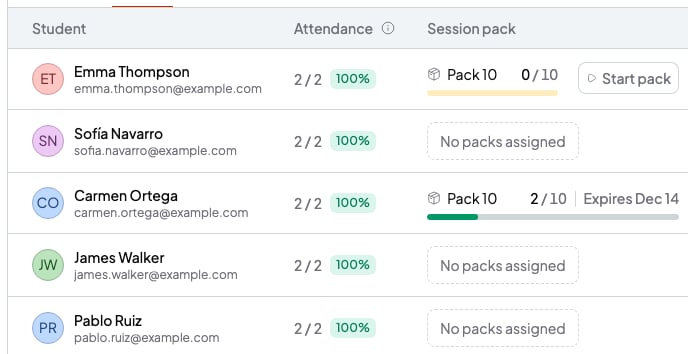
A course's packs, in the Students tab
How sessions are counted
- Every session of that course that has already happened counts, between the pack’s start and end dates.
- Canceled sessions don’t count, and neither do sessions you mark as Absent or Absent with notice.
- If you don’t mark attendance, the session counts as used. If your student misses a session, mark them Absent or Absent with notice so it doesn’t use up a pack session: Mark attendance for a session.
- The pack ends when all its sessions are used (Completed) or when its validity days run out (Expired).
Remove a pack
- In the course, open the Students tab.
- Click the three-dot button at the end of the student’s row.
- Choose Manage packs. You’ll see all the student’s packs in that course, including ones that have ended.
- Tick the pack you want to remove.
- Click Remove (1). The pack disappears from the student’s row.
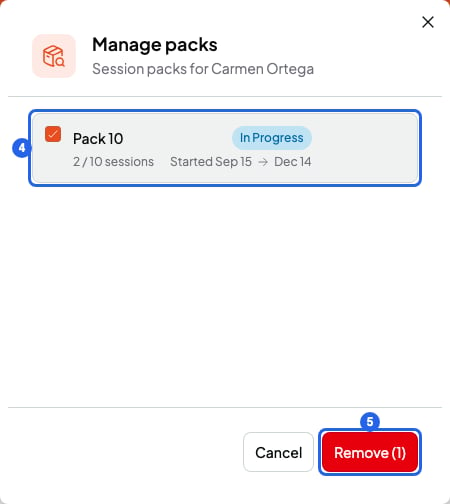
A student's packs in a course
If you gave a pack with the wrong price or sessions
The pack you already gave doesn’t change even if you edit the original pack. To fix it:- Remove the pack from the student, as in the section above.
- In the course, click Packs.
- On the pack’s card, click the three-dot button and choose Edit. Fix the details and click Update session pack.
- Give the pack again and start it: Use session packs.
What you can’t do
- You can’t change the start date of a pack you already started. Remove it and give it again.
- You can’t undo Remove. If you remove a pack by mistake, give it again and start it with the same start date.