
Before you start
- Fill in your billing details: Fill in your billing details.
- You must live and get paid in one of these 32 countries: Austria, Belgium, Bulgaria, Croatia, Cyprus, Czechia, Denmark, Estonia, Finland, France, Germany, Gibraltar, Greece, Hungary, Ireland, Italy, Latvia, Liechtenstein, Lithuania, Luxembourg, Malta, the Netherlands, Norway, Poland, Portugal, Romania, Slovakia, Slovenia, Spain, Sweden, Switzerland and the United Kingdom.
Connect your account
- At the top right, click your profile picture (or your initials).
- In that menu, click Payments (not the Payments page in the left menu). The Payment setup page opens.
- Under Online payments, click Connect Stripe.

Online payments in Payment setup, before connecting
- Read the Get paid online window: it explains how it works and what it costs. If your billing currency is going to change, it tells you too.
- Click Continue to Stripe. The Stripe website opens.
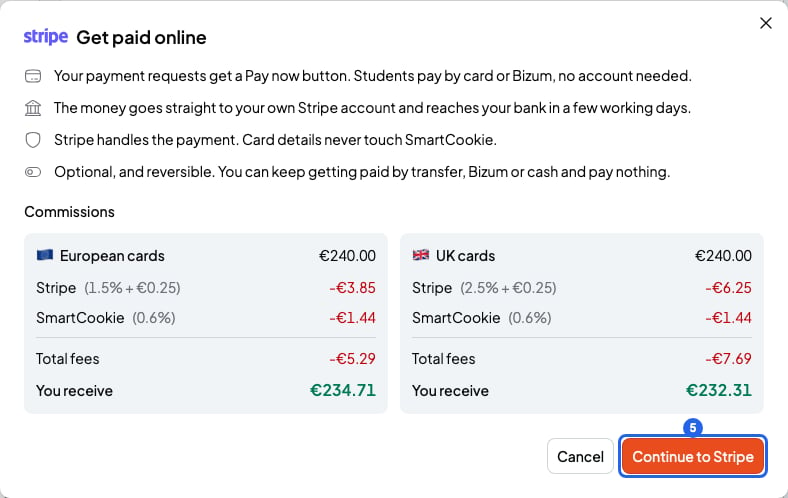
The Get paid online window
- In Stripe, fill in the details it asks for, like your personal details and your bank account. When you finish, Stripe sends you back to SmartCookie.
- Once Stripe approves your account, you’ll see Ready for card payments next to Online payments. All done!
What your students see
- Every bill shows the Pay now button. Students pay without creating an account.
- They can pay by card. If your Stripe account is in Spain, also with Bizum.
- They still see your IBAN and your other payment methods, in case they’d rather pay that way.
- When they pay with Pay now, the bill is marked Paid on its own.
Disconnect Stripe
- On the Payment setup page, under Online payments, click Disconnect Stripe.
- In the Disconnect Stripe? window, click Disconnect. You’ll see “Stripe disconnected” and the Stripe paused label.
What you can’t do
- You can’t connect Stripe if you live in another country. You can keep getting paid by bank transfer or with your own payment instructions.
- You can’t change your country or billing currency after connecting Stripe.
- Students can’t pay by direct debit with Pay now.