
Before you start
- Fill in your billing details: Fill in your billing details. If they’re missing, the window shows “Add your billing details” with the Add details button and no list of students.
- Your courses need a price: Create a course.
What gets billed
The whole month you pick is billed, including sessions later in the month that haven’t happened yet.- Courses billed by the hour: every session of the month where the student was Present or Absent (no-show), or where you didn’t mark attendance (unmarked counts as attended). Sessions marked Absent with notice and cancelled sessions are not billed.
- Monthly courses: the monthly fee, once per course, if the student has at least one session that month. It’s always the full month, never prorated.
- Group courses: each student in the group is billed for their own seat.
- Packs are never billed. To bill a pack, use New bill: Send a bill to a student.
- Only what isn’t billed yet is billed. Nothing is ever billed twice.
- Each student gets one bill covering all their courses.
- The bills use the VAT rate from your billing details. In a run you can’t add discounts, change VAT or add extra lines: for that, use Bill separately for that student.
Open Bill the month and review
- In the menu on the left, click Payments.
- Click Bill the month, next to New bill. On a phone you only see a calendar icon.
- Pick the month at the top: last month, this month or next month. It opens on the current month, in your time zone. If you change month, your ticks reset.
- Review the Students list on the left and tick or untick whoever you want.
- Click the button at the bottom right, Bill the N selected. The number and amount change as you tick (for example, Bill the 12 selected (€540.00)).
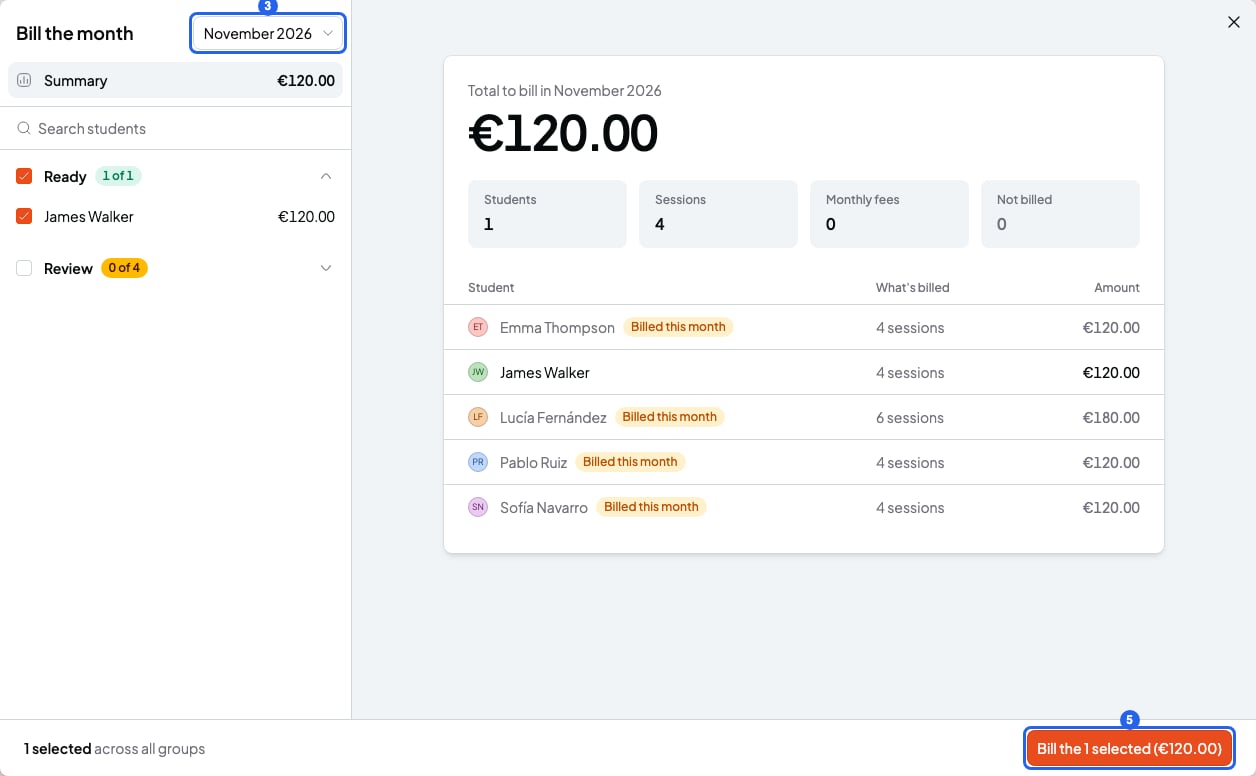
The Bill the month window with the month picked (3) and the run button (5)
Understand the three groups
The student list has three groups. Each header shows how many are ticked, like “X of Y”.- Ready: ticked, will be billed.
- Review: unticked, with the reason shown. Tick them to include them. They’re folded by default.
- Skipped: can’t be billed, and the reason is shown. They’re folded by default.
- Already has a bill this month: a bill you created by hand or with New bill. Bills from an earlier Bill the month run don’t count.
- Started or left a monthly course mid-month: full fee.
- Has a pack not started yet in a course billed by the hour: risk of charging the sessions twice.
- Some items were on a canceled bill: again, only bills not from a run count.
- Inactive student.
- Archived course.
- No price set: none of their sessions this month have a price. Set the course’s price and come back.
- Below the minimum amount: the total is under the minimum your payment provider accepts (see the table in Send a bill to a student). It stays unbilled for a later bill.
- More than 100 lines: a bill holds up to 100 lines. Use Bill separately to split it.
Preview a student’s bill
Click a student in the list to see their bill as it will look: the To block, the lines, the Subtotal, the VAT and the Total. Back to summary takes you back to the month’s summary.- The strip at the top of the bill is a checkbox. It reads Included in this run when ticked and Not included in this run when not. It’s the same as ticking the student in the list.
- You can untick single lines to leave them out of this run. They stay unbilled.
- For a student in Review or Skipped, the Bill separately button closes Bill the month and opens the normal form (New bill) with that student and that month. There you can add discounts, VAT or extra lines.
- “N no-shows”: missed without notice, billed anyway.
- “N classes with no price”: left out of this bill. Set the course’s price to bill them.
- No email: the bill can’t be emailed, so you share its link yourself. The Add email button lets you add the student’s email right there.
Send the month
- Click Bill the N selected. It bills every ticked student in all groups, not only the one you’re previewing. At the bottom left you see “N selected across all groups”.
- In the confirm window, choose the Issue date and the Due date, the same fields as a single bill.
- Confirm with the button in the window.
- It defaults to tomorrow. With a future date, the window says “Schedule N bills?”, the hint says “Students get it on 14th of November 2026.” and the button is Schedule 12 bills (the number changes with your selection). The bills are created as Scheduled and your students don’t see them until that day. SmartCookie sends them that day from 9:00am in your time zone.
- With Today, the window says “Create N bills?”, the hint says “Emailed now to every student with an email.” and the button is Send 12 bills (the number changes). They’re emailed straight away.
While it runs and if it stops
When you confirm, the window closes and a message at the bottom reads “Creating bills” with the progress, like “X of Y”.- If you close or reload the tab mid-run, the browser asks before leaving. Stay on Payments until it ends.
- If you leave anyway, open Bill the month again for that month: it only bills what’s left.
- When it’s done, you see “N bills created.” and, if you sent them today, “N emails sent”.
- If it stops, you see “The run stopped” with “X of Y already created. Retry to finish: nothing is billed twice.” Click Retry.
Undo a run
Right after the run, the result message has a Cancel this run button. It shows for about 10 seconds and cancels every bill of that run. Later, open Bill the month on that month. While that run still has scheduled bills, a card at the top shows “N bills scheduled” and “Go out on 14th of November 2026” (or “Going out from 12th of November 2026” if they go out on different days). It has two buttons:- View bills: shows that run’s bills in the bills list.
- Cancel run: cancels the bills from that month’s runs that are still scheduled.
Students without email
The bill is still created, but no email goes out. Share it yourself: open the bill, click the arrow next to Open request and choose Copy link. You can also add the email first, with Add email in the preview.Bill the same month again
Only what’s still unbilled is billed. A bill from an earlier run never sends a student to Review.- If everything is billed, you see “November 2026 is billed”.
- If the month has nothing, you see “Nothing to bill in November 2026”.
What you can’t do
- You can’t bill packs in a run. Use New bill.
- You can’t bill months older than last month or further than next month.
- You can’t add a discount, change VAT or add custom lines inside the run. Use Bill separately.
- You can’t bill a student in a run if their total is under the minimum or they have more than 100 lines.
- You can’t edit a bill after it’s created. Cancel it and create a new one: Mark a bill as paid or cancel it.